Articles · 2026-11-23
Part of: AI in Stratum Track
How to let your technician speak an answer
Typing on a tablet with gloves on is slow, so we often see a findings box that reads "seal worn, replace" and a supervisor who rings to ask which seal. With voice answers, your technician taps the microphone in a text box and says what they found, in any language. Stratum Track writes it in English and adds nothing to the box until the technician has read it and tapped Use this.
Setting it up takes about two minutes per workshop.
What you need
- A manager login to open Settings. Any technician working on the job can speak an answer.
- A form with a Text Input or Text Area field, or a dropdown with an Other option.
- Signal on the tablet or phone.
Step 1: Check voice answers are on for the workshop
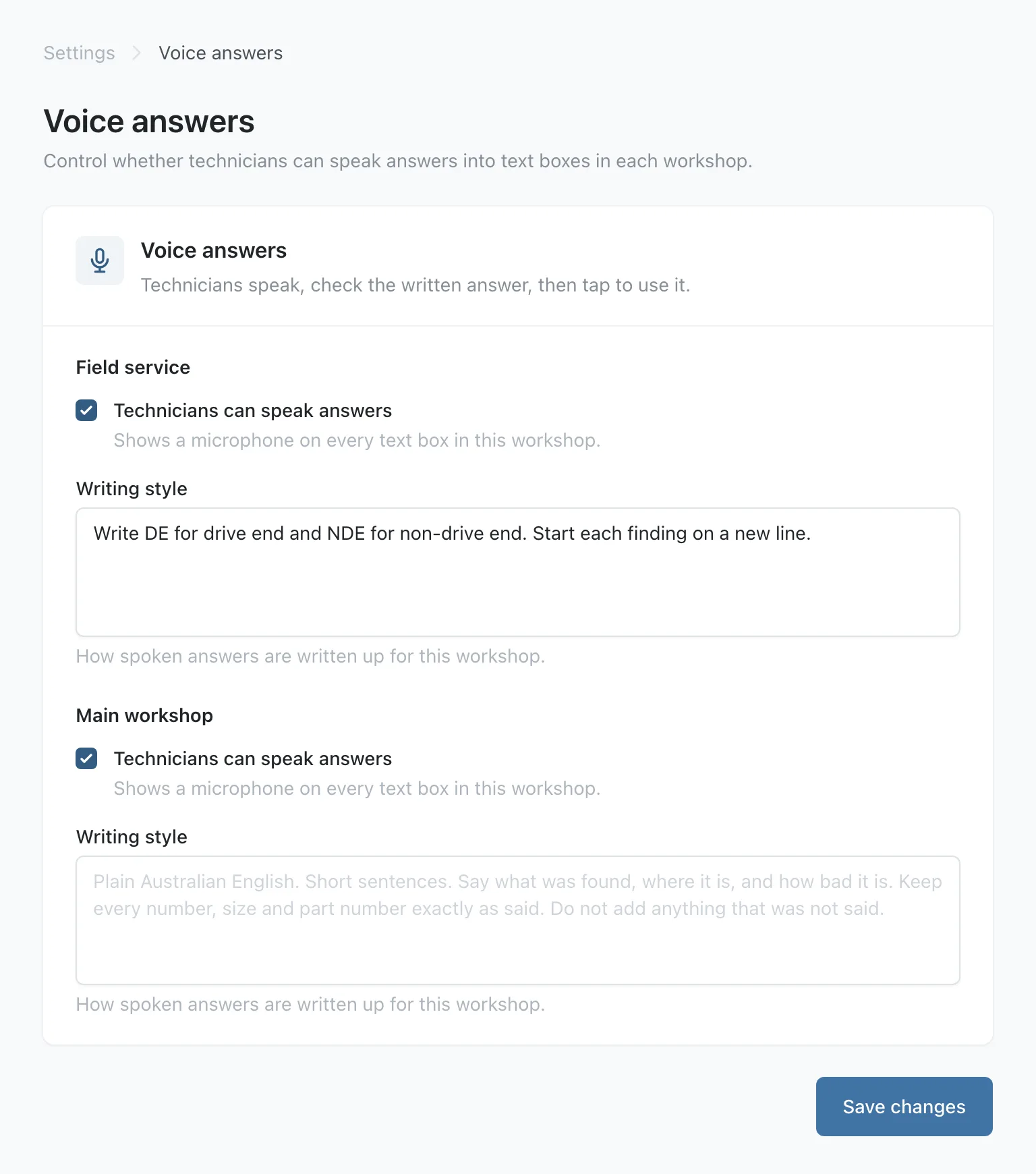
Go to Settings, then Voice Answers. Each workshop you can open has its own tick box, Technicians can speak answers, with the line "Shows a microphone on every text box in this workshop." Voice answers were released on 9 November 2026, and we switched them on the next day for every workshop that was active then. A workshop you add after that starts with it unticked.
Tick it for a new workshop, or untick it where you want typed answers only, then press Save changes.
Step 2: Set the writing style
Writing style sets how Stratum Track writes spoken answers for that workshop. When the box is empty, Stratum Track uses its default, which shows in grey: "Plain Australian English. Short sentences. Say what was found, where it is, and how bad it is. Keep every number, size and part number exactly as said. Do not add anything that was not said."
To change it, type your own writing style, up to 2,000 characters. Include your abbreviations and your layout, such as "Write DE for drive end and NDE for non-drive end. Start each finding on a new line." Whatever the style, Stratum Track is instructed to keep every number, size, unit and part number as the technician said it, and the technician checks the answer before using it.
Step 3: Speak the answer on the job
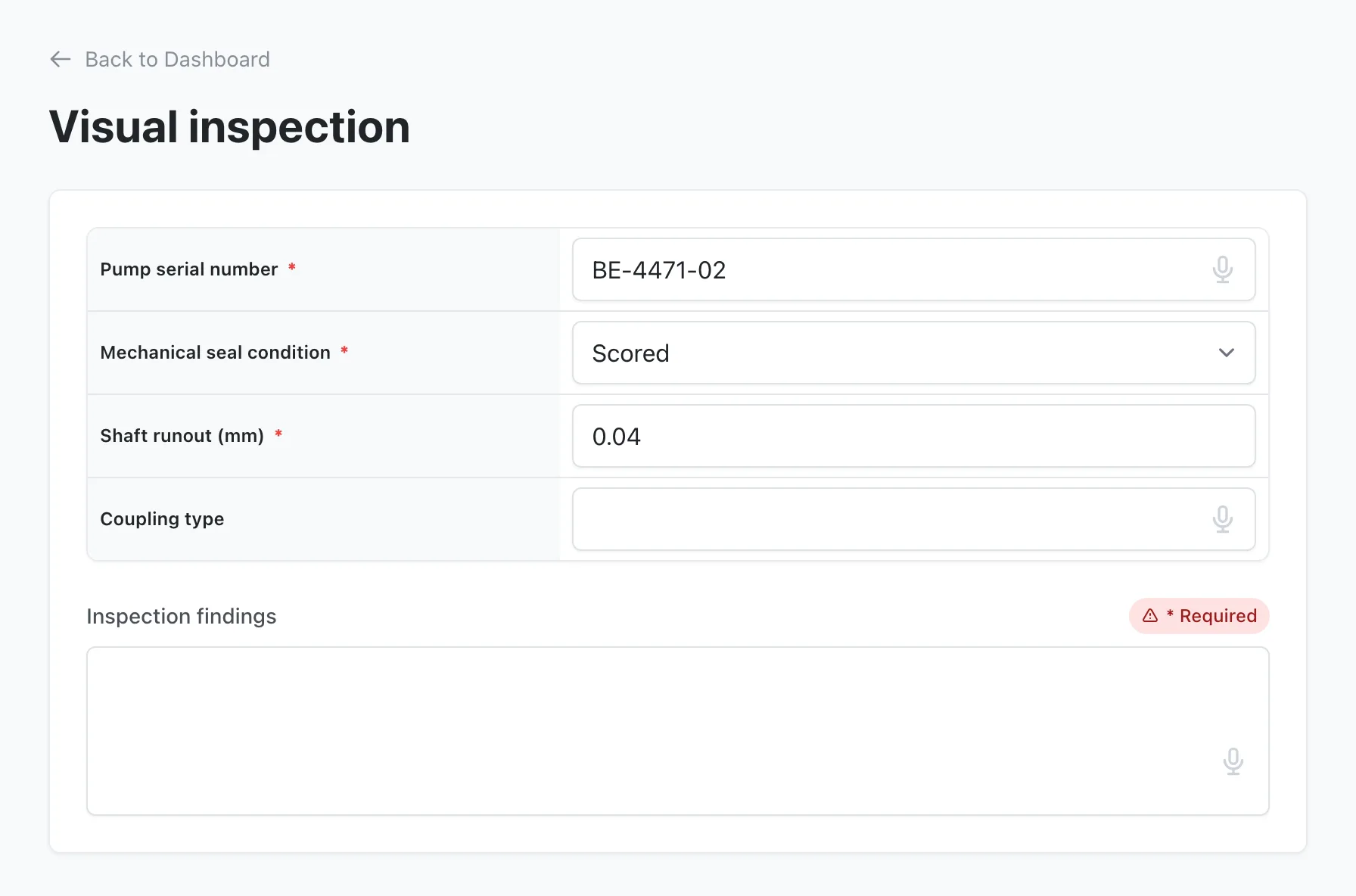
On a step, each text box has a grey microphone inside it, or under it when the box is a narrow table cell. The technician taps it and a sheet opens. The first time, the browser asks to use the microphone and the sheet reads "Tap Allow so the app can hear you."
The sheet shows Listening, a clock and five bars that light as the microphone hears the technician. The technician says what they found and taps Stop. A recording stops at two minutes and keeps what was said. It does not stop on a pause, so the technician can look at the part and continue. The recording is discarded if the screen locks or the technician switches to another app.
Step 4: Check the answer and use it
The sheet shows Check this answer, with the answer in English. If the technician spoke another language, their own words show under it, with a label such as "You said (Vietnamese):". If they spoke English, they tap Show what you said to read their own words.
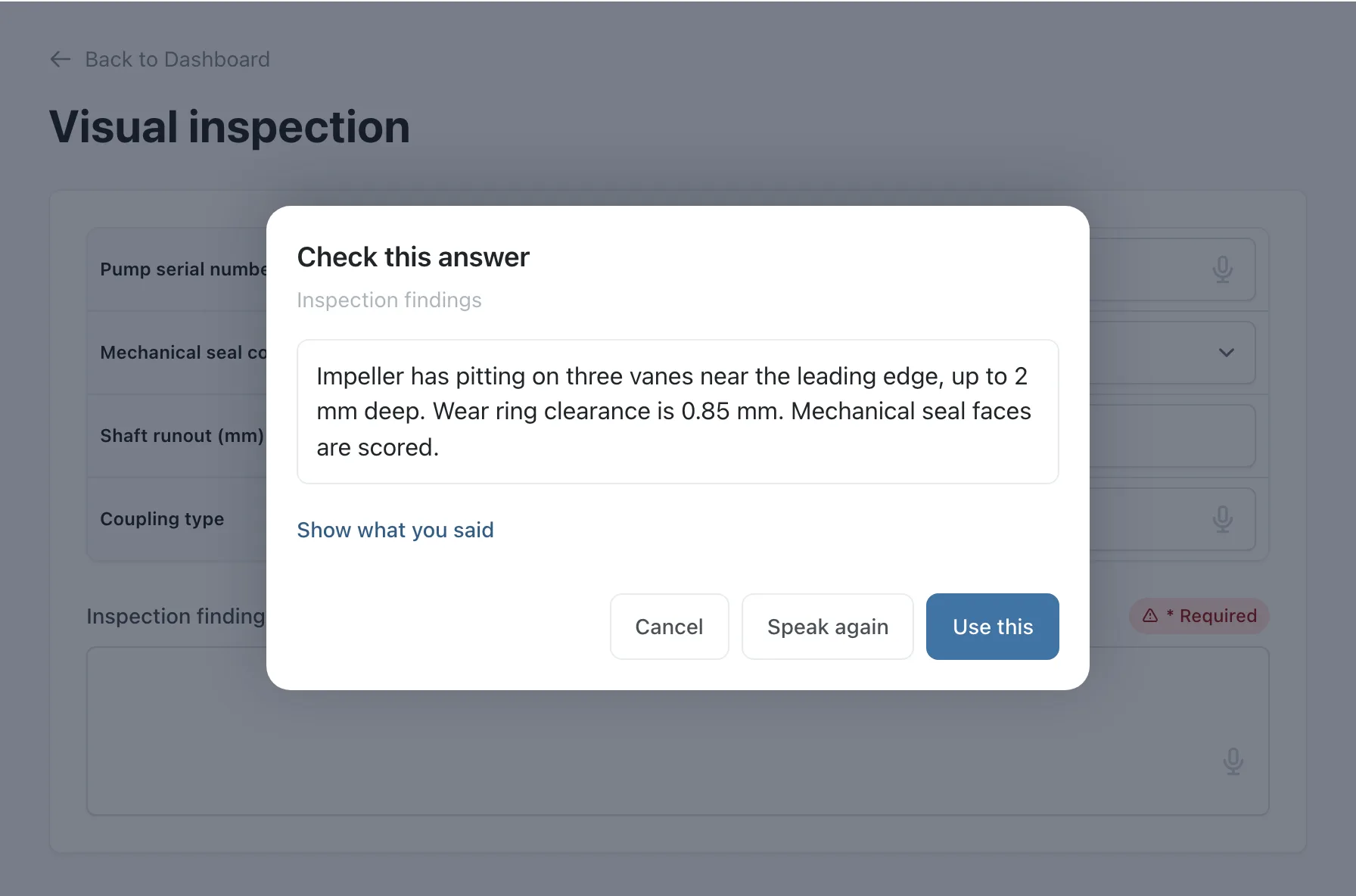
Use this enters the answer in the box. When the box already has an answer in it, the button reads Add to answer and the new words are added after it. Speak again records it again, and Cancel leaves the box as it was. Once the answer is in the box, the technician can edit it by typing, and it saves as their own answer.
Worth knowing
- Some boxes have no microphone. They are number, date and dropdown boxes, a box filled from a lookup table or the equipment register, a read-only box, a cell in a group shown as a Grid, and a box locked by an unsigned hold point.
- Spoken answers count towards your monthly AI usage quota. When you reach it, the sheet shows the date it resets and the technician types the answer.
- A voice answer needs signal. Without it, the technician types the answer.
Common questions
Can a technician speak in a language other than English?
Yes. The technician speaks in their own language and Stratum Track writes the answer in English, in Australian spelling. Before the answer is used, the sheet shows the English answer and, under it, what they said in their own language. If the English is wrong, they tap Speak again, or tap Cancel and type the answer. Your report prints the English answer that the technician accepted.
Can a manager see what the technician said?
Yes. Only a manager can. Once the answer is saved, a manager sees a history marker, a small clock, beside an answer that was spoken. Tapping it opens the Value history panel, which lists the technician's own words after the language they spoke, such as "Spoken in Vietnamese:" or "Spoken in English:", with their name and the time. The technician's own words do not print on the report. See Who changed the reading, and what did it say before? for what else the panel shows.
Does it work with no signal?
No. A voice answer needs signal. Offline working is off until a manager switches it on under Settings, Offline Access. With it on and no signal, tapping the microphone shows "Speaking an answer needs signal." and the technician types the answer. If signal drops after the technician has tapped Stop, the sheet shows No signal and "Your recording is still here. Try again when you have signal.", with Delete recording and Try again.
What happens in a loud workshop?
The five bars on the sheet show the technician whether the microphone hears them before they finish speaking. If nothing was heard, the sheet reads "We didn't catch that" and "Hold the device closer and speak again.", and the box is left as it was. If the answer has a wrong word, the technician sees it on Check this answer, where they can tap Speak again or use the answer and correct the word by typing.
Can the answer be changed after it is used?
Yes. The technician can edit it by typing, or tap the microphone again and choose Add to answer. A later change is recorded in the answer's history. Your report prints the answer that is in the box when the report is generated. Once a job is marked reviewed, a technician can no longer speak an answer on it or type one.