Stratum Track puts the daily pre-start on your operator's own phone. They scan the QR sticker on the plant, enter the hour meter or odometer, and tap OK or Fault on each check. Stratum Track puts each failed check on your mechanic's Faults list, tagged OK to use or Do not use. It also tells you which services are due by date, hours or kilometres, whichever comes first. We set it up from the pre-start sheet you use today.
Send us the pre-start sheet your operators fill in today, and a list of your plant.
We set up your plant types, their checks and their service intervals from it, in your words. You check them before anyone uses them.
Print a QR sticker for every piece of plant on A4 sticker paper, and put it in the cab.
Operators scan the sticker with the phone's own camera and do the pre-start. Nothing to install.
Stratum Track puts each fault on your mechanic's list and tells you which services are due by date, hours or kilometres.
Every screen below is Stratum Track, set up with an invented earthmoving fleet.
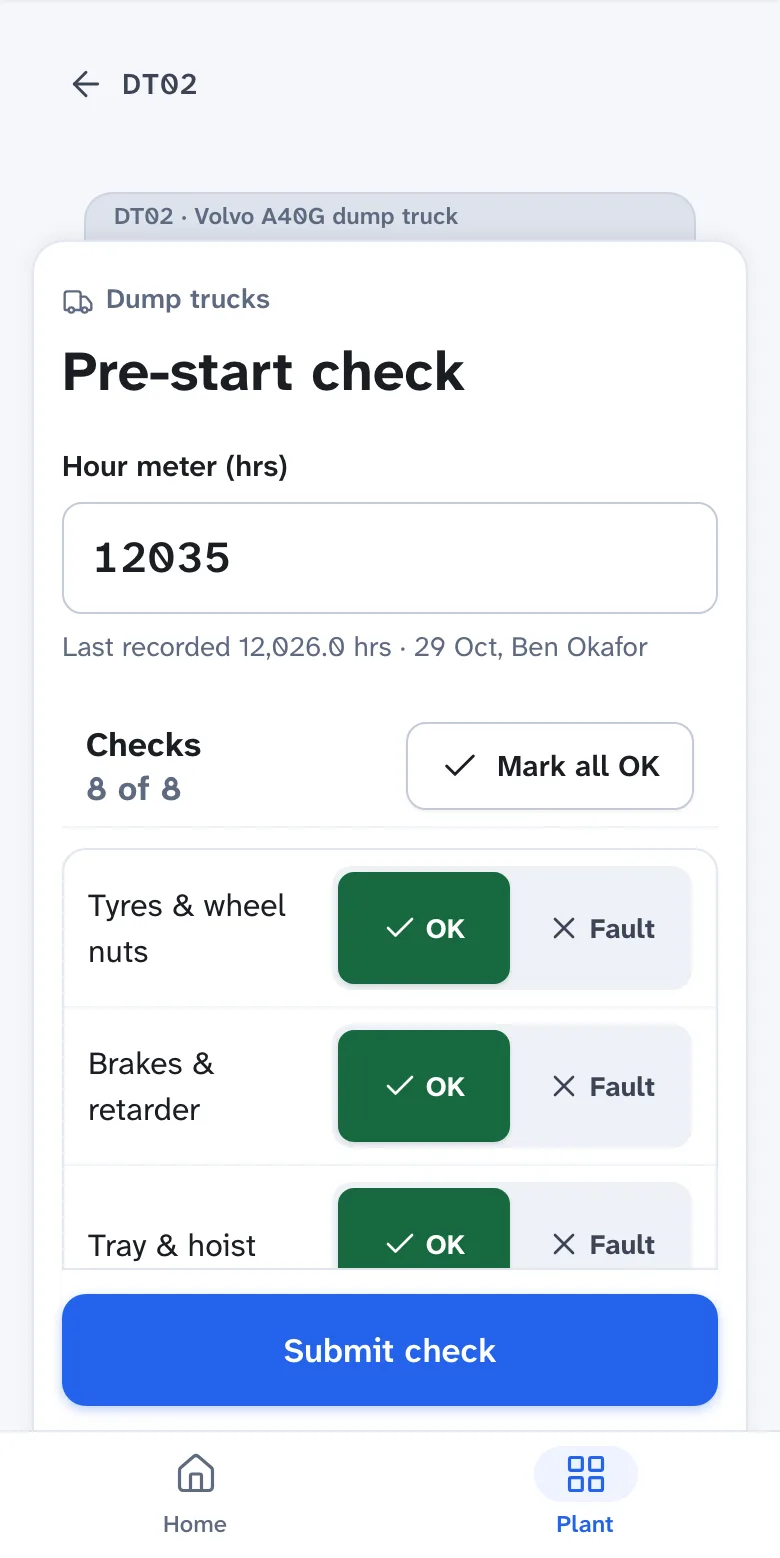
Your operator scans the QR sticker on the plant with the phone's own camera, types their employee number and PIN, and the page for that plant opens with Pre-start check as the main button. There is no app to install, and people who only do pre-starts need no email address.
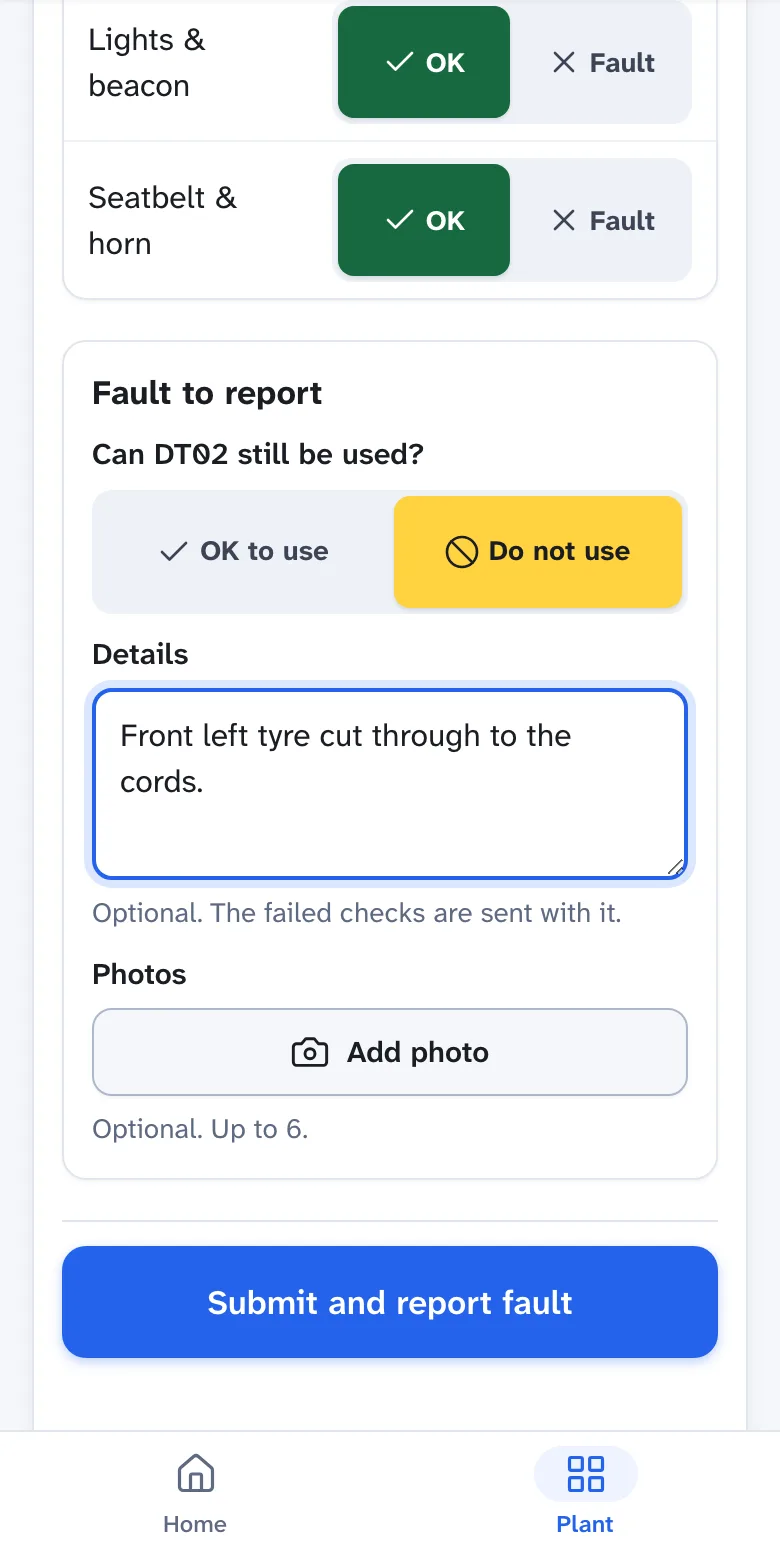
They enter the hour meter or odometer, then tap OK or Fault on each check, or Mark all OK. Stratum Track rejects a reading lower than the last one, so your service counts stay accurate.
When a check fails, Stratum Track asks the operator whether the plant can still be used: OK to use or Do not use. They add the details and up to six photos from the phone's camera, and one tap submits the check and reports the fault.
A Do not use fault puts a yellow Do not use tag on the plant's page, its pre-start screen and its log-on screen, so the next operator sees it before using the plant. An operator who finds a fault halfway through a shift reports it the same way, from Report fault.
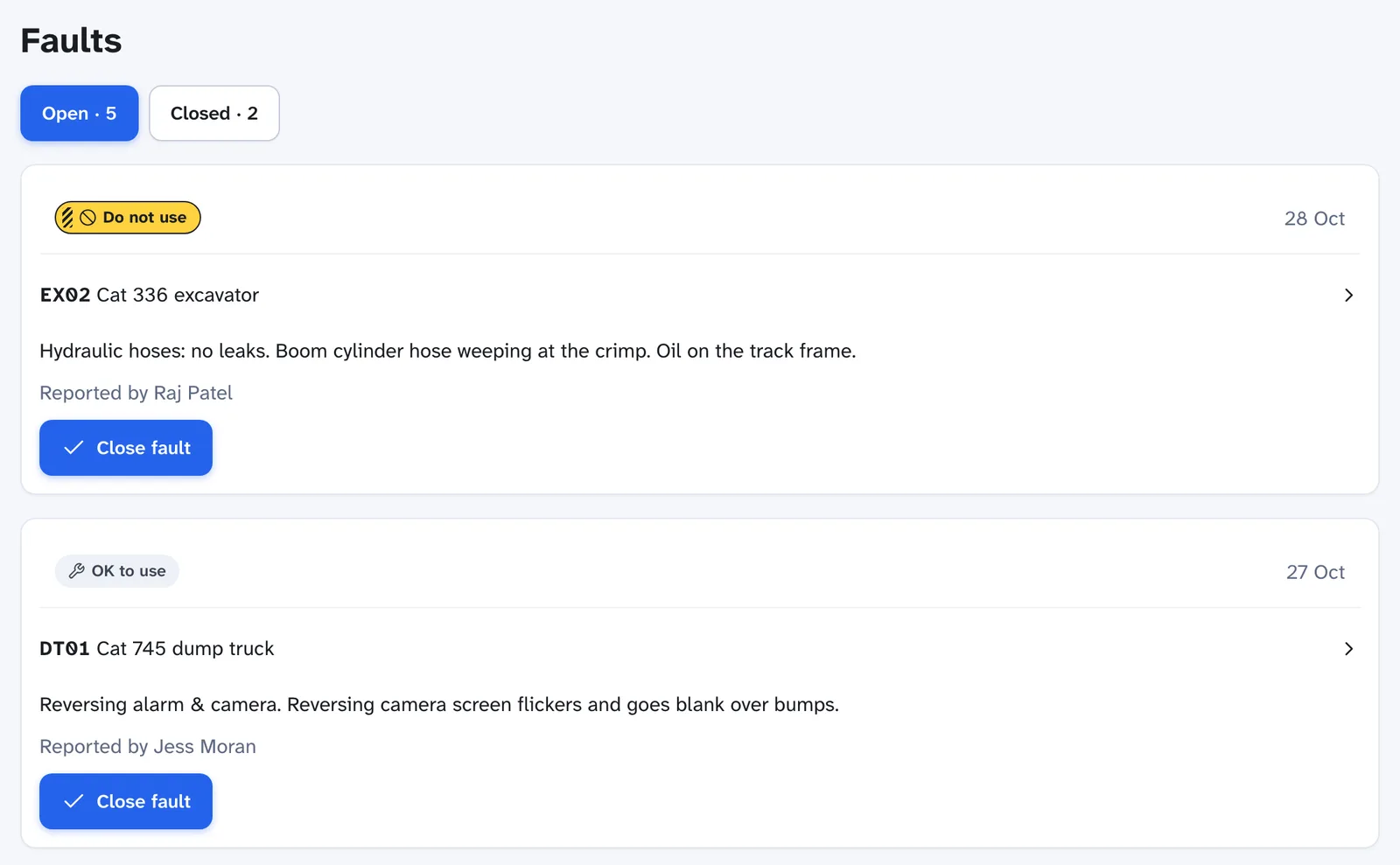
Stratum Track shows every open fault on one list, with Do not use faults at the top and the newest first under them. Each one names the plant, what the operator found and who reported it.
Your mechanic closes a fault as Fixed, with a note of what was done, or as Reported in error. Closed faults move to the Closed tab, so the repair stays on record against the plant.
Faults · Open
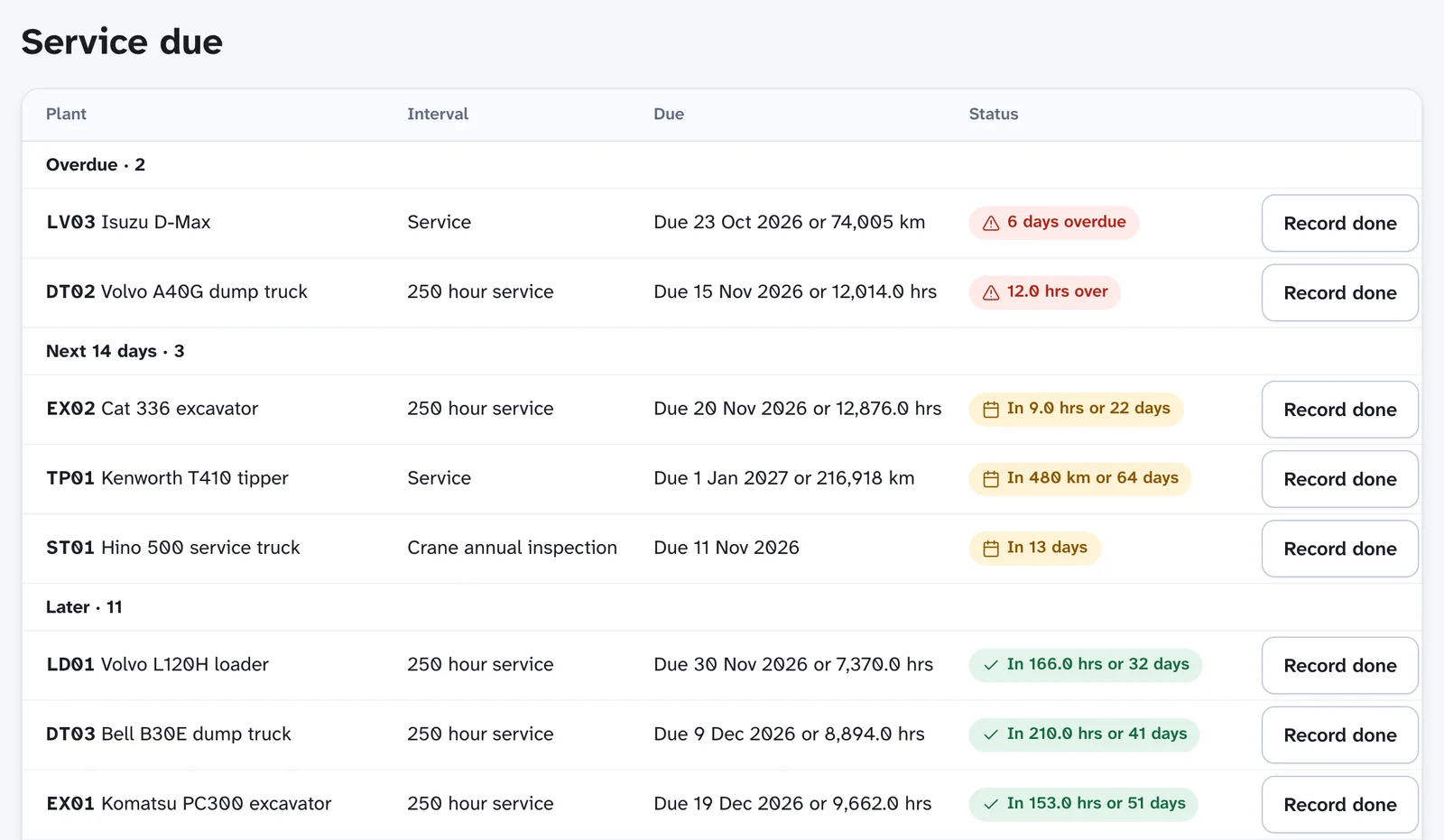
Give each piece of plant its service intervals, such as a 250 hour service every three months or an annual crane inspection. Stratum Track updates the count from every pre-start reading. Service due sorts them into Overdue, the next 14 days and Later, and you choose how many days ahead counts as due soon.
When the service is done, your mechanic taps Record done, enters the reading and a note, and Stratum Track counts the next service from that reading.
Service due
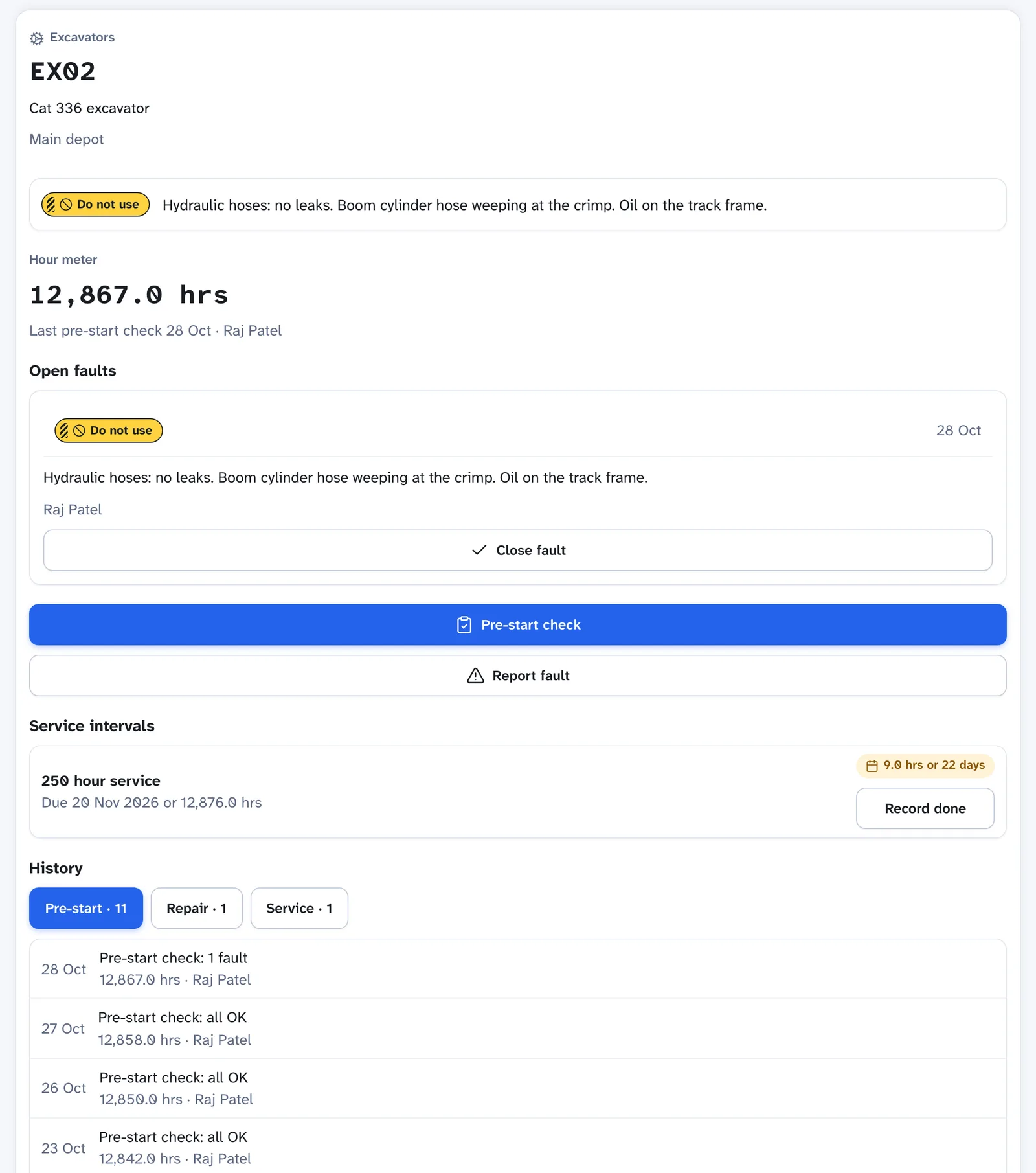
Open any piece of plant and your mechanics see its reading, its open faults, its service intervals and its recent history in three tabs: Pre-start, Repair and Service, each with the date and who did it.
Saved pre-starts, faults and service records cannot be edited. Removing a piece of plant keeps its pre-starts, faults and services on record, with the reason it was removed.
Plant · EX02
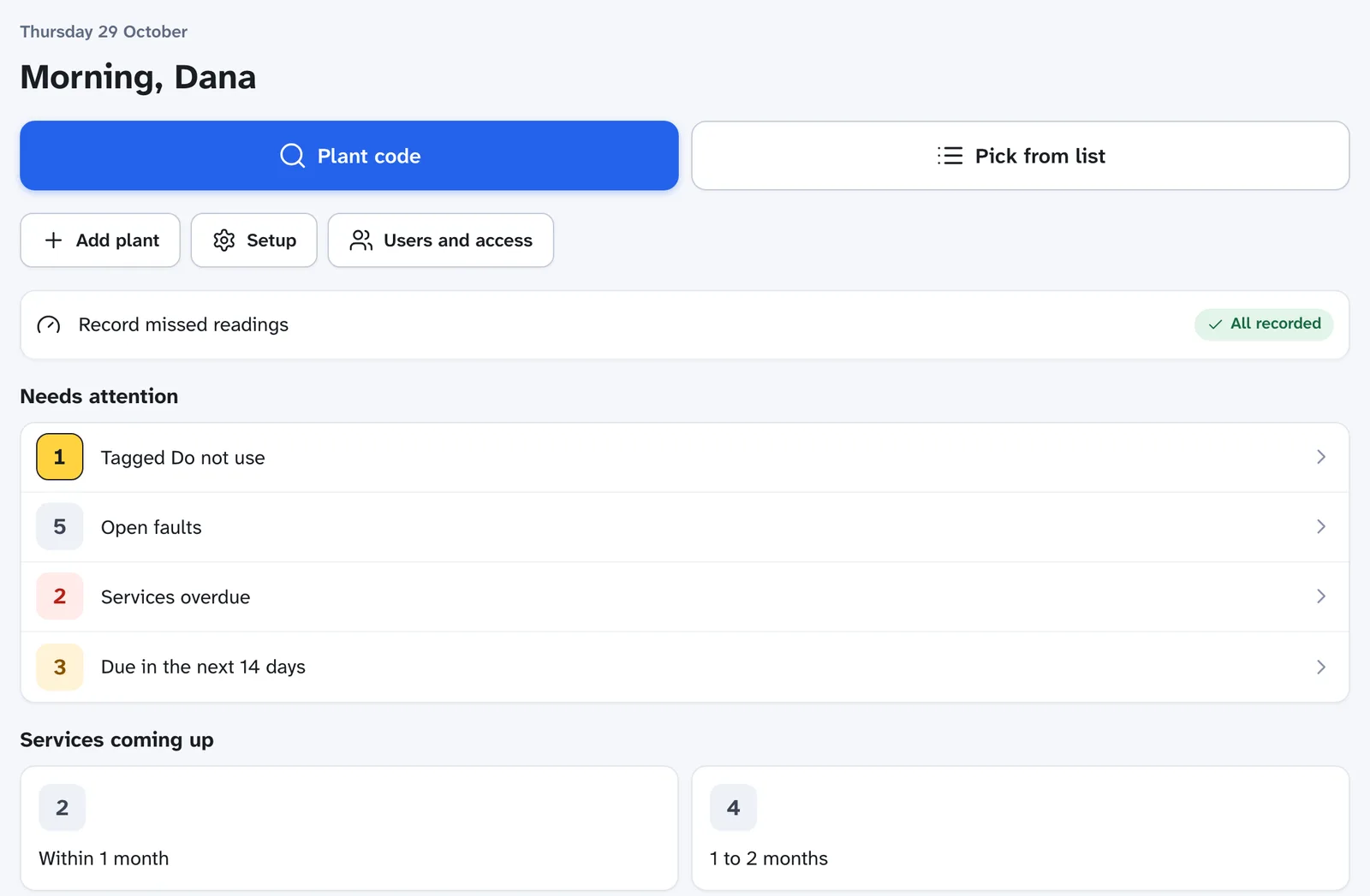
Home shows your mechanics and coordinators what needs doing: plant tagged Do not use, open faults, services overdue and services due in the next 14 days, each one tap from the list behind it.
Plant with no reading this month shows under Record missed readings, where you enter the missing meter readings on one screen, so each service falls due on its real hours or kilometres.
Home
A driver logs on to a vehicle with the odometer and the job or destination, and logs off with the reading at the end. Stratum Track asks for that day's pre-start before anyone logs on, unless you switch that off.
A coordinator can add, rename and reorder the checks for each plant type. Renaming a check never changes a pre-start already done.
Correct the reading and mark the meter as replaced. Stratum Track keeps the hours or kilometres left to each service, and logs the correction.
Print a new sticker for that piece of plant. The new code works straight away and the old sticker stops working.
Each person sees the screens their job needs. We assign the roles with you, and you can change them at any time from Users and access.
Does pre-starts, reports faults, and logs on and off vehicles. Sees Home and Plant only. Needs an employee number and a PIN they choose the first time, not an email address.
Closes faults, records services and readings, and sees every plant's history. This is your mechanic or your workshop lead.
Adds plant, plant types, checks and service intervals, prints stickers, sets how far ahead counts as due soon, and adds the people who use Maintenance only.
No. The phone's own camera reads the QR sticker and opens that piece of plant in the browser. They type their employee number and PIN, then tap Pre-start check.
No. People who only do pre-starts are set up with an employee number, and they choose a PIN the first time they scan a sticker.
Yes. We build your plant types and their checks from the pre-start sheet you send us, in your words, and your coordinator can change them at any time.
Yes. Maintenance & Fleet uses the same login and the same Users and access page as Stratum Track's QA & Inspection jobs, and you switch between Job Management and Maintenance from the top bar. Its plant register is kept separate from the asset register your inspection jobs use.
You do. Every pre-start, fault, service and reading is yours. If you ever want to leave, we hand it all back in a usable format.
We discuss pricing once we understand the operation and the size of the fleet. We don't publish prices on the public site because the right number depends on the operation.
Send us the pre-start sheet your operators use today. A photo of a page from the book is fine. We'll set up your plant types and checks from it, in your own words, then walk you through it.