Articles · 2026-11-23
Part of: Reports
How to keep a copy of every report you issue
When a client or an auditor asks for a report as it was first issued, we often see a manager searching sent emails, because generating the report again prints the job as it is today. With Keep each issued report ticked, Stratum Track keeps each report file as it was issued, and you download an earlier revision from Job Details. You can also name each file by its report number and revision.
Both settings take about two minutes, and nothing changes for your technicians.
What you need
- A manager login. Only a manager can open Report Numbering and Report File Names.
- Report numbering switched on. If your reports have no number yet, save a Report number prefix first, as How to number your reports and record every revision shows.
Step 1: Choose Rev or Issue wording, and tick Keep each issued report
Go to Settings and, under Job Defaults, open Report Numbering. Revision wording and Keep each issued report appear once a prefix or a number pattern is saved.
Revision wording offers Rev 0, Rev 1 and Issue 1, Issue 2. Rev is the default and counts from 0. Issue counts from 1, so the first report of a reviewed job prints Issue 1. Your report document prints the wording you choose where it prints the revision, and Job Details lists each revision in the same words.
Choose the wording before you mark your first job reviewed. After the first revision is issued the page reads "Your company has issued reports with this wording, so it stays as it is. Contact support to change it."
Tick Keep each issued report and press Save changes.
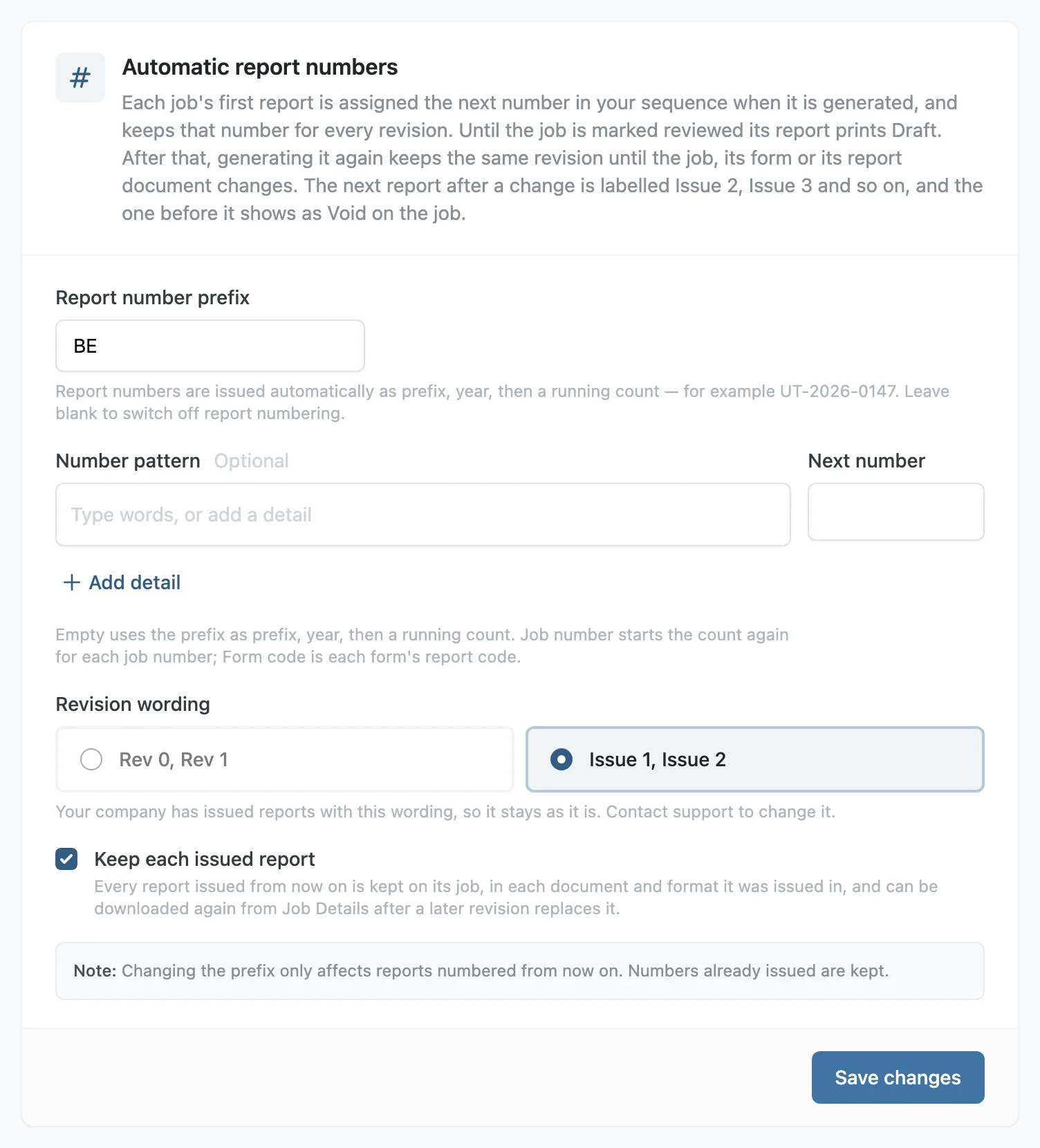
From then on, Stratum Track keeps each file as it is issued, whether it is a Word document, a PDF or an Excel workbook. If a job has two report documents and you generate both as Word and as PDF, it keeps four files for that revision. A report that prints Draft is not kept, because no revision is issued until a manager marks the job reviewed.
Step 2: Download an earlier revision from Job Details
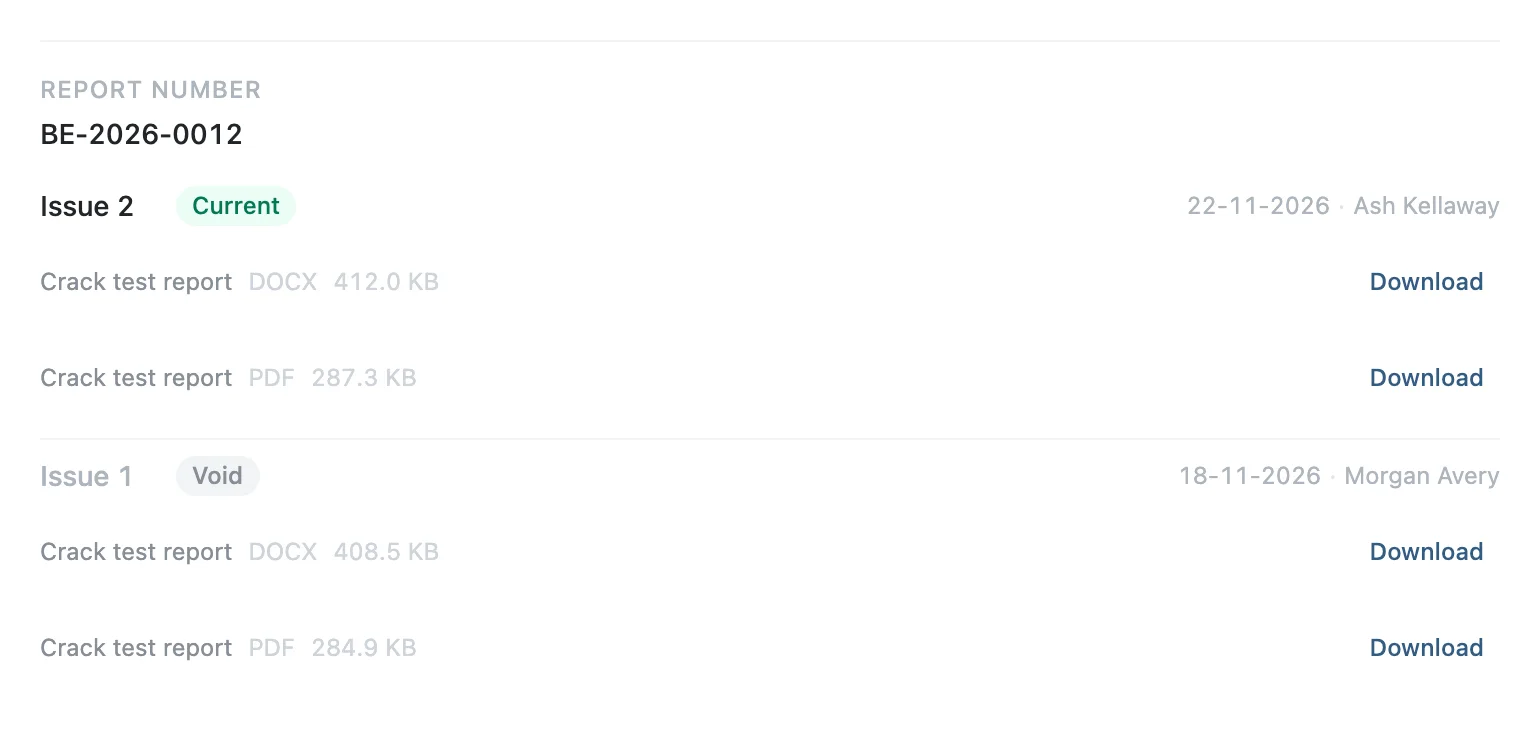
On the dashboard, open the job's Actions menu and choose View Details. Under Report Number, Job Details lists each revision with its date and the person who generated it, the newest marked Current and every earlier one Void. A revision an automation issued shows its date alone. Under each revision are the files kept for it, with the document name, the format and the size. Press Download beside a file to get the copy that was issued, under the file name it was issued with.
Step 3: Name each file by its report number and revision
Return to Settings and, under Job Defaults, open Report File Names. Choose Report number and revision and press Save changes. Each style on the page shows an example file name, and this one follows your wording: UT-2026-0147 Rev 0.docx, or UT-2026-0147 Issue 1.docx with Issue wording.
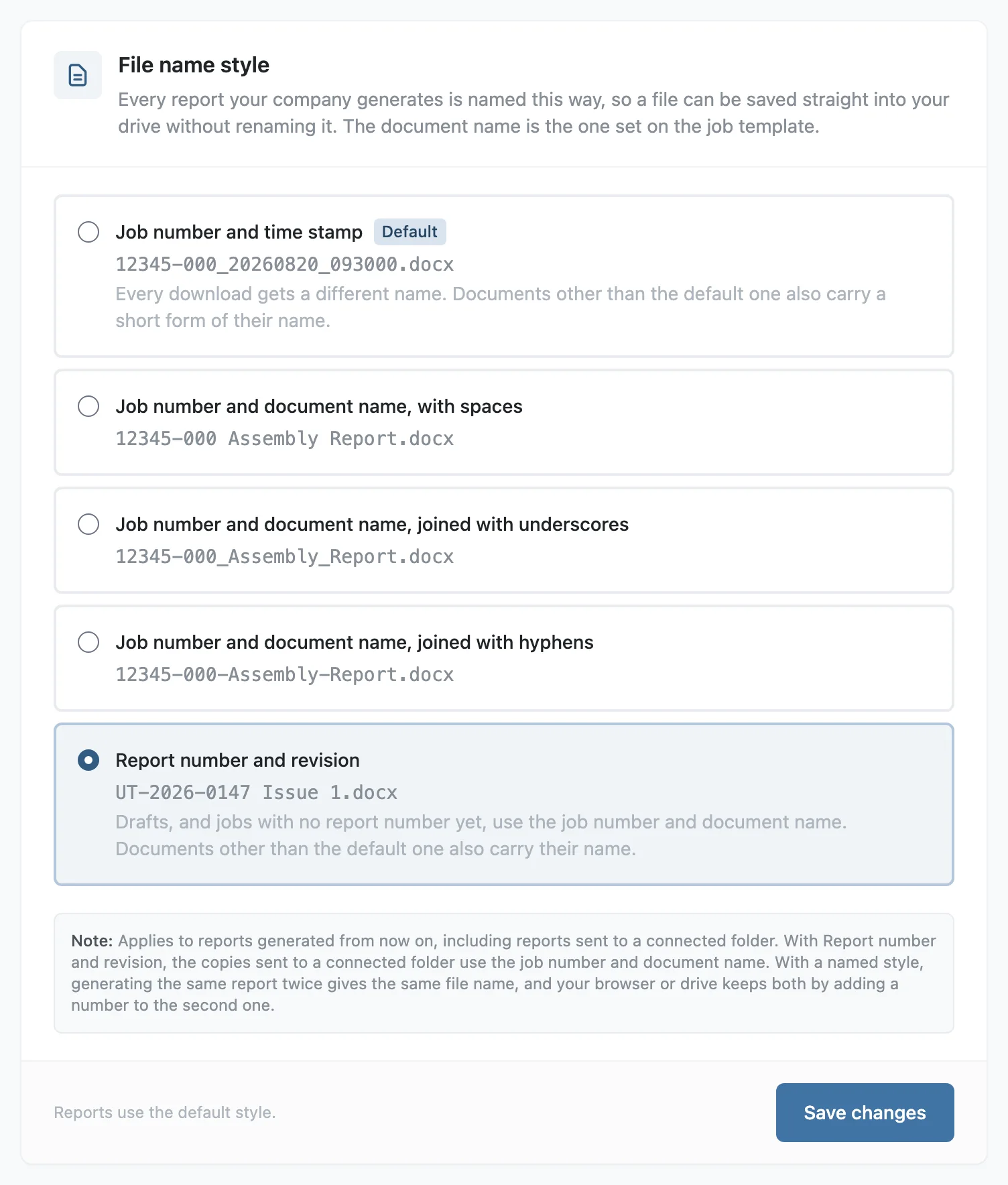
The style applies to reports generated from then on. A report document other than the form's default adds its own name after the revision, such as UT-2026-0147 Issue 1 Test Certificate.docx.
Worth knowing
- Reports issued before you ticked the box are not kept. Generate the current revision again and Stratum Track keeps it. Earlier revisions stay on the list with their date and issuer, and have no files.
- Draft file names. With Report number and revision chosen, the file of a Draft, or of a job with no report number yet, is named by the job number and the document name, such as 12345-000 Assembly Report.docx.
- Copies sent to a connected folder. If we have switched on automations for your company and one sends your reviewed jobs to SharePoint or OneDrive, those copies are named by the job number, the document name and the review count, such as 12345-000 Assembly Report r1.docx.
Common questions
Which files does Stratum Track keep?
Stratum Track keeps one copy for each revision, report document and format. When you generate Issue 1 of a report as Word, it keeps the Word file. When you generate the same revision as a PDF later, it keeps the PDF as well. Generating the same revision in the same format again keeps nothing new, because that file is already on the job. An Excel workbook report is kept as the workbook. Where we have switched them on for your company, a PDF that an automation sends to a connected folder is kept, and so is a PDF you publish to a client through the client portal.
Who can download an earlier revision?
Anyone who can generate reports can download a kept file: a manager, or a person with the View Only role. A technician opening Job Details sees the list of revisions, with each date and issuer, and no files or Download links. A file issued after you chose Report number and revision downloads under a name such as BE-2026-0012 Issue 1.pdf. A file issued before that keeps the name it was issued with.
Why is my report file still named by its job number?
The job has not been marked reviewed, or it has no report number yet. A report generated before review prints Draft and has no revision, so the file is named by the job number and the document name. Mark the job reviewed and generate the report again. The file is then named by its report number and its revision.
Can I change from Rev to Issue after reports have been issued?
No. Once your company has issued a report, Revision wording is locked on Report Numbering, and the page says to contact support to change it. Job Details lists every revision of every job in the wording your company uses now, and a kept file stays under the name it was issued with. If you are setting up numbering for the first time, choose the wording before you mark the first job reviewed.
Does keeping each revision meet the ISO/IEC 17025 rule on amended reports?
No, not by itself. Stratum Track certifies nothing and holds no accreditation of its own: your report, your accreditation, your controlled document. Stratum Track keeps each issued file on the job with its report number, revision, date and the person who generated it, and Job Details marks each earlier revision Void. The kept file is not changed, so an earlier file does not say Void. If your procedure requires an amended report to state what changed and why, add a field for the reason and print it on your report document.