Articles · 2026-10-08
How to number your reports and record every revision
In shops that type their reports in Word, we often see a corrected report sent under the same number as the first, or a draft reach the client before anyone has checked it. The client then holds two reports that disagree, and an auditor will ask which one counts. Stratum Track gives every job a report number from your own sequence, prints Draft until a manager marks the job reviewed, and issues a new revision only when the job, its form or its report document has changed. Job Details lists each revision with its date and the person who issued it.
Setting it up takes about two minutes in Settings, plus two references in your report document.
What you need
- A manager login. Only a manager can open Report Numbering and press Mark as Reviewed.
- A report document you can edit. Step 2 adds the number and the revision to it.
Step 1: Set your report number prefix
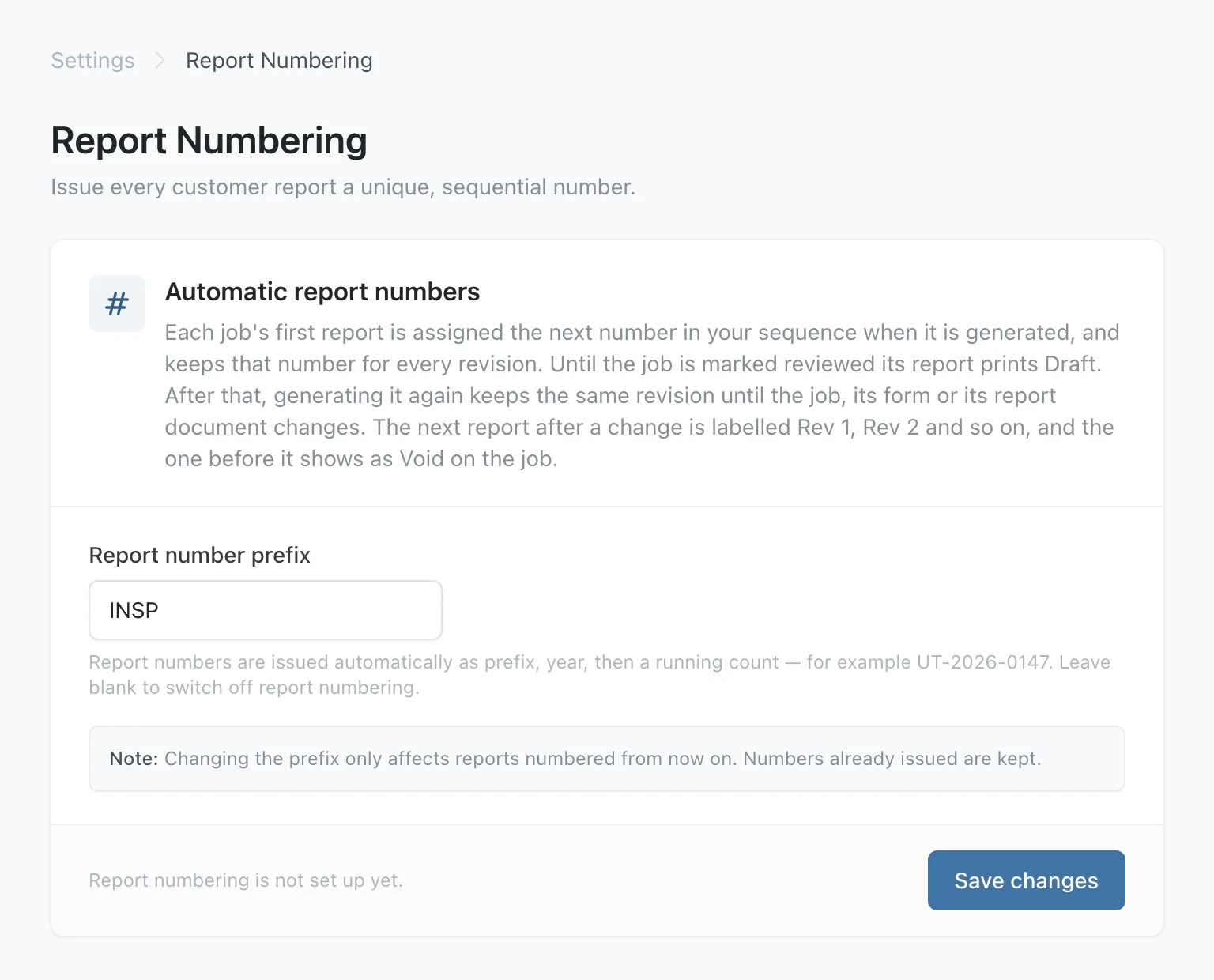
Go to Settings and, under Job Defaults, open Report Numbering. Type a Report number prefix, such as UT or INSP, and press Save changes. The prefix takes letters and numbers only, up to 12 characters.
From then on, Stratum Track gives every job in your company a number the first time its report is generated. The number is the prefix, the year and a running count, such as INSP-2026-0213. There is one sequence for the whole company, and the count starts again at 0001 each year.
Step 2: Print the number and the revision on your report
Your report document prints them with two references:
{{ job.report_number }}prints the report number, such as INSP-2026-0213.{{ job.report_revision_label }}prints Draft until the job is reviewed, then the revision, such as Rev 0.
Put them where your report shows its number and revision today, then upload the document again. If you would rather we did it, send us the document and we will add them for you.
Step 3: Generate the report before the job is reviewed
On the dashboard, open the job's Actions menu and choose View Details. Press Generate report at the top of Job Details.
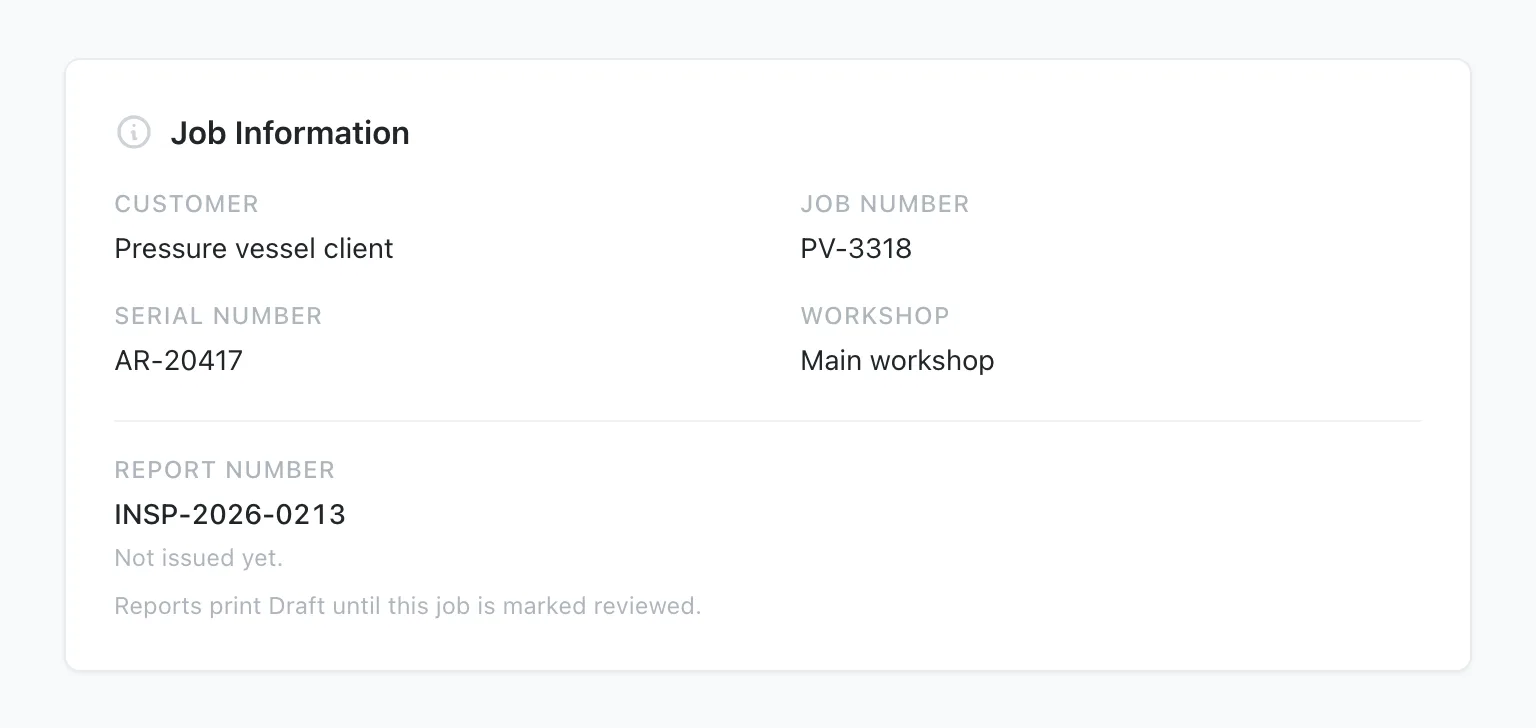
Stratum Track issues the job its number when its first report is generated, so this report prints INSP-2026-0213 and Draft. Under Job Information, Job Details now shows Report Number INSP-2026-0213, with Not issued yet. beneath it and Reports print Draft until this job is marked reviewed. Generate the draft as often as you like while you check it. No revision is issued until the job is reviewed.
Step 4: Mark the job as reviewed
Once every step is complete, the foot of Job Details reads All steps complete. Check the job, press Mark as Reviewed and confirm in the dialog. The dialog may also ask which manager should quote the job, which you can skip.

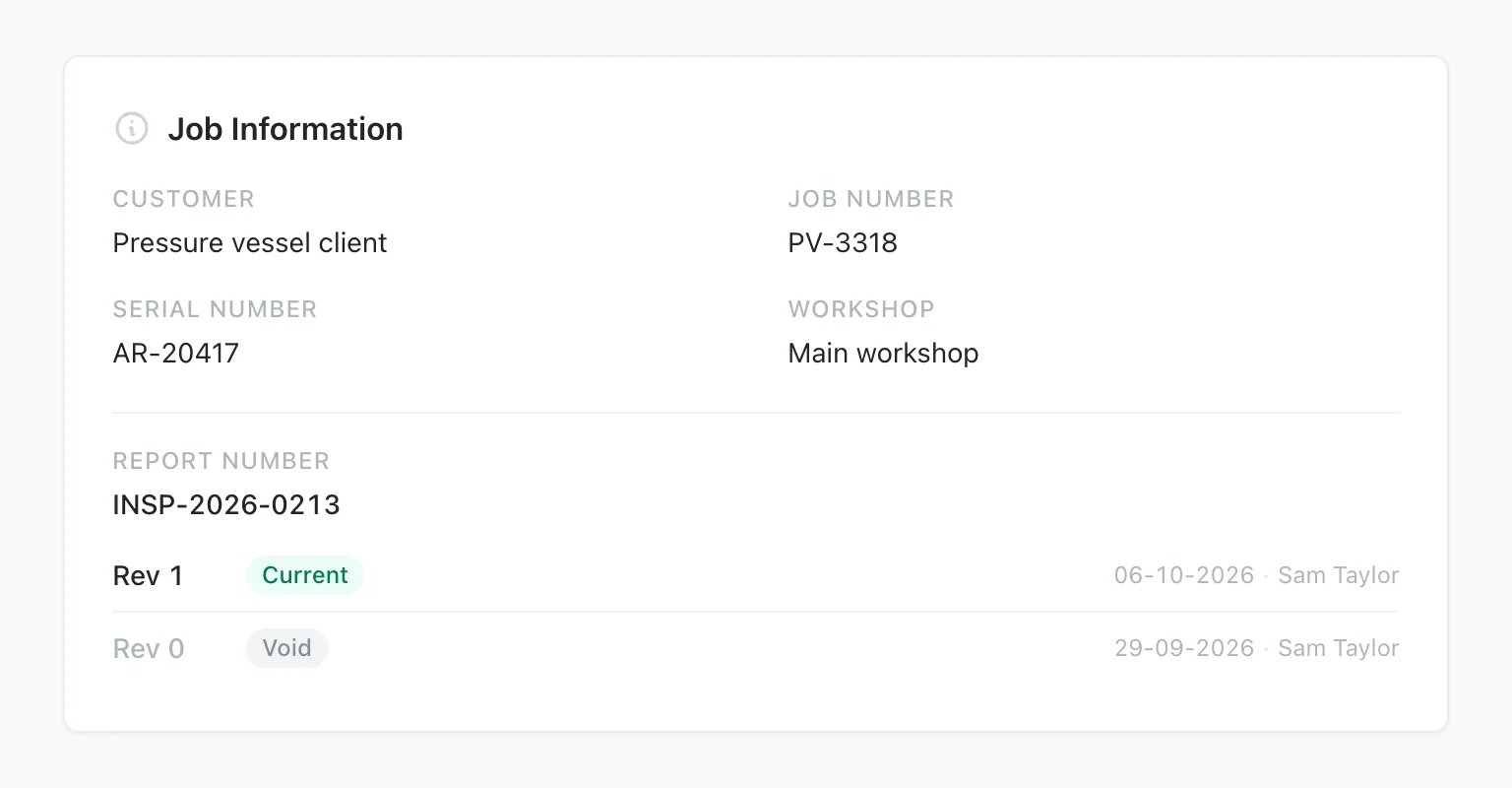
Generate the report again. It prints Rev 0, and Job Details lists Rev 0 as Current, with the date and your name.
Step 5: Generate the report again after a change
Generating the report again with nothing changed prints the same revision. The next report after a change prints the next revision. These changes count:
- An answer, a photo, a signature or a hold point sign-off on the job.
- A detail of the job, such as the customer, the serial number or the assigned engineer.
- A manager's change to the form or its report document that the report can print.
- The name or a certification of a person the report names.
Job Details marks the new revision Current and every earlier one Void.
Worth knowing
- Keep the copy you send the client. Stratum Track records each revision's number, date and issuer, and generating the report again prints the job as it stands now.
- A draft takes a number. The job keeps the number its first report issued, reviewed or not, so a job that never reaches review leaves a gap in your sequence.
- A change to the form counts for every job on it. After a manager changes something on the form or its report document that a report prints, the next report of every reviewed job on that form is a new revision. Ticking Required on a question does not count, because the report never prints it.
Common questions
What happens to the revision if I undo the review?
Press Undo Review on Job Details and the job's reports print Draft again, still carrying the report number. The revisions already issued stay on the list on Job Details. When a manager marks the job reviewed again, the next report prints the same revision if nothing has changed. If something has changed, it prints the next revision. That includes a different manager doing the review, because the report can print the reviewer's name.
Why did a report print a new revision when nobody changed the job?
Something the report can print changed outside the job. Usually a manager edited the form or uploaded a new report document, which makes the next report of every reviewed job on that form a new revision. A change to a person the report names, such as their name or a certification, counts as well. An update to Stratum Track does not count as a change to the job.
Do two report documents on the same job get different numbers?
No. The number and the revision belong to the job, so every report document on its form prints the same number and the same revision. Generating a second document with nothing changed on the job does not raise the revision. When a manager uploads a new version of any one of those documents, the next report of every reviewed job on the form is a new revision, whichever document you generate.
Can I change the prefix after reports have been issued?
Yes. Changing the prefix only affects reports numbered from now on, and numbers already issued are kept, so a job numbered under the old prefix keeps its number for every revision. Clearing the prefix switches numbering off for jobs that do not have a number yet. A job that already has one keeps printing its number and its revision.
Does report numbering make my reports ISO/IEC 17025 compliant?
No. Stratum Track certifies nothing and holds no accreditation of its own: your report, your accreditation, your controlled document. What Stratum Track gives you is a number that is never reused and a list on the job of every revision with its date and who issued it. If your procedure asks a revised report to say why it changed, add a field for the reason and print it on your report document.