Articles · 2026-08-25
How to set up a lookup table
Most workshops keep a sheet of numbers everyone has to look up: torque figures, cable ratings, coating systems, acceptance limits by size. A lookup table puts that sheet inside Stratum Track, so your technician picks one value on the job and Stratum Track fills in the rest of the row.
This guide builds one from scratch. It takes about ten minutes. The example is a bolt torque sheet: the technician picks the bolt size, and Stratum Track fills in the specified torque and the lubrication.
What you need
- A manager login. Lookup tables live in Settings, which only managers can open.
- A job template with a step you want to add the fields to. If you do not have one yet, we build it with you first.
How it works
A lookup table is a grid like a spreadsheet: each column holds one kind of value, and each row is one set of matching values.
One column is the key, the column your technician picks from. You link every other column to a field on the step, and Stratum Track fills those fields from the row that matches the pick.
| Bolt size (key) | Torque (Nm) | Lubrication |
|---|---|---|
| M16 | 214 | Dry |
| M20 | 418 | Dry |
| M24 | 720 | Anti-seize |
| M30 | 1450 | Anti-seize |
The technician picks M20, and Stratum Track fills in 418 for the torque and Dry for the lubrication.
Step 1: Open Lookup Tables
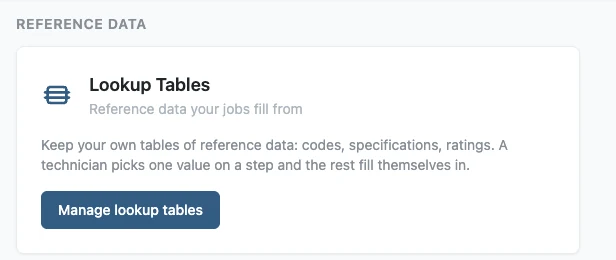
Go to Settings and press Lookup Tables, under Reference Data. You can also type "lookup" into Find a setting at the top of the page.
Step 2: Create the table
Give the table a name and a short description, then press Create table. The name is what you will pick from later, so name it after the sheet it replaces.
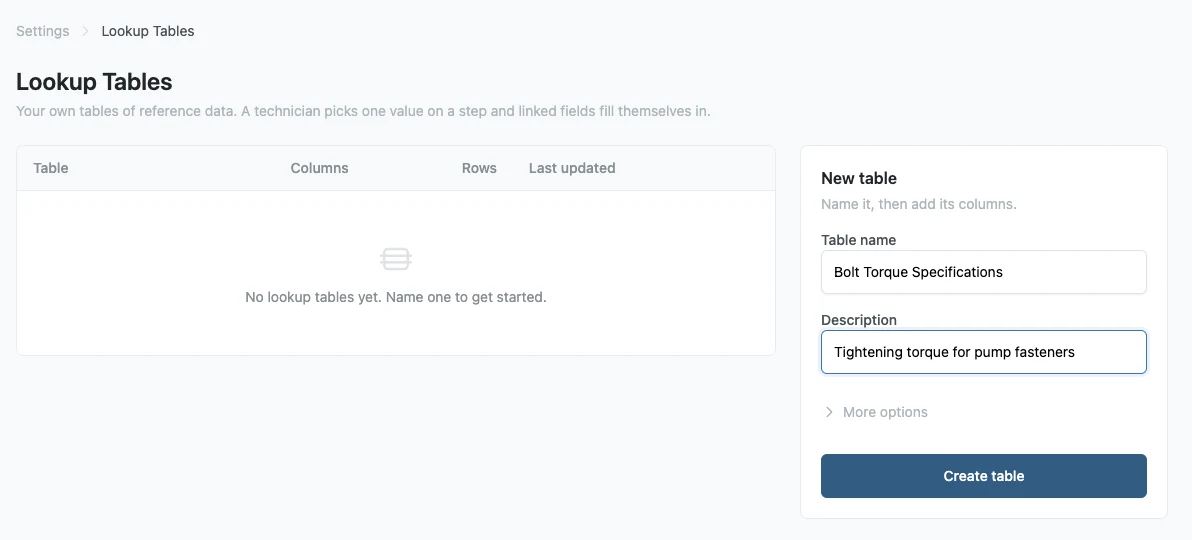
Stratum Track takes you straight to the columns screen.
If the sheet is already in Excel or a CSV file, press New table from a spreadsheet instead. Stratum Track reads the headings, suggests what each column holds and which columns identify a row, and builds the table with every row in the file once you confirm. Then skip to step 6.
Step 3: Add the columns
Add one column for every column on your sheet. Type the name, choose what it holds, then press Add column.
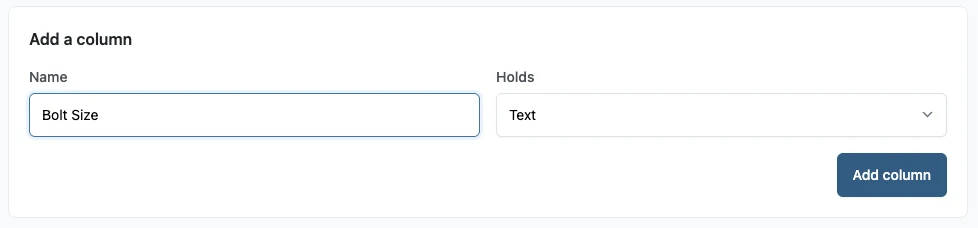
Holds is what kind of value goes in the column: text, a number, a decimal, a date, a time, or yes and no. Text is right for most reference data, including part codes and sizes. Add all your columns before you move on.
Step 4: Choose the key column
Tick Key beside the column your technician picks from, then press Save key columns. Leave the other columns unticked. Stratum Track fills those in.
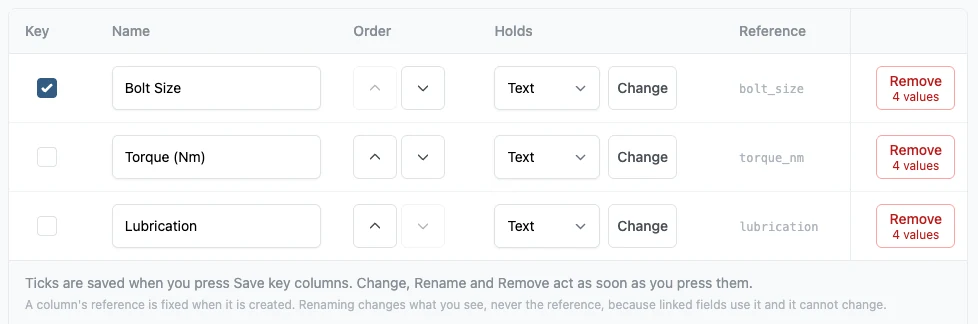
This step is the one people miss. A table with no key column is not offered when you go to link a field, because there is nothing for a technician to pick.
Step 5: Add the rows
Go back to the table and type your first row into the boxes at the bottom, then press Add row.
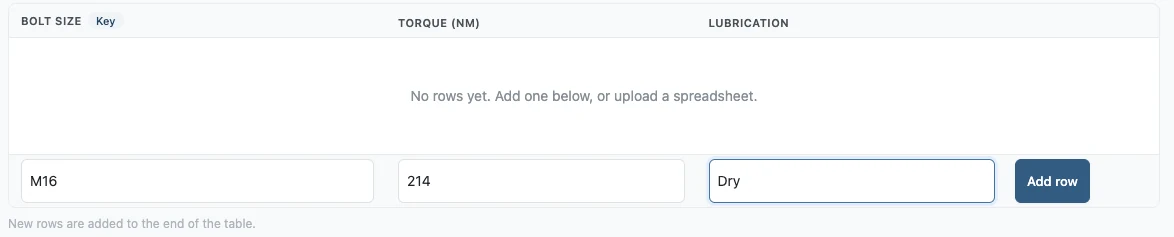
Repeat for every row on the sheet. Each row has to be different in its key column, so you cannot have two rows for M20.
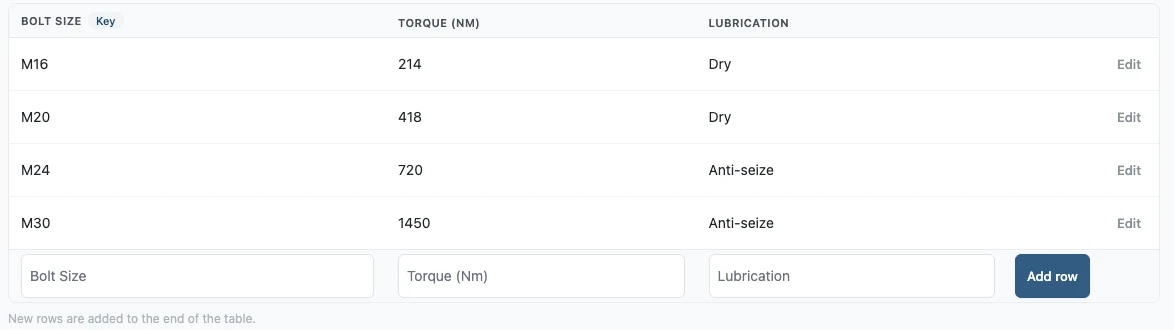
If the sheet is long, press Upload instead and give Stratum Track the spreadsheet. It reads the headings and builds the columns for you.
Step 6: Add the picker to your form
Now put the picker on the step. Go to Templates, press Actions on your template, then Review. It opens on the Preview tab.
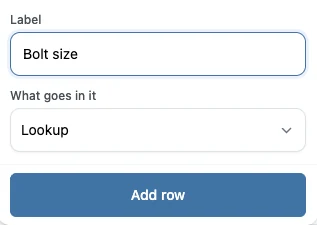
Find the step you want, press Add row, give the field a label, and set What goes in it to Lookup. Press Add row.
Step 7: Point the picker at your table
Click the new field on the form. Its settings open on the right. Under Where this answer comes from, press Link to a lookup table.
Choose your table. Leave Set of pickers on Start a new set of pickers. Choose the key column. Press Save link.
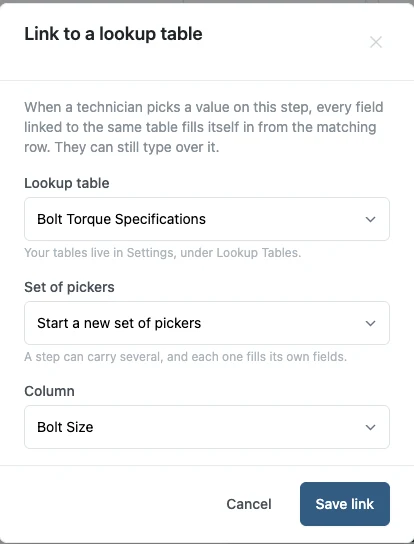
The field now reads "Picks from Bolt Torque Specifications · Bolt Size".
Step 8: Set a field to fill in from the table
Add a second field the same way. Give it a label, choose what it holds, and press Add row. This one is an ordinary field, not a lookup field.
Click it, press Link to a lookup table again, and this time choose the column you want it filled from. The set of pickers is already selected, because there is only one on this step.
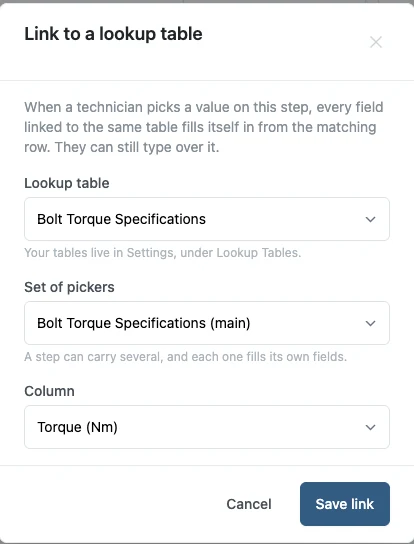
Press Save link. Repeat for every field you want filled from the same row. The form saves as you go.
Step 9: Check it on a job
Open a job that uses the template and go to the step. The picker offers the values in your key column.
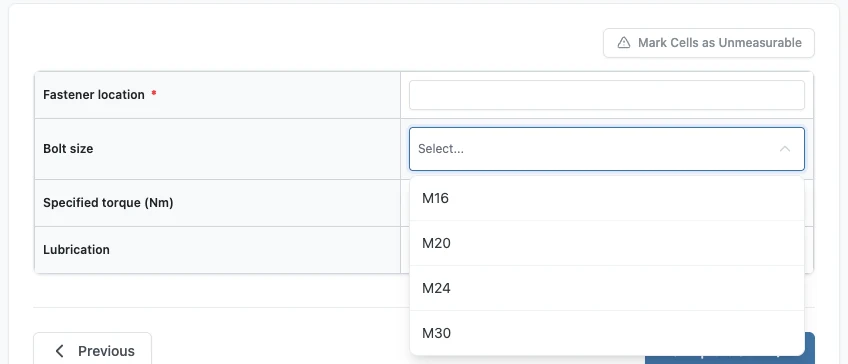
Pick one, and Stratum Track fills the linked fields from the matching row and marks where each value came from.
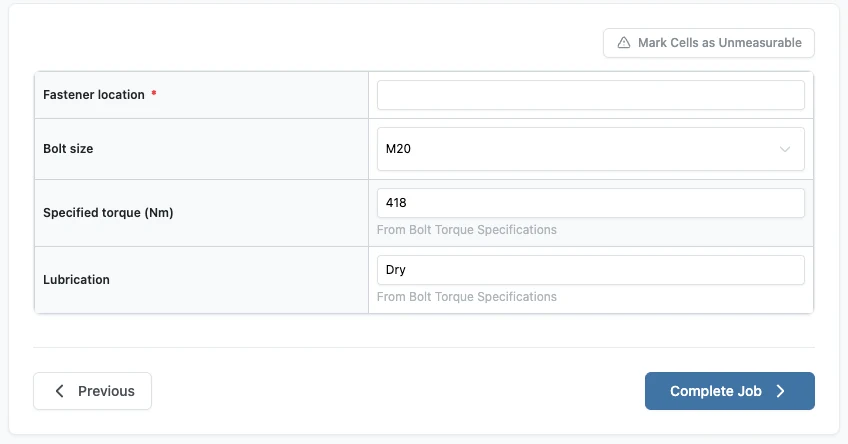
Change the sheet once, in Settings, and every job that runs after it uses the new numbers.
Worth knowing
- Your technician can still type over a filled value. Stratum Track shows what it was changed from, and offers to restore the table's value.
- Answers already recorded on a job stay as they are. Updating the table changes only what Stratum Track fills in from then on.
- A table can have more than one key column. Tick two, and the technician is asked for both, in the order you set. The fields fill from the row that matches both answers.
- A step can carry more than one set of pickers. Each set has its own table and fills its own fields, so one step can read from two different sheets.
- A picker works in a table your technician adds rows to. Each row gets its own picker, and a pick fills the linked cells in that row only. A value already typed in one of those cells is kept, with Reset to the table beside it.
- Renaming a column is safe. Stratum Track holds the link on a fixed reference, so a rename changes only the name you see.
Common questions
Why is my table not offered when I try to link a field?
The table has no key column yet, so there is nothing for a technician to pick from. Open the table in Settings, press Columns, tick Key beside the column your technician picks from, then press Save key columns. Go back to the form, press Link to a lookup table on the field again, and the table is in the list.
Can a technician change a value that filled in automatically?
Yes. They type over it like any other field. Stratum Track notes what the value was changed from and offers to reset it to the table's value with one press. In a table your technician adds rows to, a value already typed in a cell is kept when they pick, with Reset to the table beside it.
What happens to old jobs when I update the table?
Nothing. Values already recorded on a job stay exactly as recorded, including answers your crew has already signed off. The new numbers apply to picks made after you save the change, on every job that runs from then on. You change the sheet once, in Settings, and every form linked to it uses the new numbers.
Can I load a table from a spreadsheet?
Yes. On the Lookup Tables screen, press New table from a spreadsheet and choose your Excel or CSV file. Stratum Track reads the headings, suggests what each column holds and which columns identify a row, and builds the table with its rows. To add rows to a table you already have, open it and press Upload.
Who can create and change lookup tables?
Managers. Lookup tables live in Settings, and only a manager login can open it, so a manager creates the table, adds its columns and rows, chooses the key column and uploads a spreadsheet into it. Your technicians pick from the tables on the job and can type over a filled value, but they cannot change the table itself.