Articles · 2026-11-23
Part of: QA & Inspection
How to attach drawings and documents to a job
We often see a fitter stop work to ask the office which revision of a drawing applies, because the drawing pack is in an email and the client's specification is on a server. Stratum Track keeps those files on the job. Supporting documents holds the files the whole job needs, and an Attach file field holds the files that belong to one step.
Adding documents to a job takes a minute, and adding an Attach file field takes about a minute per form.
What you need
- The login of anyone working on the job, to add supporting documents. No setup is needed.
- A manager login, on a computer, to add an Attach file field to a form.
- Files of up to 50 MB each: PDF, picture, Word, Excel, CSV, PowerPoint or AutoCAD.
Step 1: Add the job's documents on Job Details
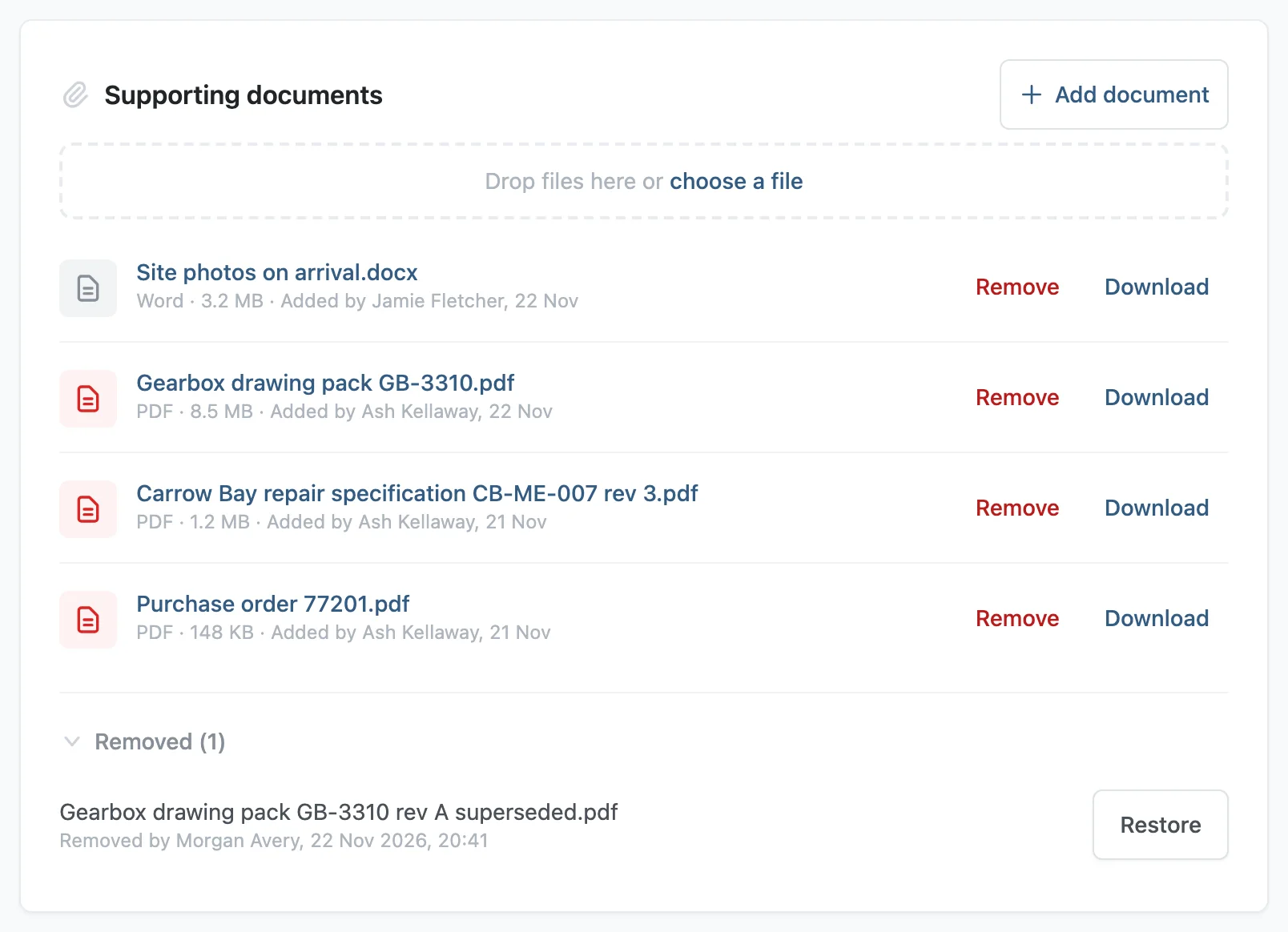
On the dashboard, open the job's Actions menu and choose View Details. The Supporting documents card is under Job Information. Press Add document and choose one file or several. On a computer you can also drop the files on Drop files here or choose a file.
Each file shows Saving… with a percentage while it uploads. Once saved, the row shows the file name, its type and size, and who added it and when.
Step 2: Open the documents from the step
When a job has supporting documents, every step shows a Supporting documents button under its title, with the number of documents in brackets. The technician taps it and the list opens over the step. Tapping a file name opens a PDF or a picture in a new tab, and downloads a Word, Excel, CSV, PowerPoint or AutoCAD file. Download saves a copy of any file.
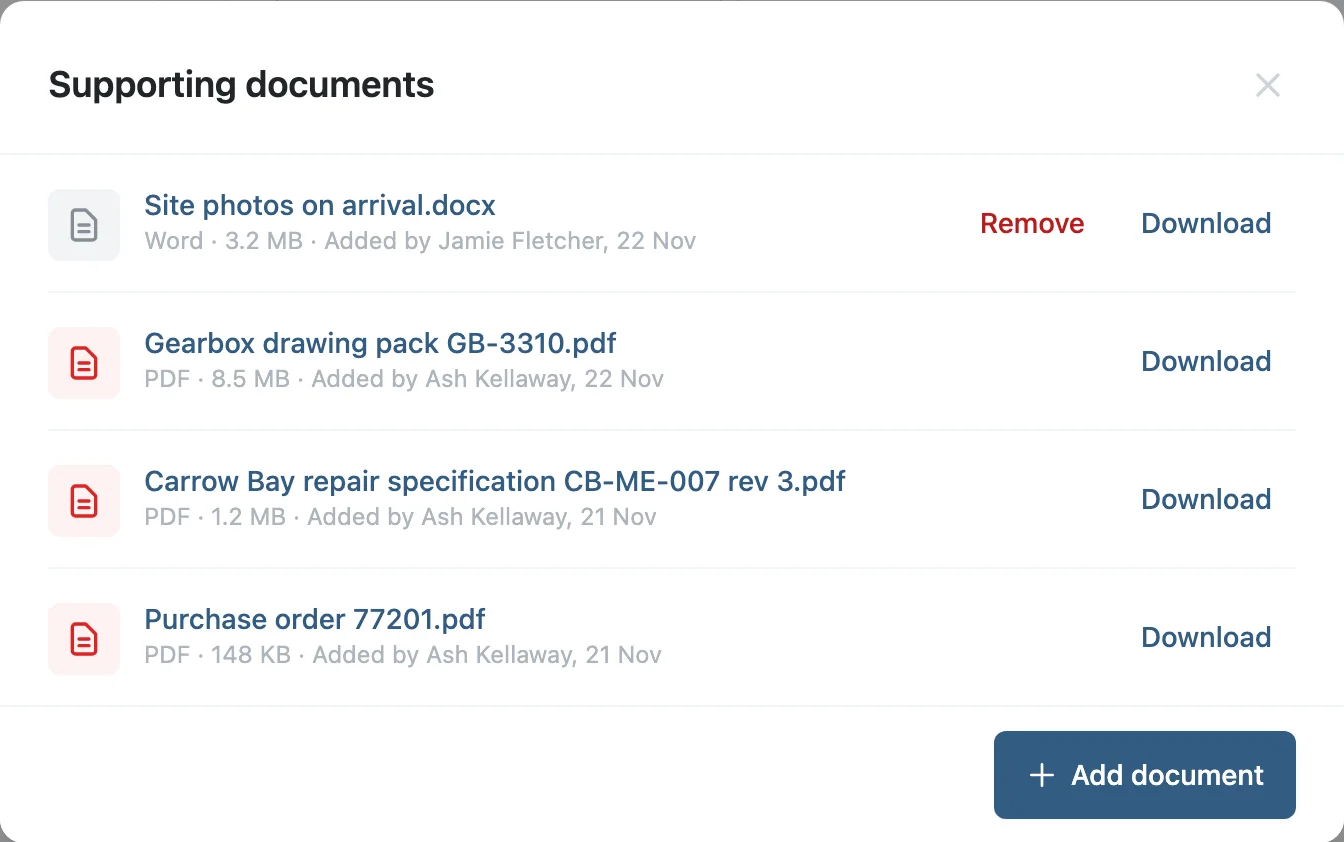
The list has its own Add document button, so the technician can add a delivery docket or a site drawing from the tablet.
Step 3: Add an Attach file field to a step
Use a field when the file is part of the work on one step, such as the sectional drawing the fitter measured against or a supplier's data sheet.
Go to Templates, open your form with Actions, then Review. The form opens on the Preview tab. Press Add to this step, pick Attach file, type a Label such as Drawings and data sheets, and press Add field. Click the new field to open its settings and turn on Required if the step should not be submitted without a file.
If the form has already been used on a job, your change is saved to a draft. Press Activate Template to make the change live for your team.
Step 4: Attach the files on the job
On the step, the field reads No file yet. Choose file opens the device's file picker, and on a phone or tablet the photo library is offered too. One field accepts several files. After the first, the button reads Add another file, or Add file in a table.
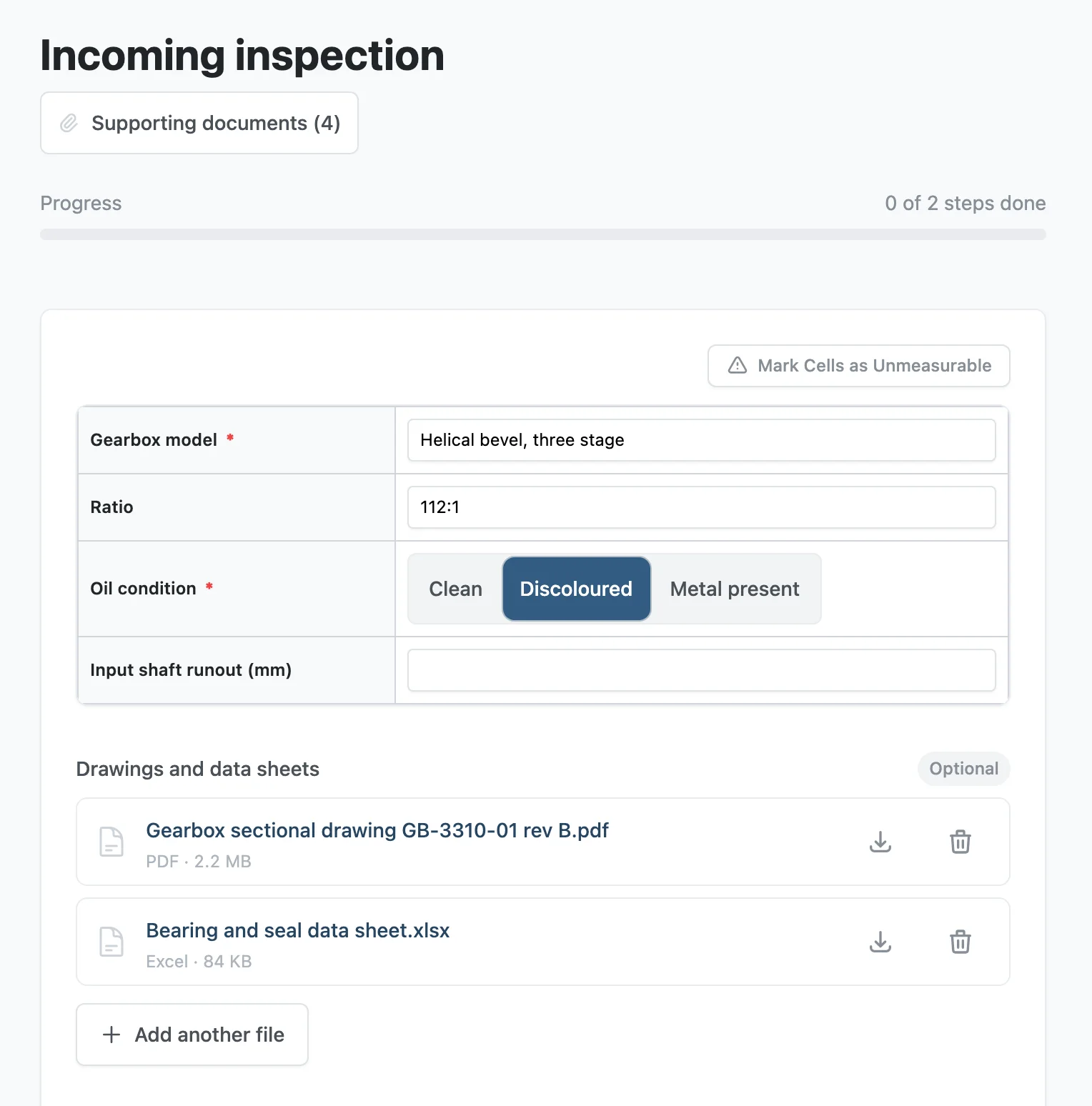
The step will not submit while a file is still saving. If the connection drops, the file reads Not saved yet with Retry. An Attach file field below an unsigned hold point stays locked until the supervisor signs, and files already on it can still be opened.
In the office, Job Details lists each field's files under its label, with the same open and download links.
Worth knowing
- Attached files and supporting documents do not print in the report. The field's Report name box reads "Files are not printed in reports. This name only tells the form which field it is." Supporting documents are not shown to your customer in the client portal either.
- You can add an Attach file field to a step on its own or to a table with fixed rows. The editor refuses one in a table where rows are added on the job, and in a repeating group.
- Attaching, opening, downloading and removing a file all need signal. If a manager has switched on offline working for a technician under Settings, Offline Access, that technician sees a message such as "Attaching a file needs signal." when they tap one of those buttons with no signal.
Common questions
What happens when someone removes a file?
The file is hidden and kept. On a supporting document, Remove is offered to the person who added it and to managers. Stratum Track asks you to confirm, then shows Document removed with Undo. On Job Details, a manager sees removed documents under Removed, with who removed each one and when, and Restore returns a document to the list. On an Attach file field, anyone working on the job can remove a file. Stratum Track asks you to confirm, then shows File removed with Undo, and a manager sees a Removed list with Restore under the field on Job Details.
Which file types can I attach?
You can attach PDF, pictures (JPG, PNG, GIF and WebP), Word, Excel, CSV, PowerPoint and AutoCAD DWG or DXF files, up to 50 MB each. Stratum Track checks the file against its name before it accepts it, so a file renamed to look like a PDF is refused with "That file is not what its name says. Choose another file." A file over the limit is refused before it uploads, with "This file is over 50 MB. Choose a smaller file." PDFs and pictures open in the browser. Every other type downloads to the device, so a technician needs an app on the tablet that opens a DWG to read one there.
Should a drawing be a supporting document or an attached file?
Use Supporting documents for the files supplied with the job, such as the purchase order and the drawing pack. The technician opens them from any step. Use an Attach file field for a file a step produces or depends on, such as a supplier's certificate received with a part or a marked-up drawing. A field can be Required, which a supporting document cannot, so the step is not submitted until a file is attached.
Can I change the documents on an archived job?
No. On an archived job you can still open and download its supporting documents and attached files, but Add document, Remove and Restore are not shown. Unarchive the job to change them. Deleting a job removes its supporting documents and attached files with it, and the delete confirmation states how many of each.