Articles · 2026-10-08
How to record video evidence on a job
A photograph cannot show a bearing that grinds on its run test, or a flange that weeps during a pressure hold. We often see that clip on a personal phone, and a manager loses a morning finding it when the client asks for it. A Video field puts a record button on the step. The video saves to the job, and a manager plays it there and downloads the original or a smaller copy for email.
Adding the field takes about a minute per form.
What you need
- A manager login to add the field. Any technician working on the job can record.
- A form with a step where the video belongs, such as the run test or the strip and assess.
Step 1: Add a Video field to the step
Go to Templates, open your form with Actions, then Review. The form opens on the Preview tab. Press Add to this step, pick Video, type a Label such as Run test video, and press Add field. To put a video in a table, press Add row under the table and set What goes in it to Video.
Click the new field to open its settings. Turn on Required if the step should not be finished without a video. The Report name box reads "Videos are not printed in reports. This name only tells the form which field it is."
If jobs have already been run on the form, your change is saved to a draft. Press Activate Template to give it to your team.
Step 2: Record the video on the job
On the step, the field reads No video yet. On a tablet or phone, Record video opens the camera and Choose video picks a clip already on the device. On a computer only Choose video appears, and it opens the file picker.
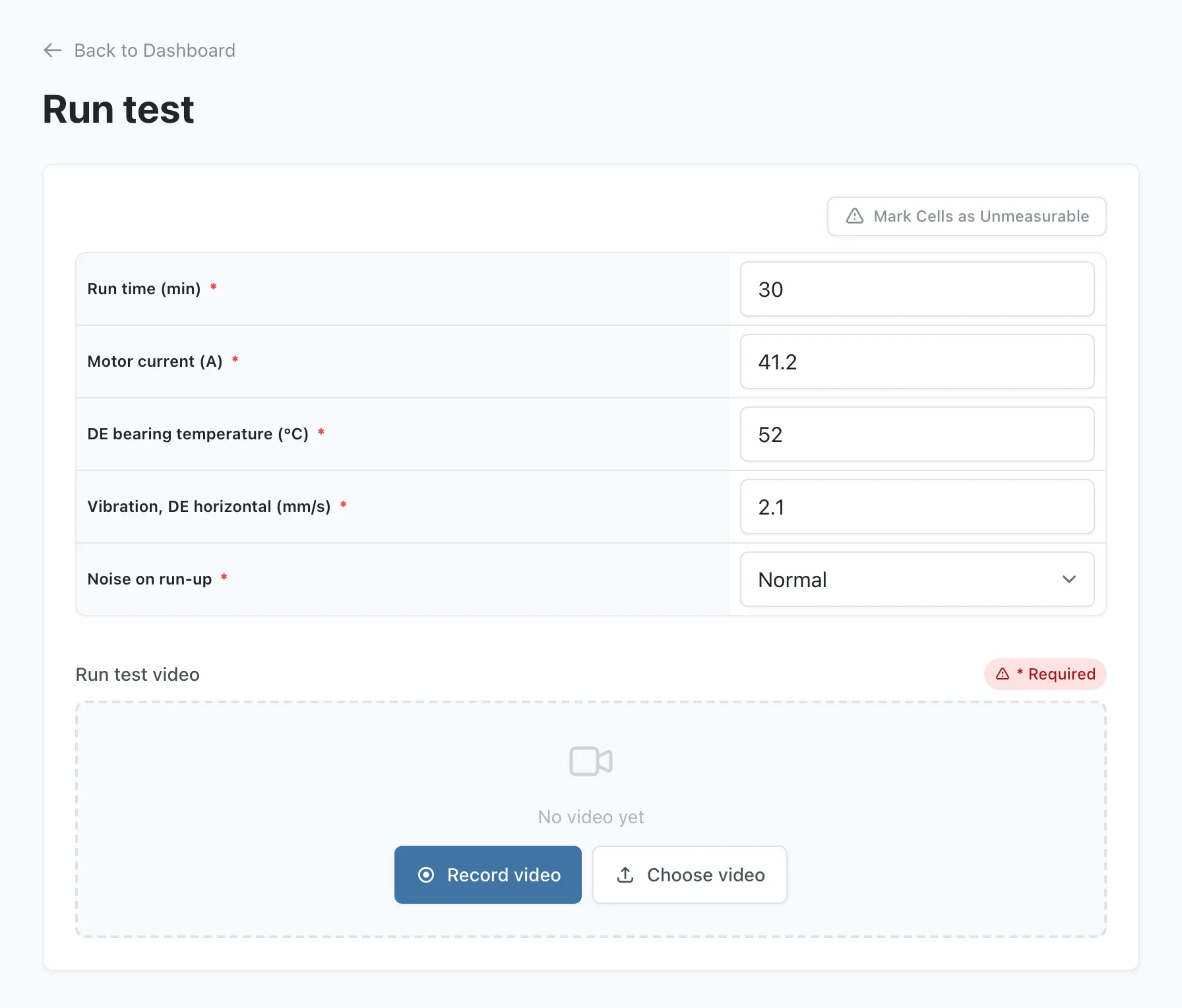
The video saves in the background while the technician carries on with the step, and a badge on it shows Saving… and the percentage saved. The step will not submit while a video is still saving. A Video field below an unsigned hold point stays locked until the supervisor signs it.
Step 3: Play it, record it again or delete it
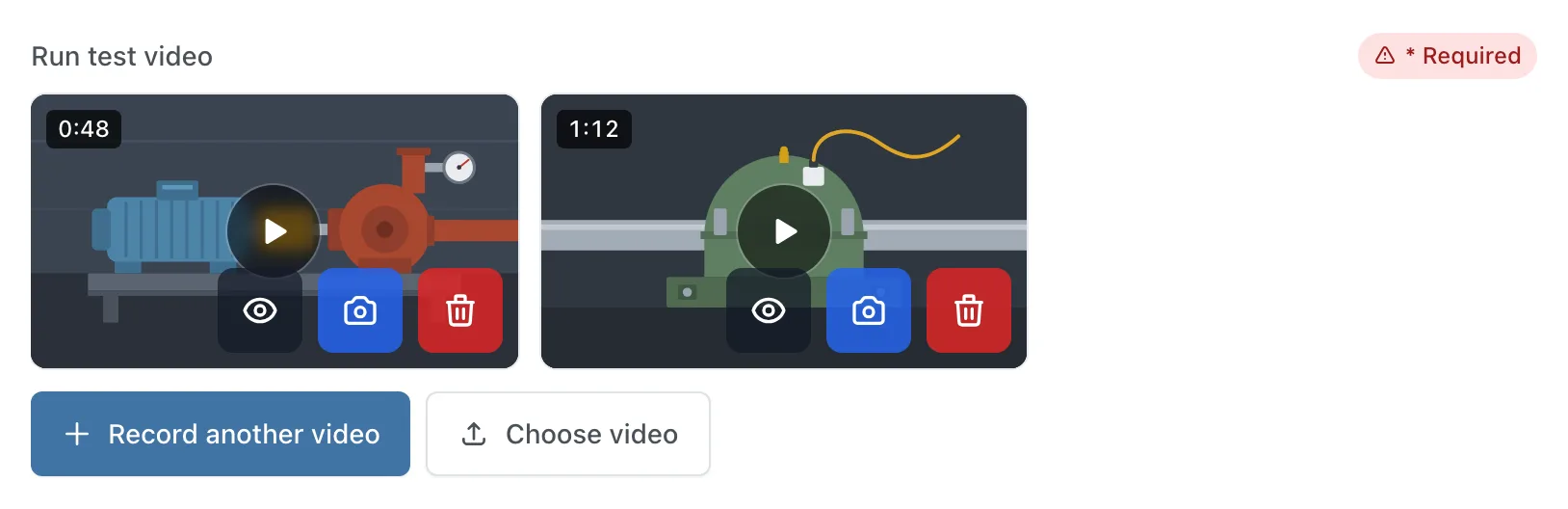
Each saved video shows as a tile with its length in the corner. Tap the tile, or its eye button, to play it on the page. The camera button records it again, and the old video is deleted only once the new one has saved. The bin asks Delete this video? first. Record another video adds a second clip to the same field.
Step 4: Watch and download it from the office
On the dashboard, open the job's Actions menu and choose View Details. On Job Details, each Video field shows its videos under its label, and selecting one plays it. The player's Download button offers Original, at full quality, and Smaller copy, marked For email, each with its size.
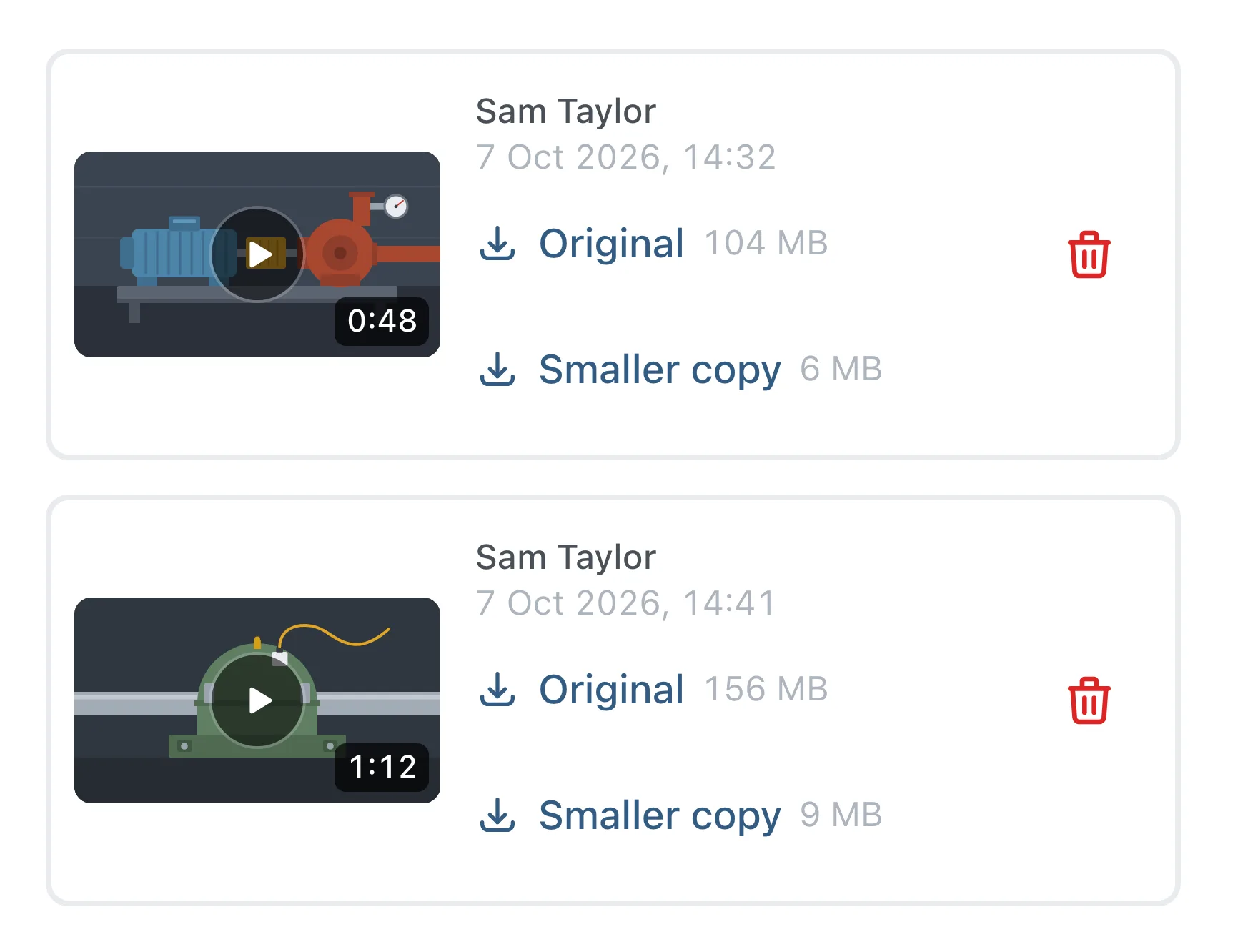
Manage Photos & Videos, in the same menu, lists the videos under each step, with who recorded each one and when, a download link for each copy, and a bin.
To download every video on the job at once, choose Download Photos & Videos in the same menu. On a job with videos it asks what to Include: Photos, Videos or Photos and videos. Videos in that download are at full quality. When the videos total more than 4 GB, the two choices with videos are greyed out and the dialog says to download them one at a time from Job Details.
Worth knowing
- Videos do not print in the report. A Video field prints nothing in your report document, not even N/A. To show a client a video, download it and send it.
- One video can be up to 2 GB. A bigger file is refused before it starts saving, with "This video is over 2 GB. Record a shorter clip."
- The smaller copy is made after the video saves. In the player's Download menu its row reads Preparing… until it is ready. If one cannot be made, it reads Not available, and the original is still there to download.
Common questions
How do I send a video to my client?
Download the smaller copy and attach it. On Job Details, open the video, press Download and choose Smaller copy, which is marked For email and shows its size before you download it. The original stays on the job at full quality. If an automation already files your reviewed jobs into SharePoint or OneDrive, it can also send each video as its own file, in a folder inside the job's folder, at full quality. That option is off unless you choose it, and integrations are switched on per company. See How to file a reviewed job into your own SharePoint folders.
What happens if the wifi drops while a video is saving?
The upload stops and the video waits on the tablet. Its tile reads Not saved yet with a Retry button, and the field says "Video didn’t upload. Check your connection and retry. The video is still on this device." Retry continues from the parts already sent. Until every video has saved, or been stopped with the cross on its tile, the step will not submit, and the browser warns anyone who tries to leave the page.
Can a video go in a table or a repeating group?
Yes. A Video field works on its own on a step, as a row of a table, as a column of a table the technician adds rows to, and inside a repeating group. Every row and every copy has its own recorder, and Job Details and Manage Photos & Videos name the row or copy each video belongs to. Removing a row or a copy deletes its videos as well.
Does Clone with Data copy the videos?
No. Clone with Data copies the last job's answers, table rows and photographs, and every Video field on the new job starts empty. Clone Job, which copies no answers, copies no videos either. The videos stay on the job they were recorded on, where View Details and Manage Photos & Videos still play and download them.