Articles · 2026-09-25
How to start a repeat inspection from the last job's answers
A monthly crane inspection records the same forty or fifty answers on every visit, and most of them have not changed since the last one. Stratum Track can start the new job with the last job's answers, table rows and photographs already filled in. It marks every copied answer until your technician checks it, and it never copies a signature or a sign-off, so your technician records only what has changed.
Cloning a job this way takes about a minute.
What you need
- A manager or technician login. Both have Clone with Data on the job's Actions menu.
- The last job for that asset, on the template you are using for this visit. Stratum Track only
copies answers between jobs on the same template.
Step 1: Clone the last job with its answers
On the dashboard, find the last job for that asset. If its jobs are grouped under one row, open the group first. Press Actions on the last job (three dots on a phone), then Clone with Data.
Clone Job, on the same menu, opens the same page with Data from job switched off, and so does the group's Next Job button. If you choose either by mistake, switch on Data from job on the page instead of going back.
Step 2: Check the new job's details
The Clone Job page opens with Data from job switched on. The sentence under it says what Stratum Track will copy: how many answers, how many table rows, and the photographs.
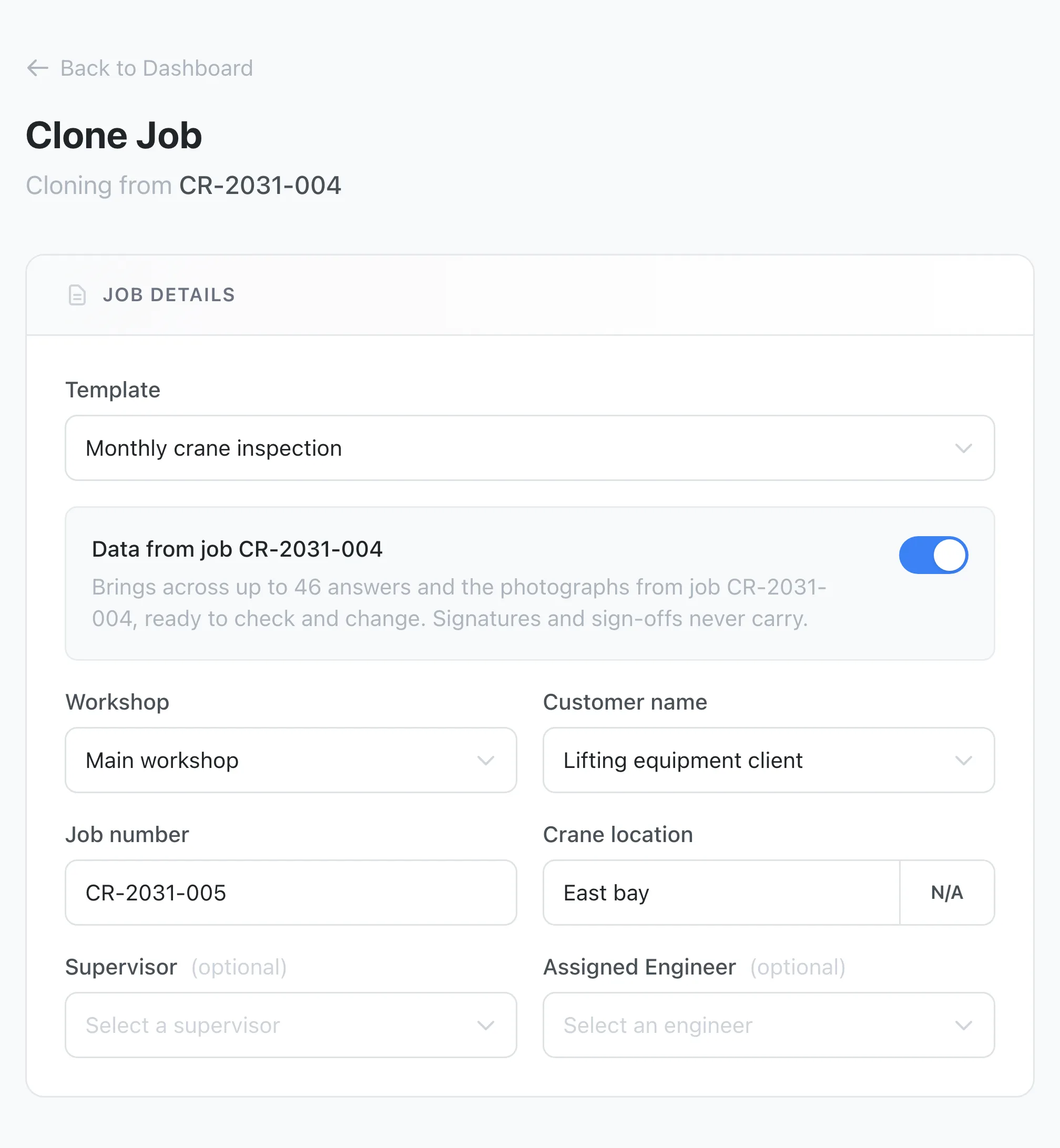
Stratum Track fills in the customer, the site and your company's own job details from the last job, and suggests the next job number: CR-2031-004 becomes CR-2031-005. It suggests a number only when the last one ends in a hyphen and digits; otherwise it leaves the job number empty for you to type. Change anything that is different this visit, such as the purchase order number.
If the template uses a job table, such as a list of welds, Stratum Track puts the last job's rows on the form. Remove any row that does not apply this time. Stratum Track checks those rows the same way it does on a new job, so a required column left empty, or more rows than the table takes, stops Create Job with a message saying what to fix.
If you choose a different template, Stratum Track switches Data from job off and says why. Keep the last job's template if you want the answers copied.
Press Create Job.
Step 3: Your technician checks each answer
The new job opens at its first step with a message saying how many answers Stratum Track copied. Stratum Track copies the photographs in the background, so they appear on the job a little after the answers.
Each step with copied answers shows an amber banner saying how many came from the last job. When your technician changes an answer, the count on the banner falls, and a From job tag shows under each answer on the form that still holds the last job's value. Rows in a job table are counted on the banner and have no tag.
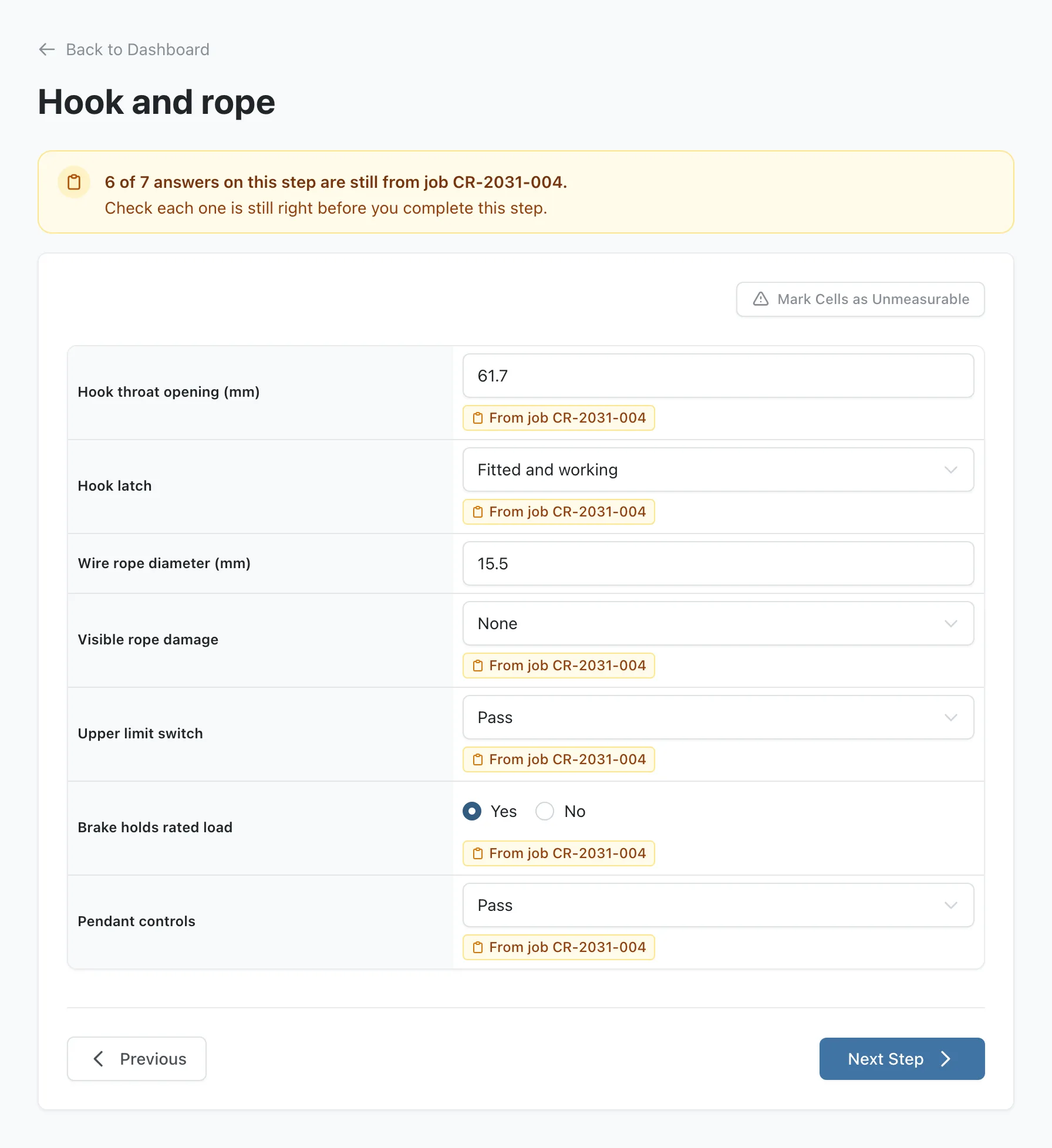
Changing an answer, or taking or removing a photograph, clears its tag. Pressing Next Step (Complete Job on the last step) records the step and clears every tag left on it, because completing a step confirms its answers for this job. The banner asks your technician to "Check each one is still right before you complete this step."
Step 4: Check progress on Job Details
A manager opening Job Details sees a line under the job's header counting the answers nobody has checked yet, for example "12 of 40 answers on this job are still from job CR-2031-004 and have not been checked." The count falls as your technician works through the job, and the line disappears once every copied answer has been checked.
Worth knowing
- Calculated results are worked out again. Stratum Track does not copy Calculated, Badge or Specification fields. It works them out again from the new job's answers, including a specification's Pass or Fail. A Pass or Fail your technician picked from a list is an answer, so it is copied and tagged like any other.
- Signatures, sign-offs and defect marks are not copied. Every signature field starts empty, every hold point starts unsigned, and your technician marks only this visit's defects on the copied photographs.
- Automatic step submission waits until every copied answer is checked. If you have switched it on, Stratum Track never submits a step that still holds an unchecked answer from the last job, and the Everything is answered note stays hidden on that step.
Common questions
Does copying the answers let a technician skip the inspection?
No. Stratum Track marks every copied answer. The banner on each step counts how many are still from the last job, and once some answers on a step are new, a From job tag shows under each one that is not. Your technician clears a tag by changing the answer, or confirms the whole step with Next Step, and Stratum Track records who completed each step. Signature fields and hold point sign-offs always start empty, so a supervisor signs this job's hold points again. A manager can see on Job Details how many answers have not been checked while the job is in progress.
Can I copy answers from a job on a different template?
No. Stratum Track only copies answers between two jobs on the same template, because it matches each answer to the same field on the same form. If you choose a different template on the Clone Job page, Stratum Track switches Data from job off and says why. It still fills in the customer, the site and any of your own job details that the new template also uses, so you retype only the answers and any job table rows.
What happens to last month's photographs?
Stratum Track copies them onto the same fields of the new job in the background, and they appear shortly after you press Create Job. A photograph field counts as copied until your technician takes a new photograph on it, removes one, or presses Next Step. A copied photograph prints in the report like any other, so remove any that should not appear in this visit's report. Defects marked on the last job's photographs are not copied.
What is the difference between Clone Job and Clone with Data?
Both open the same Clone Job page and fill in the customer, the site, your own job details and the next job number. Clone Job starts the inspection with only the template's own starting values filled in. Clone with Data switches on Data from job, which also copies the last job's answers, table rows and photographs. The switch works on either page, so you can turn it on or off before you press Create Job. Both are available to every company.