Articles · 2026-09-01
How to file a reviewed job into your own SharePoint folders
Your quality system says the job pack lives on the server, in the client folder, in the year folder. So somebody reviews a job, then downloads the report and the photos and files them by hand. That filing takes about ten minutes a job, and it gets skipped when the week is busy.
Stratum Track connects to your SharePoint or your OneDrive, and files the job for you the moment you review it, into the folder pattern you set.
This takes about half an hour, most of which is your IT person doing a one-off setup. You do it once for the company.
What you need
- A manager login, and someone who administers your Microsoft 365. You will not need them again after the connection is made.
- The integrations feature switched on for your company. Ask us and we will turn it on.
Nothing leaves Stratum Track until you turn an automation on. Making the connection only lets Stratum Track reach your folders.
Step 1: Make the connection
Go to Settings, then Integrations.
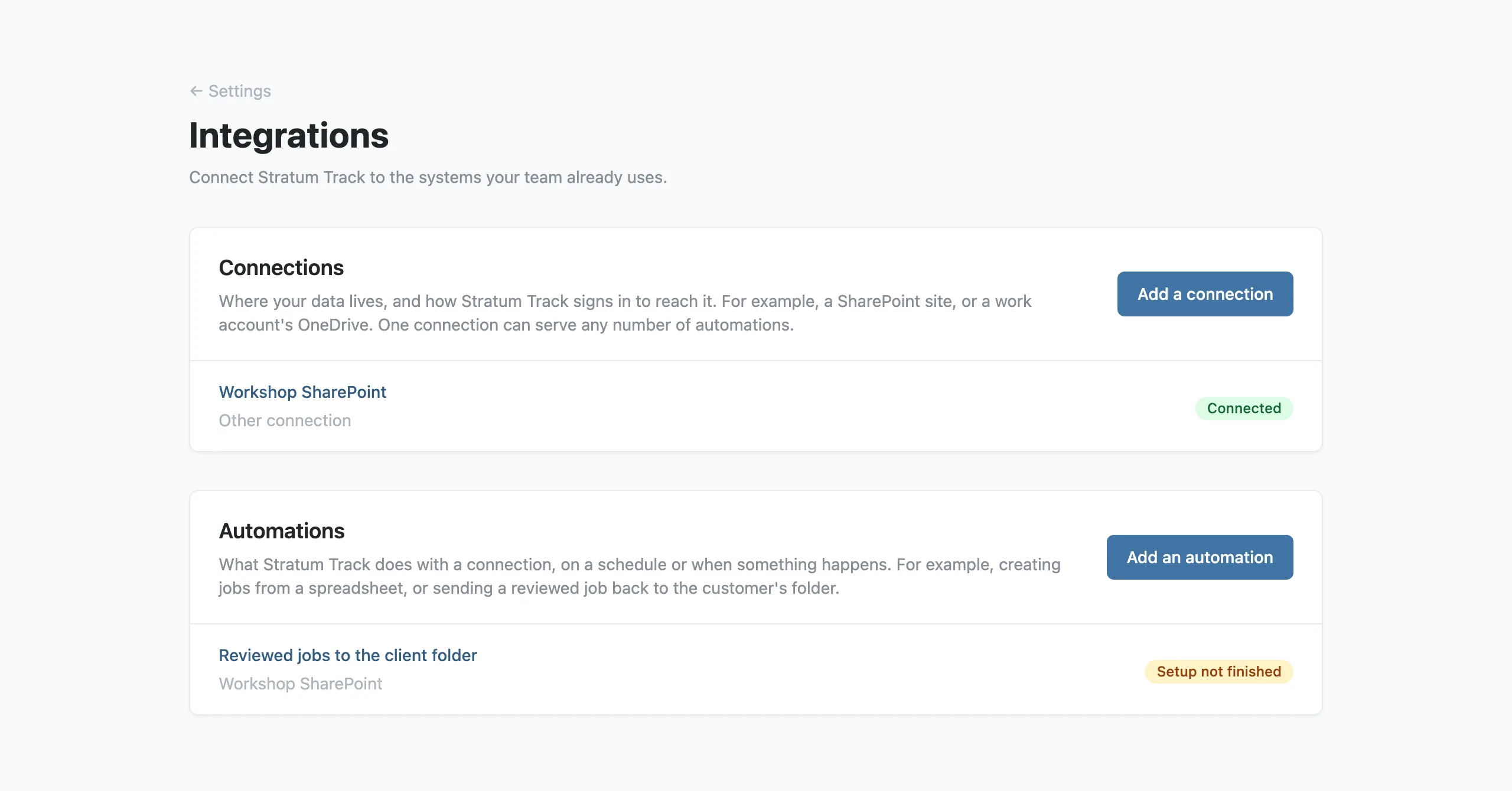
Press Add a connection. One connection covers OneDrive and SharePoint, and it serves as many automations as you want, so you set it up once.
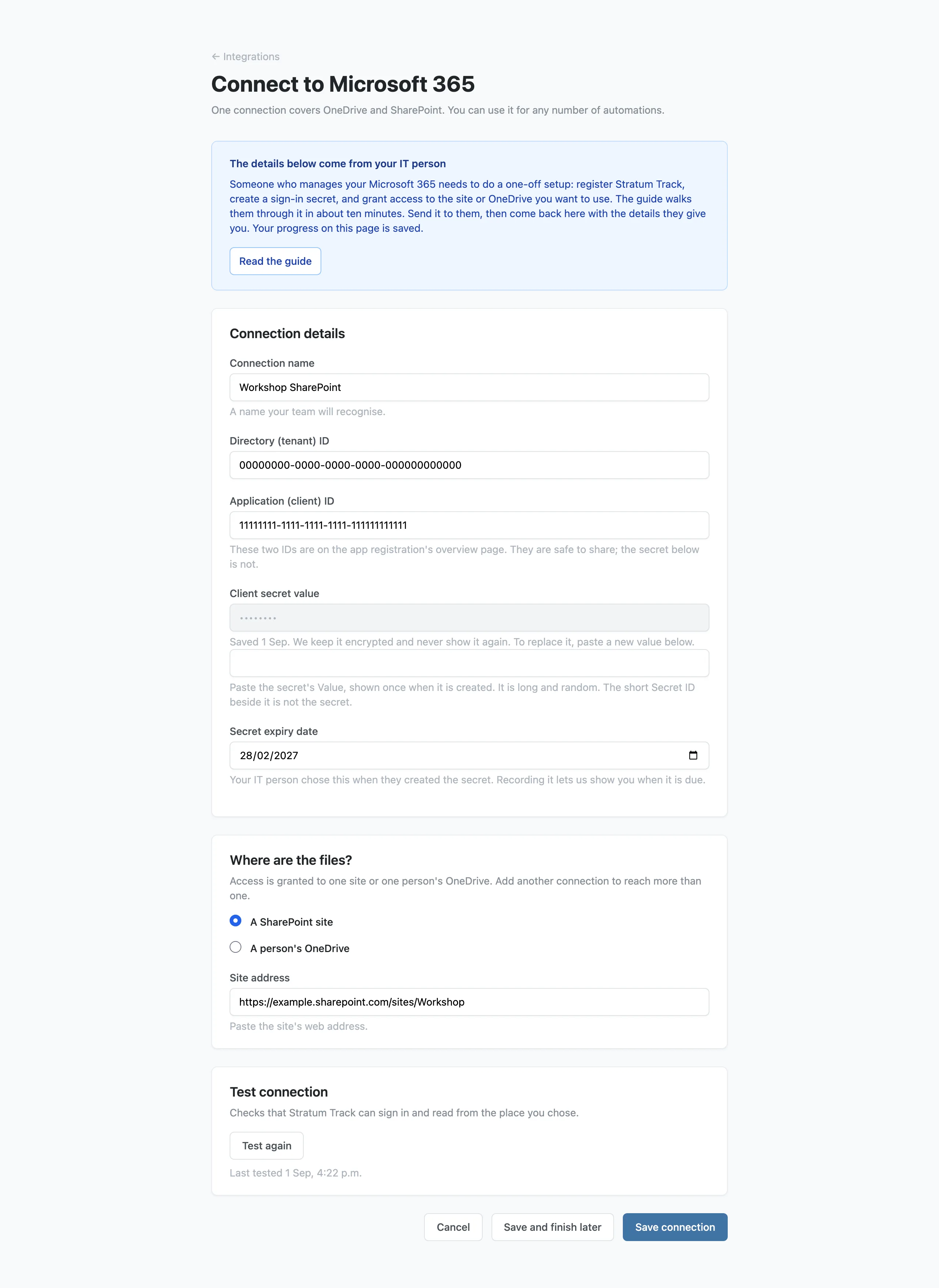
The details on that page come from whoever manages your Microsoft 365: a Directory (tenant) ID, an Application (client) ID and a Client secret value. They need to register Stratum Track, create the secret, and grant access to the site or the OneDrive you want it to use. Press Read the guide and send it to them. It walks them through the setup in about ten minutes. Your progress on the page is saved, so you can close it and come back with the details they give you.
The secret is stored encrypted and is never shown again. To change it you paste a new one. Record the Secret expiry date they give you as well, so Stratum Track can warn you before it lapses.
Under Where are the files?, choose A SharePoint site and paste its web address, or A person's OneDrive and type that person's work email address. Then press Test connection, which signs in and reads from the place you chose.
Step 2: Add the automation
Press Add an automation. Stratum Track asks what it should do.
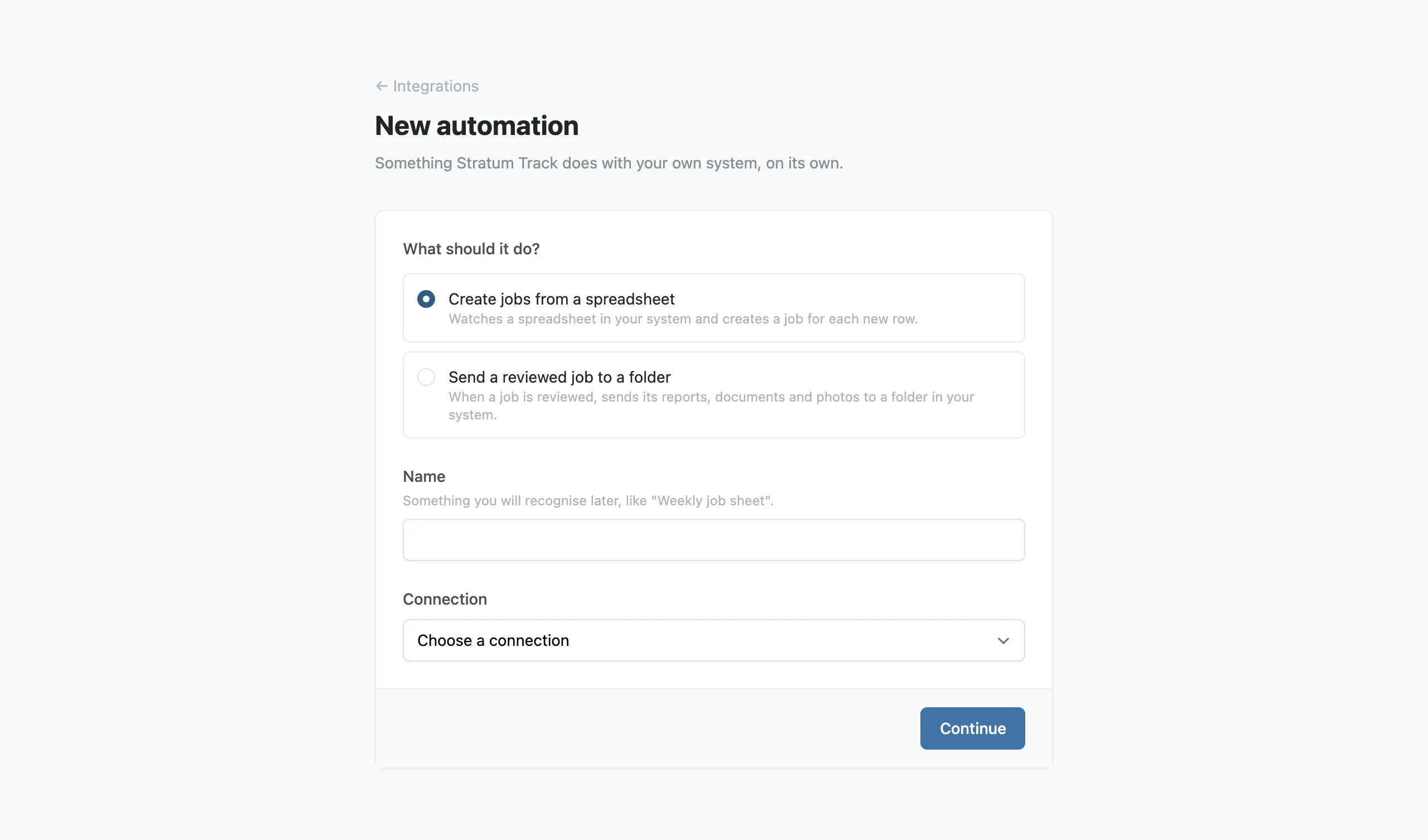
- Create jobs from a spreadsheet. Watches a spreadsheet in your system and creates a job for each new row.
- Send a reviewed job to a folder. When a job is reviewed, sends its reports, documents and photos to a folder in your system.
Pick Send a reviewed job to a folder, give it a name you will recognise later, choose your connection, and press Continue.
Step 3: Choose the folder
Stratum Track lists the folders in the place your connection reaches and asks you to pick the one everything goes under. It makes a folder inside it for each job.
Step 4: Choose how to file it
Now tell Stratum Track how to arrange the folders inside it. You write the pattern using the job's own details in curly brackets, and it fills them in per job.
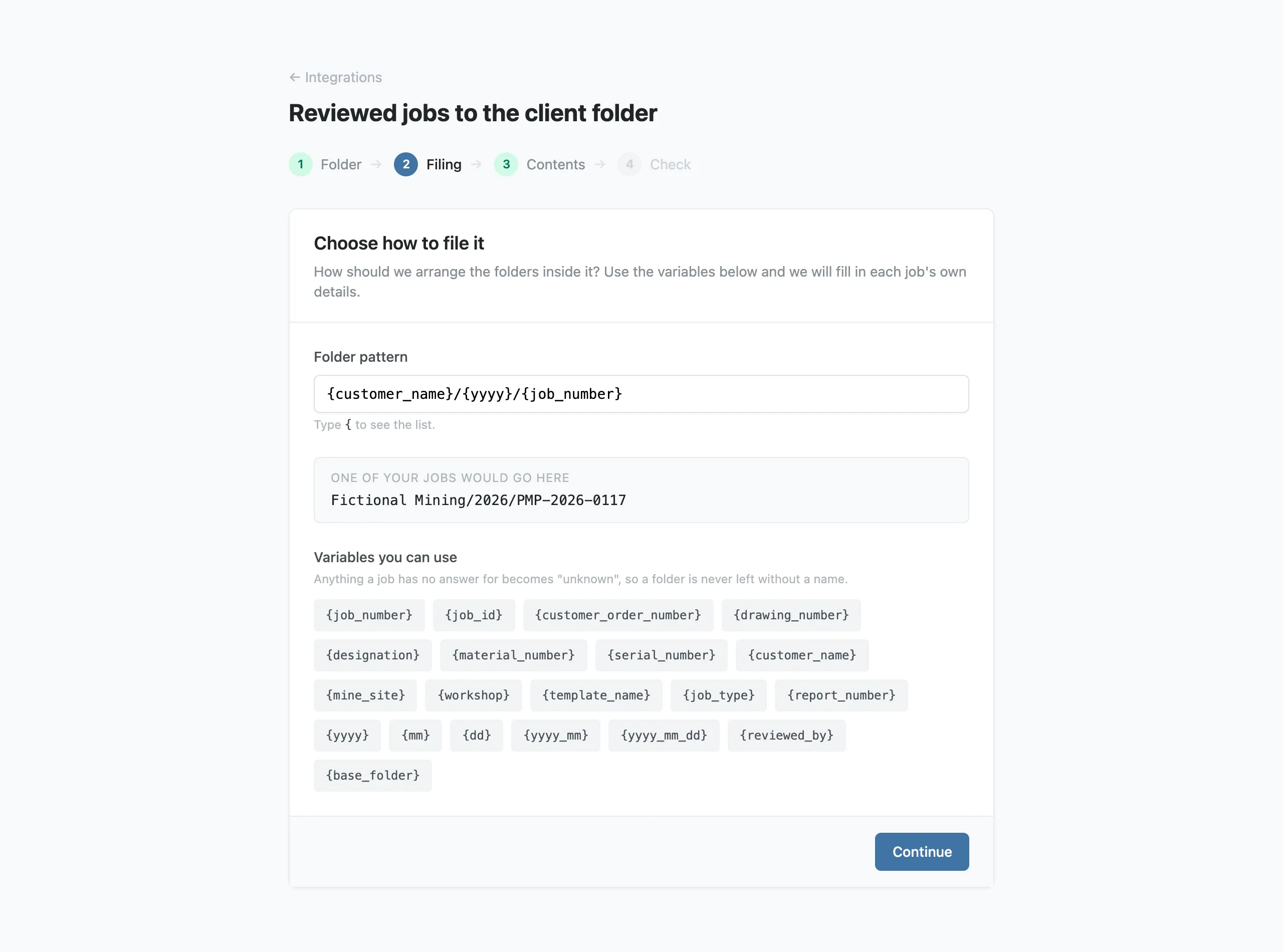
Type { and the list of what you can use appears. It includes the job number, the customer order number, the drawing number, the designation, the material and serial numbers, the customer name, the mine site, the workshop, the template name, the job type, the report number, who reviewed it, and the date in a few formats. The screen shows you what one of your own jobs would produce before you save.
If a job has no value for one of them, Stratum Track writes unknown in its place, so every folder gets a name and no job pack is filed into another job's folder.
Step 5: Choose what to send
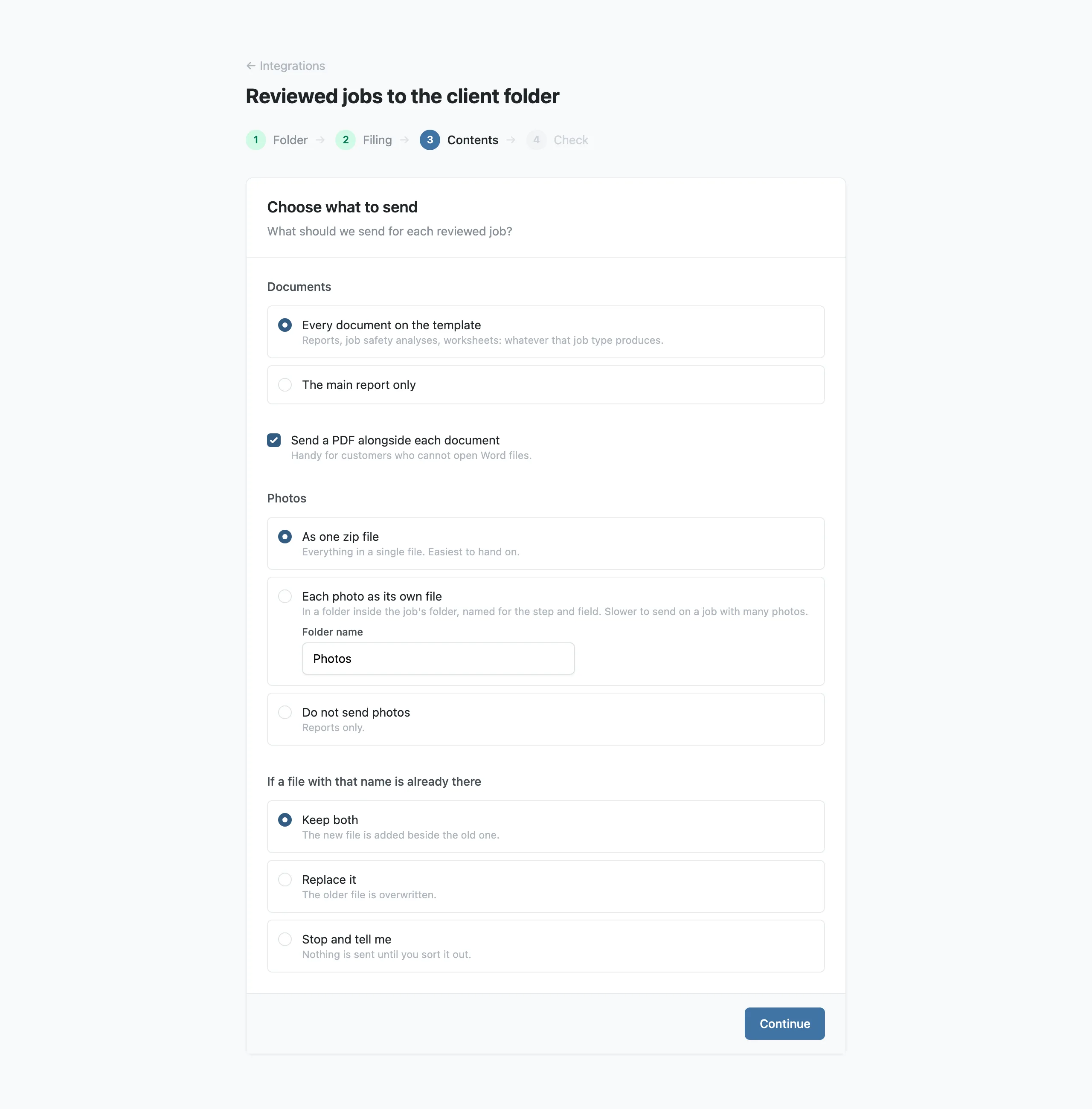
Documents: every document the template produces, which is the reports, the job safety analyses and the worksheets, or just the main report. Tick Send a PDF alongside each document if your clients cannot open Word files. A report document that is an Excel workbook is sent as the workbook, with no PDF beside it.
Photos: as one zip file, as separate files in a folder inside the job's folder, or not at all. One zip is easier to send to a client, and separate files are slower to send on a job with a lot of photos.
Videos: each video as its own file, in a folder inside the job's folder, or not at all. Nothing is sent unless you choose it, and a large video takes longer to send.
If a file with that name is already there: Keep both, Replace it, or Stop and tell me. Choose Stop and tell me if the folder is a controlled one, where overwriting a file needs a change control decision first. Reports are named the way you chose under Report File Names in Settings.
Step 6: Check it, turn it on, and choose who is notified
The last screen, Check what will happen, shows where your most recent reviewed job would go and the files it would send. Press Send sample files to put three throwaway files in your folder, or Send a test copy to send that job into a folder called _stratum_test. When the folders look right, press Turn this automation on. From then on, Stratum Track files every job you review.
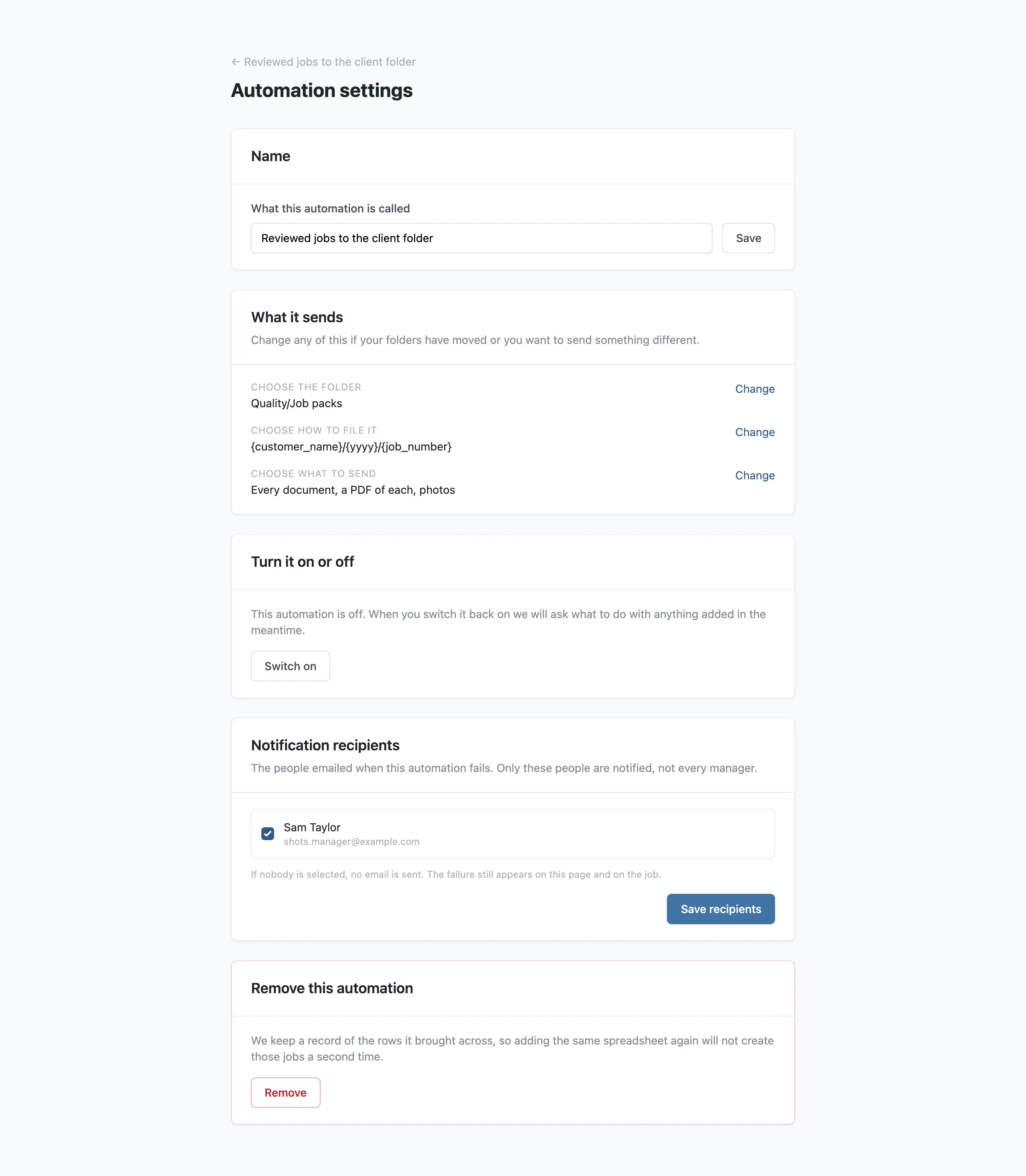
To choose who is notified, open the automation from Integrations and press Settings. Notification recipients is the list of people it emails when something goes wrong, and whoever set up the automation is on it to start with. Nobody off that list gets the email, and if nobody is selected no email is sent at all, though the failure still shows on the automation's page and on the job. Put whoever would otherwise be filing the job by hand on it.
To stop it, press Switch off on the same page. It stops checking and keeps everything it has already done, and Switch on starts it again.
Worth knowing
- Review is the trigger. Nothing is sent while a job is in progress or for a job that never gets reviewed.
- The other automation creates jobs. If your work already arrives as a spreadsheet somebody keeps in SharePoint, Create jobs from a spreadsheet watches it and opens a job for each new row. You tell it which column holds the job number, which workshop and template the jobs use, and how often to look: every 15 minutes, every hour, every 4 hours or once a day.
- You choose what happens to the rows already in the sheet. Leave them alone, so Stratum Track only creates jobs for new rows, which is what most workshops want. Or create a job for every row, which suits a spreadsheet you have just started.
- You can name a ready column. Name a column that marks a job as ready and Stratum Track waits for it, so it does not turn a half-finished row into a job.
- This is not a client portal. The files go into your own system. Whether your client can see that folder is set up in your SharePoint.
Common questions
What exactly can Stratum Track see in our SharePoint?
What your IT person grants it, and nothing else. They register Stratum Track and give it access to the specific site or OneDrive you want it to use, using your own Microsoft 365 controls. Under Where are the files? you choose a SharePoint site or a person's OneDrive, and Test connection signs in and reads from the place you chose. The sign-in secret is held encrypted and is never displayed again after it is saved.
Can one connection serve more than one automation?
Yes. One connection to your Microsoft 365 serves as many automations as you need: one creating jobs from a spreadsheet, another filing reviewed jobs into a folder tree, and a second tree for a different client. Each automation has its own folder, folder pattern, files to send and notification recipients, and you switch each one on and off on its own page. You involve your IT person once, when the connection is made.
What happens if the folder is unavailable when a job is reviewed?
Marking a job reviewed never waits on your file server, and never fails because of it. Stratum Track retries a connection that was briefly unreachable, and when it gives up on a job, or pauses the automation after repeated failures, the people on that automation's recipient list are emailed. It emails you once when something breaks and once if it breaks again after recovering. Once the folder is back, press Start it again on the automation's page.
Will it overwrite a report we have already filed?
Only if you tell it to. Keep both adds the new file beside the old one, Replace it overwrites, and Stop and tell me sends nothing and waits for you. Choose Stop and tell me if the destination is a controlled folder, where overwriting a file needs a change control decision first. Reports are named the way you chose under Report File Names in Settings.
Is this switched on for everyone?
Not yet. Integrations are switched on per company. Tell us you want it and we will turn it on, and a manager then sees Integrations under Settings. We will sit with your IT person for the connection if that is easier than sending them the guide. Until you make a connection and turn an automation on, nothing leaves Stratum Track.