Articles · 2026-10-08
How to fill in your own Excel workbook from a job
We often meet workshops whose results must arrive in an Excel workbook, such as a thickness survey in the layout the client asked for. The technician records the readings once, then somebody in the office types them all into the workbook again, which costs office time and lets a typing mistake reach the client. Stratum Track lets you upload that workbook as a report document. Every report it generates is your workbook with the job's answers in the cells you chose, and its formulas, dropdowns and macros kept. Your technicians fill in the job on the tablet and never need to open the workbook.
Setting it up takes about a minute for each cell you want filled, plus one upload. If you would rather we did it, send us the workbook and we will set it up for you.
What you need
- A manager login. Only a manager can open Templates, the Field Reference page and a form's report documents.
- Your workbook, saved as .xlsx, .xlsm or .xlsb, up to 20MB.
- A form in Stratum Track that asks every question the workbook needs answered.
Step 1: Find the name of each answer
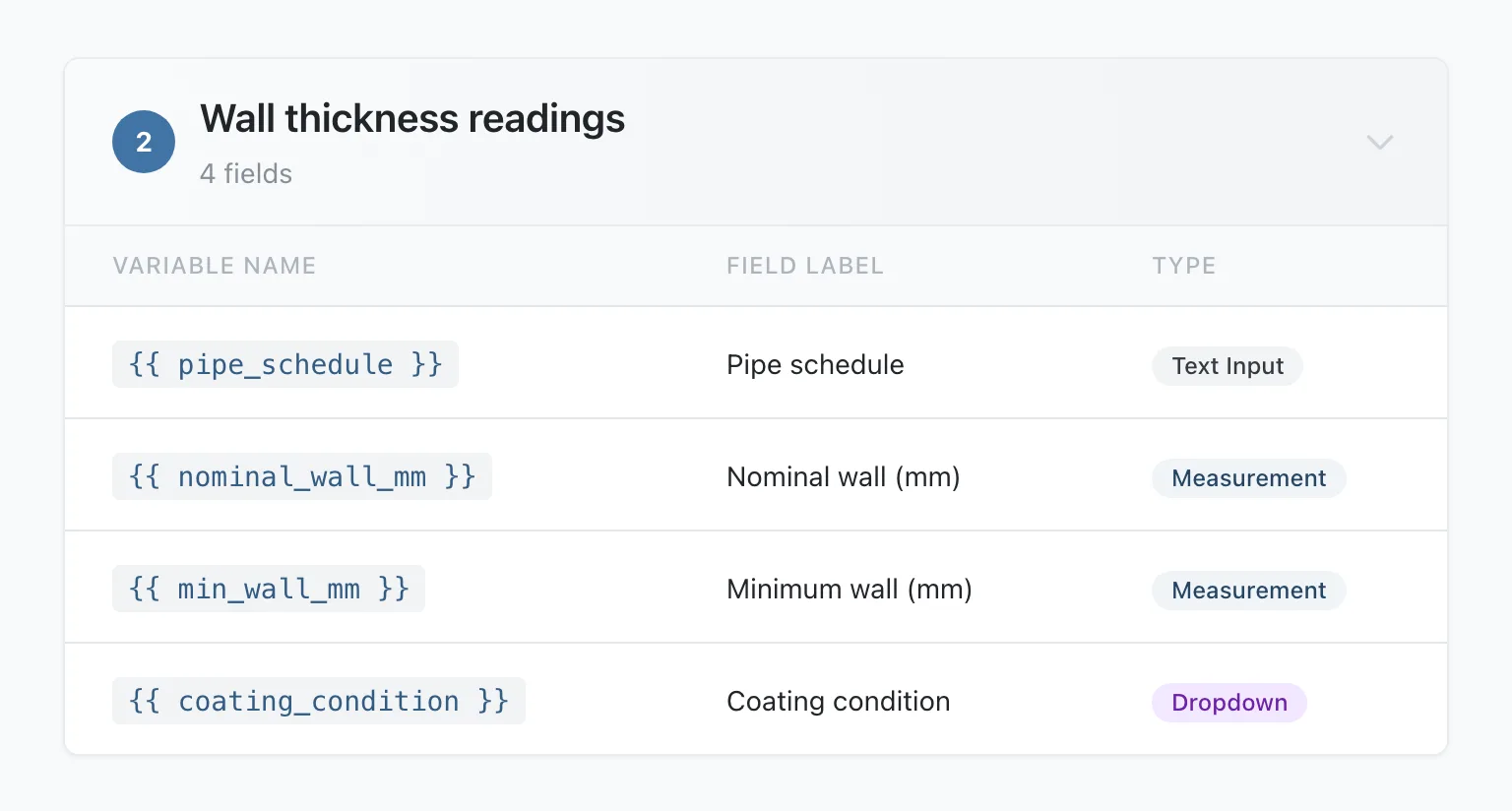
Go to Templates, press Actions on your form, then Field Reference. The page lists the name of every answer the form records. Details of the job itself are under System Variables, such as {{ job.job_number }} and {{ job.customer_name }}. Each step of the form has its own card: open it to see the name of every question on that step. Click a name to copy it.
Step 2: Put one name in each cell
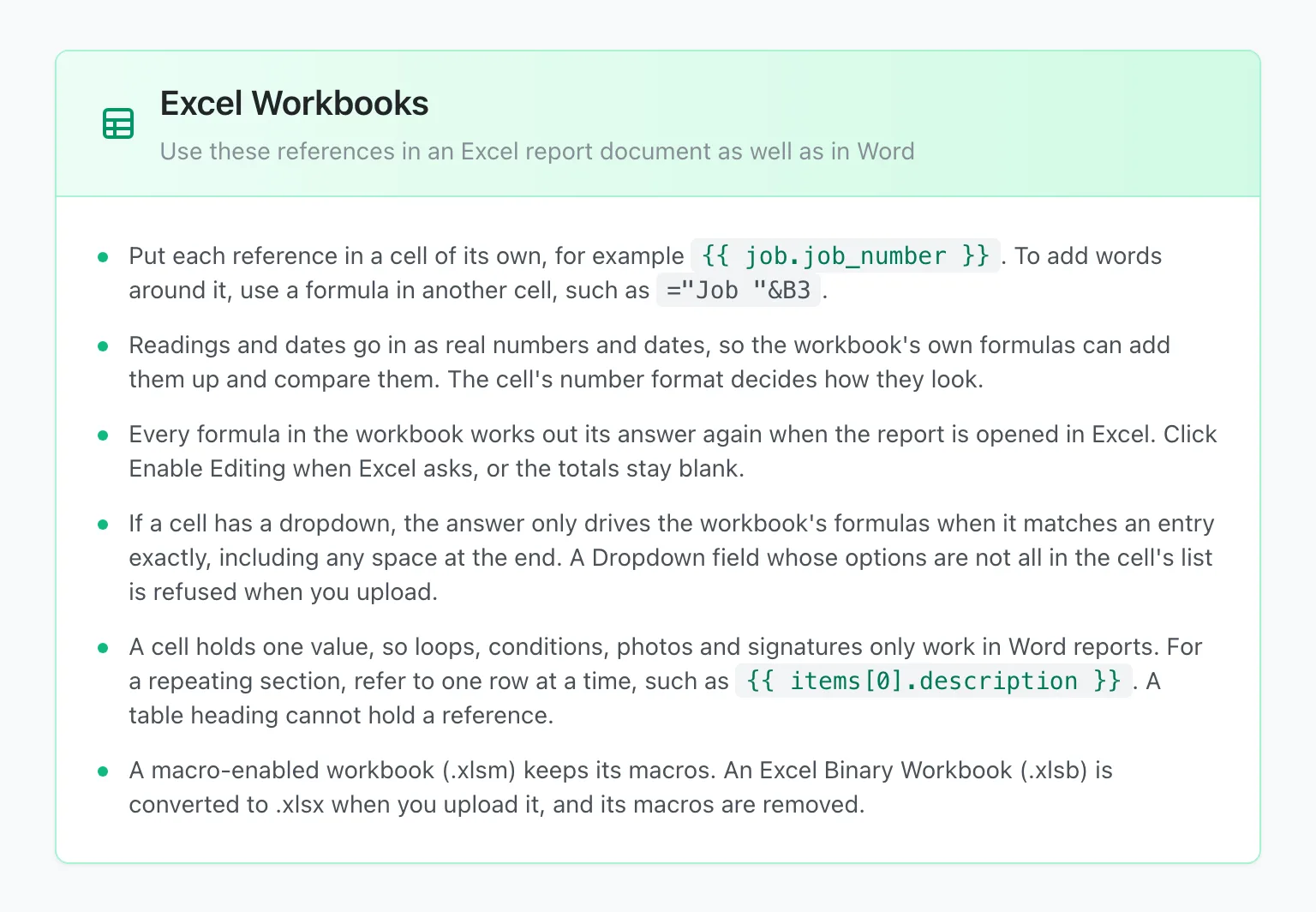
Open your workbook in Excel. In each cell that should hold an answer, paste its name and nothing else. A label beside the value belongs in its own cell, or in a formula such as ="Job "&B3.
| Cell | You type | The report holds |
|---|---|---|
| B3 | {{ job.job_number }} | Job number |
| B5 | {{ inspection_date }} | Date, in the cell's format |
| B6 | {{ nominal_wall_mm }} | Reading, as a number |
| B7 | {{ min_wall_mm }} | Reading, as a number |
| B8 | =B6-B7 | Your formula's answer for this job |
Stratum Track writes readings and dates as real numbers and dates, so your formulas can add and compare them. The report number and revision work as they do in a Word report, through {{ job.report_number }} and {{ job.report_revision_label }}. For a repeating section, refer to one row at a time, such as {{ items[0].description }} for the first row.
Step 3: Upload the workbook
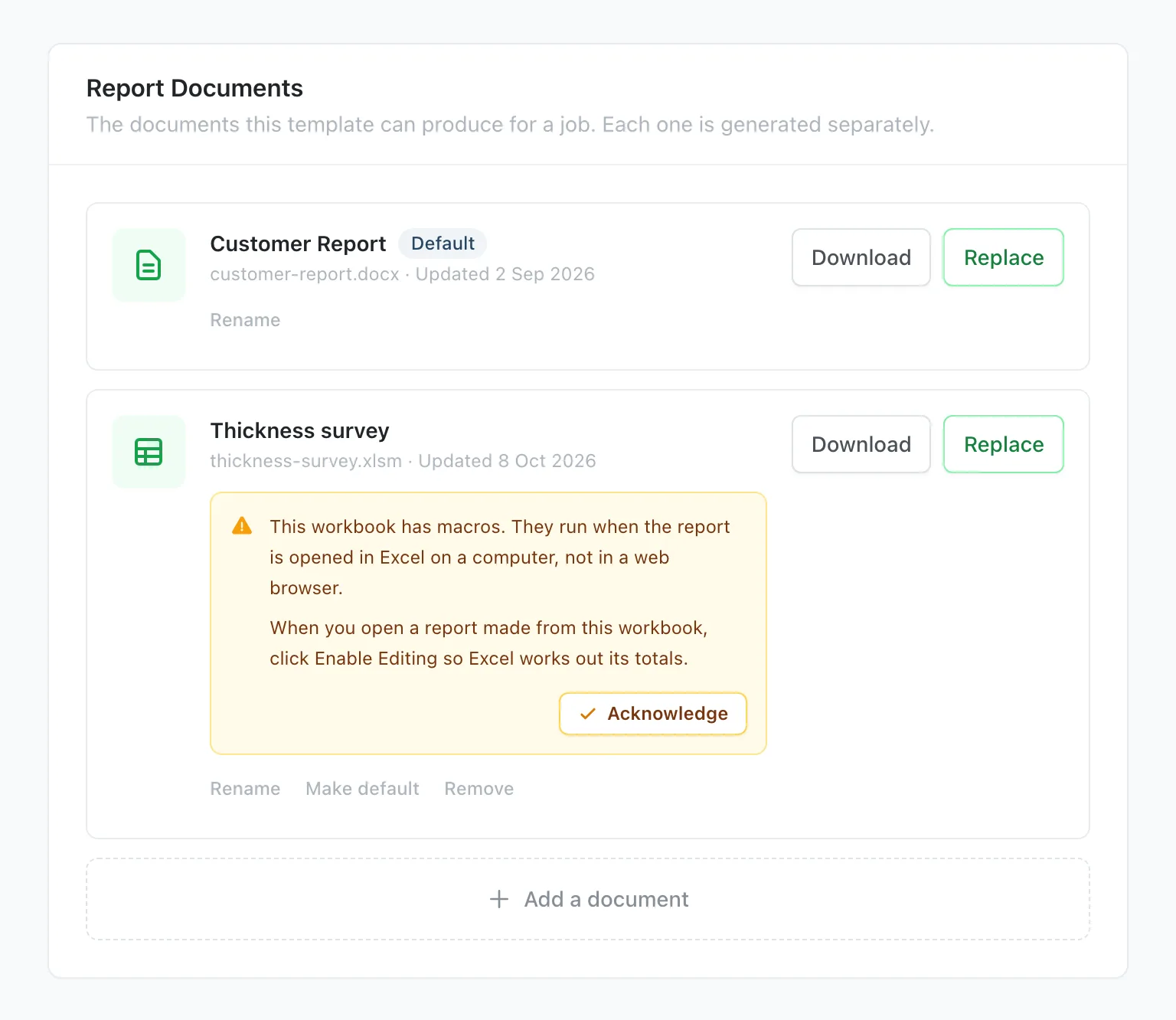
Go to Templates, press Actions on your form, then Report documents… to open its Report Documents card. Press Add a document and choose Upload a document. Type a Document name, which is what you pick when you generate a report, choose your workbook as the File and press Add document.
Stratum Track checks every cell that holds a name before it accepts the workbook. If a cell breaks a rule, Stratum Track refuses the upload and names the cell and the sheet, for example "Cell B4 on Survey holds other text beside its reference. Put the reference in a cell of its own, and build any label with a formula."
When the workbook passes, its card lists what to know before you use it. Press Acknowledge once you have read it. If you later upload a new version with Replace, Stratum Track keeps using the workbook you already had until the new one passes its check.
Step 4: Generate the workbook for a job
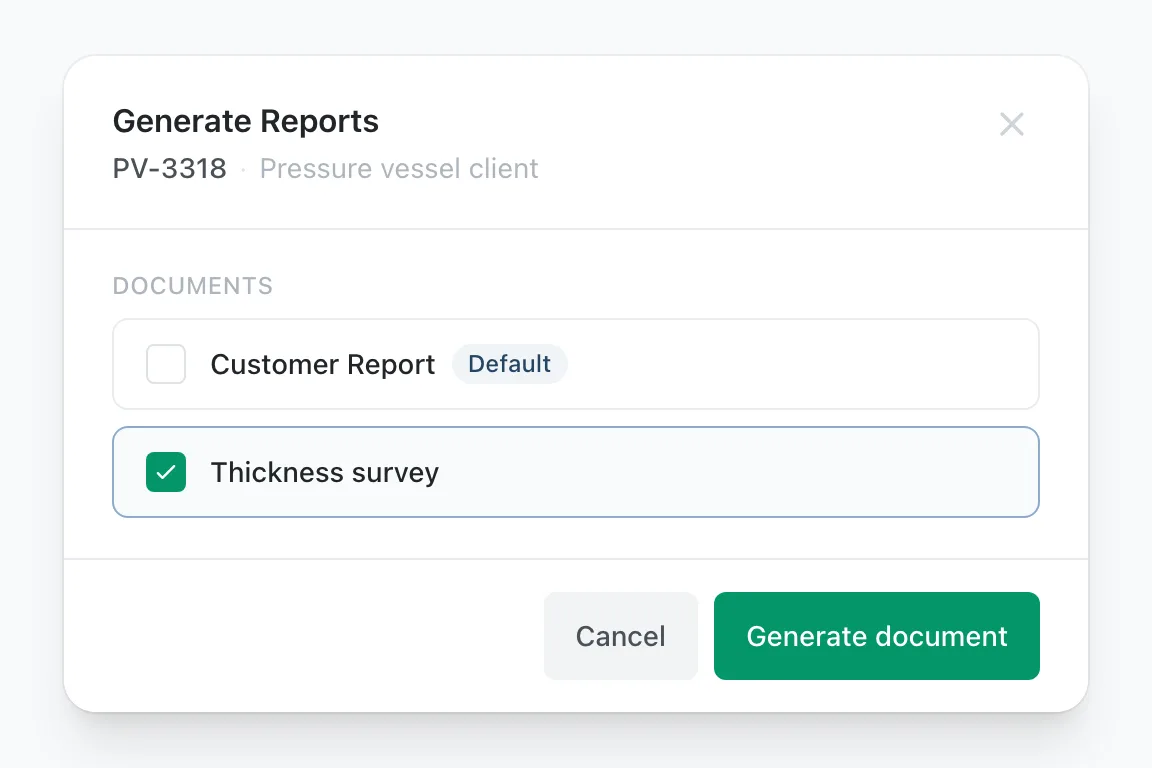
On the dashboard, open the job's Actions menu and choose Generate Reports, or press Generate report on Job Details. If the form has one report document, Stratum Track generates it and your browser downloads it straight away. If it has more, tick the workbook, press Generate document, then Download.
Step 5: Open the report in Excel
When Excel asks, click Enable Editing. Excel then recalculates every formula with this job's answers. Macros in an .xlsm run when you open the report in Excel on a computer, not in a browser. If Stratum Track wrote an answer into a cell whose dropdown does not list it, the Generate Reports dialog names the field and the cell, so you can check the workbook before you send it.
| In your workbook | In the report Stratum Track generates |
|---|---|
| Formulas | Kept, and recalculated with this job's answers when you open the report |
| Dropdowns | Kept, including lists that live on another sheet |
| Macros in an .xlsm | Kept |
| Images, formatting and print settings | Kept as you uploaded them |
| A question nobody answered | An empty cell |
Worth knowing
- Photos and signatures print only in a Word report. A cell holds one value. Keep a Word report on the same form for the photos, and Stratum Track tells you at upload if a cell names a photo or a signature.
- A Dropdown question must match the cell's dropdown exactly. Every option on the question must be in the cell's list, spelt the same, including any space at the end. If one is missing, Stratum Track refuses the upload and names the option.
- Stratum Track converts an .xlsb to .xlsx when you upload it, and removes its macros. Keep your original. To keep the macros, save it in Excel as an Excel Macro-Enabled Workbook (.xlsm) and upload that instead.
Common questions
Is Excel or inspection software better for inspection reports?
Excel is good at the arithmetic and at the layout your client already accepts. It is weaker at collecting the readings: in the workshops we meet, the technician writes them on paper or in another app, and somebody types them into the sheet again. Stratum Track records the readings on the tablet, with the photos and sign-offs that belong to them, then writes them into your own workbook when you generate the report. You keep the Excel sheet your client expects.
Do I have to rebuild my workbook?
No. You add one name to each cell you want filled and leave the rest of the workbook alone. Some workbooks keep a label and its value in one cell, such as "Job: 4471". Move the label into its own cell or into a formula, so the cell Stratum Track fills holds only the value.
Why are the totals blank when I open the report?
Excel has not recalculated them yet. Stratum Track clears the answer each formula last saved, so the totals come from this job's readings, not the last job's. In Excel they stay blank until you click Enable Editing. Excel for the web and LibreOffice recalculate them as soon as the file opens.
What happens to a question the technician did not answer?
Stratum Track leaves its cell empty. A Word report can print N/A for an unanswered question, but Stratum Track never writes N/A into a workbook, because a word in a cell that a formula sums turns the total into #VALUE!. If your client wants words there, a formula in the cell beside it can supply them, such as =IF(B7="","Not taken",B7).
Can one job produce both a Word report and an Excel workbook?
Yes. A form can carry several report documents, and Stratum Track generates each one separately. You can keep the Word report for the photos and sign-offs and add the workbook for the readings your client wants in Excel. When you generate, the dialog lists every document with a tick box. Tick both, press Generate 2 documents, and Download all (2) saves the two files together as a ZIP.