Articles · 2026-09-16
How to check readings against your own tolerance limits
Plenty of acceptance limits are not an ISO 286 fit. A client drawing gives 80.002 to 80.021, and a minimum wall thickness has no upper limit at all. Enter those limits on the template and Stratum Track checks every reading against them as the technician types, then gives the same Pass or Fail on Job Details and in the report.
You set this up once for each template, and it takes about two minutes per table.
What you need
- A manager login. Only a manager can open Manage Templates.
- A laptop or desktop. The editing controls need a screen at least 1024 pixels wide.
- A grid of readings on the template: a row for each position, a column for each reading.
Step 1: Open the template
Open Manage Templates, press Actions on your template, then Review. The template opens on the Preview tab, which shows the form as the technician sees it. Everything below is done there.
Step 2: Add a specification to the table
Skip this step if the table already has a specification column.
Under the table, press Add column. Enter a Column heading such as Result, set What goes in it to Specification, then choose What it measures and a Tolerance code. Stratum Track never invents a specification, so it asks for a code; step 3 replaces it with your own limits. Press Add column.
The new specification checks the readings in its grid straight away. Use Map fields only to change which readings it checks.
Step 3: Enter your own limits
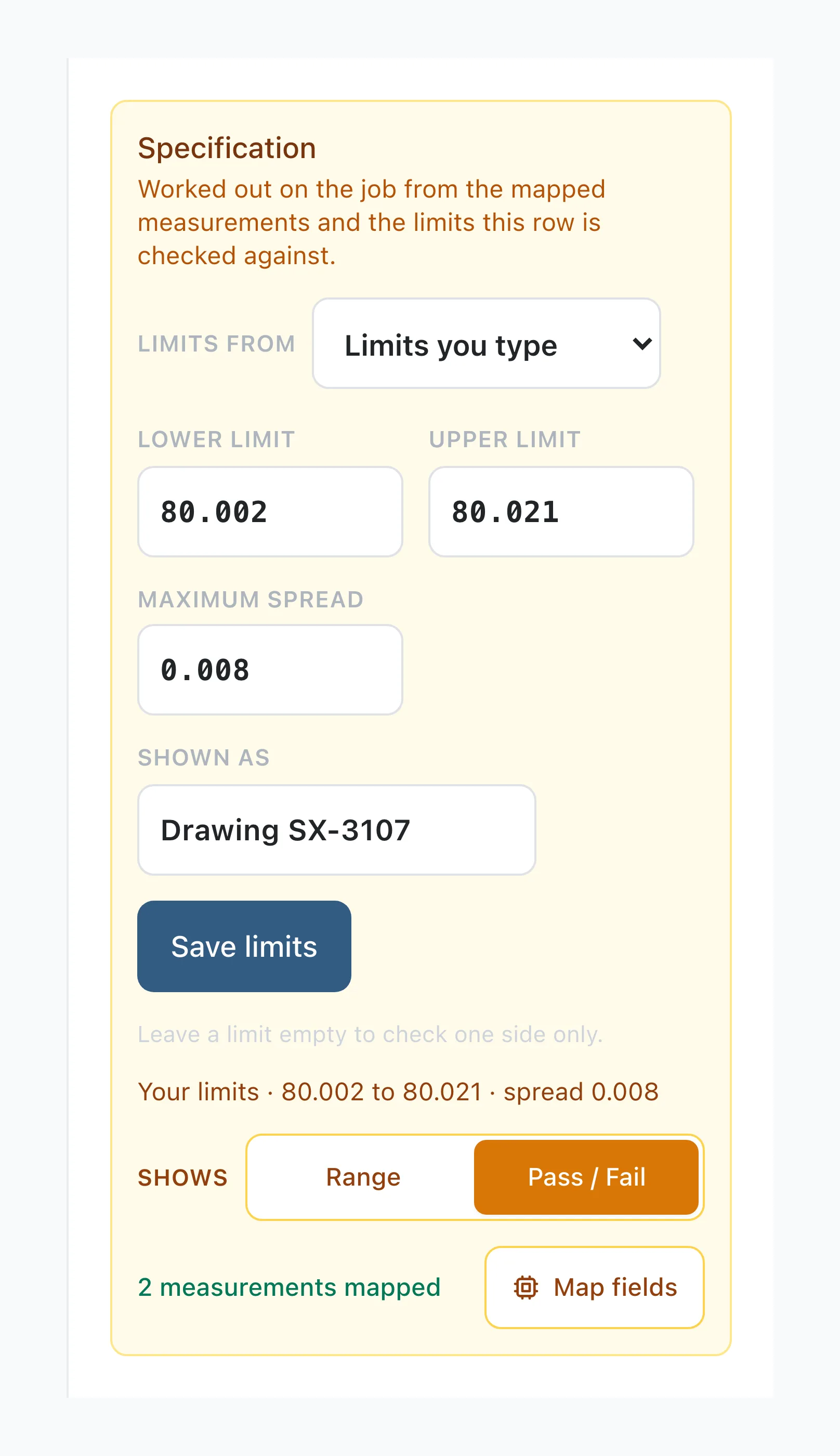
Select a cell in the specification column. The panel beside the form shows a Specification section. Open Limits from and choose one of these.
| Choose | When |
|---|---|
| ISO 286 fit code | The drawing calls up a fit such as H7 or h6 |
| Limits you type | The limits are the same on every job using this template |
| Limits on the job | The limits change job to job, and the technician records them on the step |
For Limits you type, fill in Lower limit and Upper limit. Leave one empty to check a single side, such as a minimum wall thickness, and the limits print as at least or at most followed by your number. Add a Maximum spread if the readings must also agree with each other, and a Shown as name such as the drawing number. Press Save limits.
For Limits on the job, choose the fields holding the lower and upper limits. Both must be Measurement fields on the same step as the readings, and not inside a repeating section. Maximum spread and Shown as are still set on the template.
Use the same units as the readings; Stratum Track does not convert them. The line under the controls then shows what the specification accepts, for example Your limits · 80.002 to 80.021 · spread 0.008.
Last, under Shows, choose Pass / Fail for the result or Range for the limits. A new column starts on Range in every row, and each cell carries its own choice, so select each cell you want to read as a verdict.
Or use the limits already in your Word template
If your Word template already has the limits typed into the table, as a pair such as 80.002 / 80.021 between the readings and a Yes/No box, Stratum Track finds them. Click the strip above the table to select it, and the panel shows a card headed Limits already typed in this table.
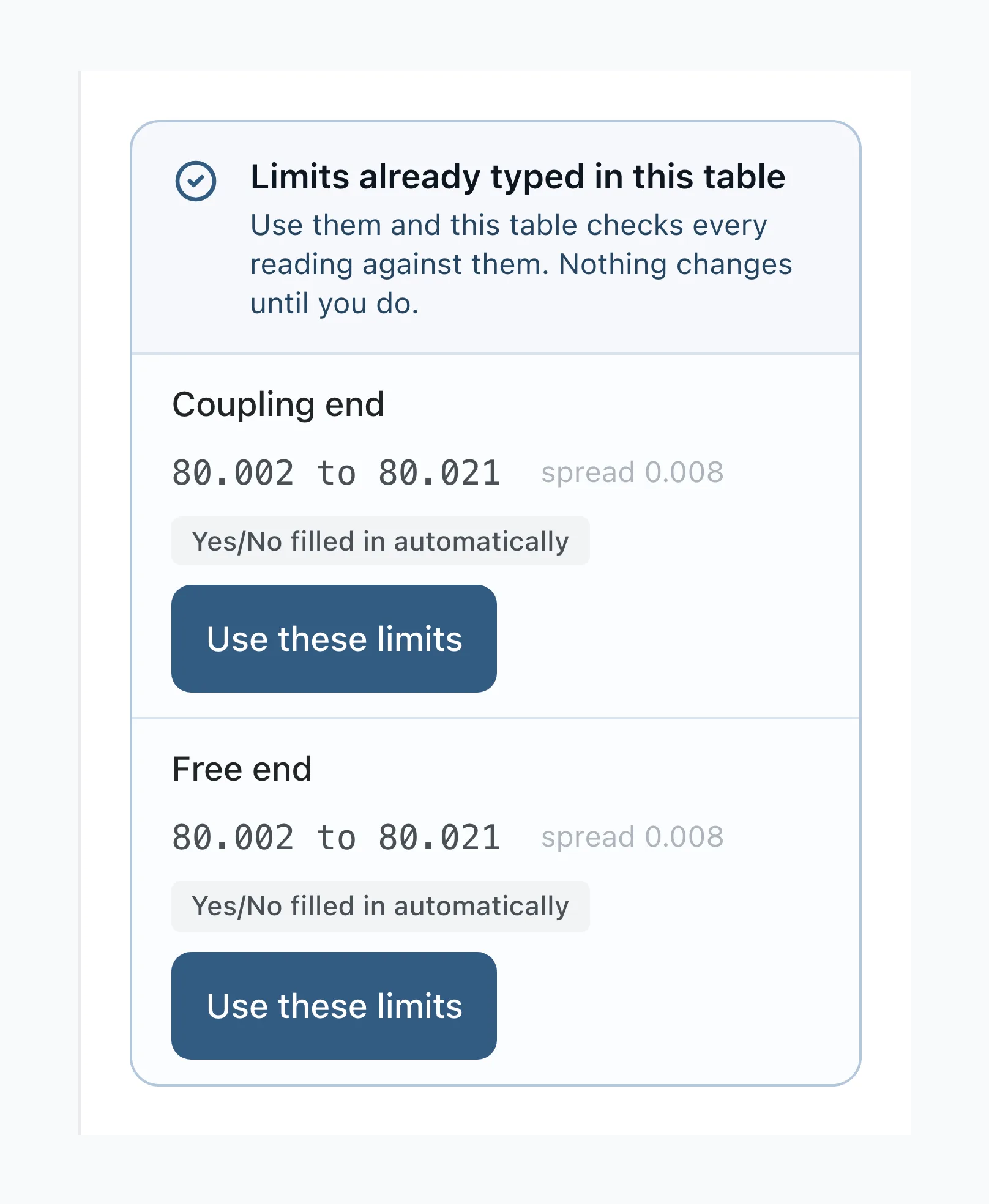
Press Use these limits on each row you want. Stratum Track saves them as that row's limits, connects its readings, and converts its Yes/No box to the Pass or Fail result, so you skip steps 2 and 3 for that row. Yes/No filled in automatically marks the rows where it will. Limits taken this way are named Client specification until you change Shown as.
Step 4: Make the change live
Adding a column in step 2 to a template jobs have already used saves your work to a draft, and the form your team is using stays as it is. Press Activate Template and every job switches to the updated form, including jobs under way, keeping the answers already recorded. Until you activate, you can discard the draft.
Limits saved on a specification column that was already there, and limits taken with Use these limits, do not wait for a draft. They reach the job as soon as you save them, so tell your technician before you change limits on a job in progress.
Step 5: Check it on a job
Open a job that runs the template, and open the step. A Range cell shows the limits beside the readings with the Shown as name under them. A Pass / Fail cell reads Waiting... until the technician enters the readings, then Pass or Fail, updating as a reading changes.
On Job Details, Pass shows in green and Fail in red, and any reading outside the limits is marked in red.
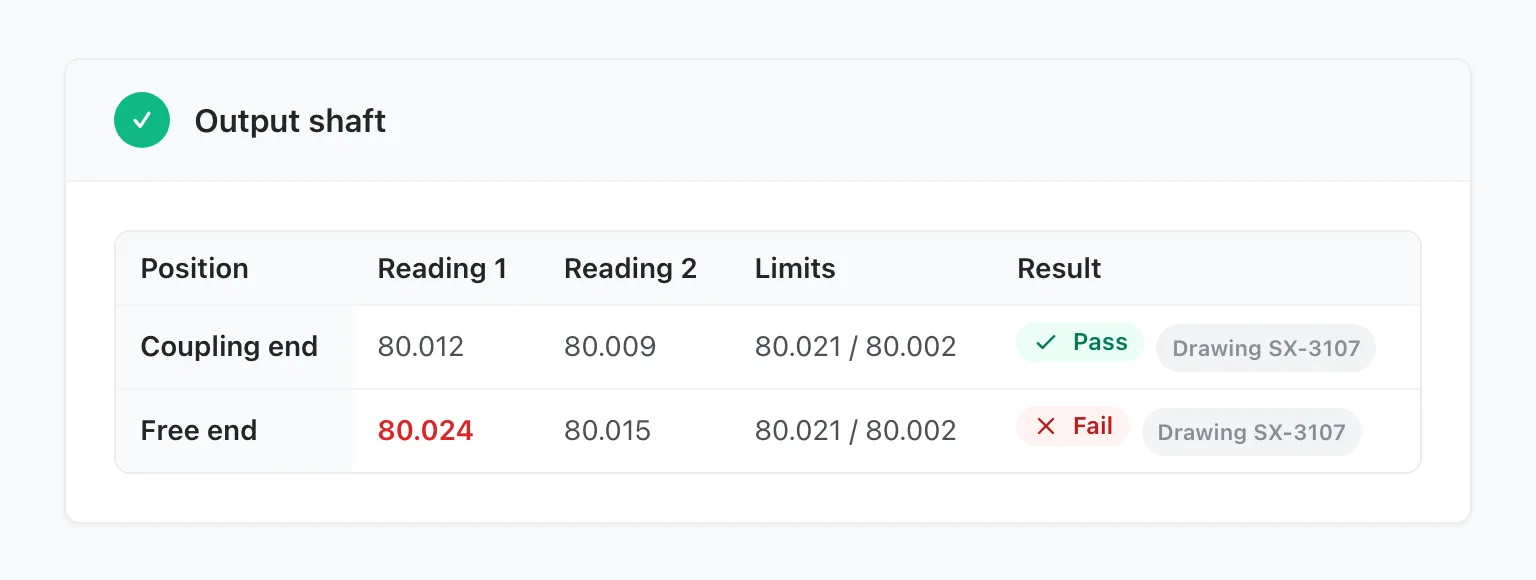
The report prints the same Pass or Fail wherever your report document carries that cell. The template's Field Reference page, on the Actions menu, lists the placeholders under Specifications.
Worth knowing
- The spread is checked once every reading is inside the limits. The largest reading minus the smallest must not exceed Maximum spread.
- A reading exactly on a limit passes, and so does a spread exactly equal to it.
- A reading a specification checks prints three decimal places, whatever Decimal places is set to.
- A specification cannot sit in a repeating table or a repeating section, and it is never a required field.
- Your report document does not change when you save. If it prints the limits as typed text, update it to match and upload it again.
Common questions
Do tolerance limits have to come from ISO 286?
No. ISO 286 fit code is unchanged, and limits from a client drawing, an OEM manual or your own procedure work the same way: the technician sees the same Waiting..., Pass and Fail. Stratum Track never converts a pair of limits into an ISO 286 code, because several codes give similar limits and a guess would change your acceptance criteria.
Can the limits change from one job to the next?
Yes. Choose Limits on the job and choose two Measurement fields on the same step as the readings. The technician enters the limits from that job's drawing and the result updates with each entry. While both limit fields are empty, the result reads Waiting... on the step and No Data on Job Details.
Does changing the limits change reports for jobs already done?
It can. Stratum Track calculates the result from the readings each time a report is generated, so a report made after you change the limits uses the new ones. A job that already recorded a Yes or No in a converted box keeps that answer. Decide whether your finished jobs should be judged against the new limits before you change a template they use.
Do I need to ask you to switch this on?
No. Your own limits are available to every company, on any template with a grid of readings. If you would rather we set the tables up with you, send us the form you use: we build the specifications and return the template for your approval.