Articles · 2026-10-13
Which items are due for inspection, and what happened to each one?
A technician drives to a customer's yard with a printout of the tagged lifting gear: chain slings, wire rope slings, shackles and lifting beams. About eighty items are due this quarter. They inspect seventy-seven. Two are out on a job at another site, and nobody in the yard can find the last one.
Back at the office the results go into the spreadsheet by hand. Each pass gets a new due date and each failure gets a note in the comments column. The three items the technician never saw get nothing, because the spreadsheet has a column for a result and nowhere to record that somebody looked.
Three months later those three are still on the list as overdue, and nobody can say whether they were scrapped or are still lifting.
What it costs
Typing eighty results into a spreadsheet takes an evening after every visit, and a due date typed against the wrong row goes unnoticed until the next visit.
The item nobody accounted for costs more. When your customer's auditor asks for the last inspection of a sling still in use, the answer is a due date that has passed, and nothing on file says anyone went looking for it.
What good looks like
Each customer's items are on one register, each with an inspection interval and a next due date. The job your technician takes to site lists the items that are due. Your technician records every due item as passed, failed or not found. The register takes its new dates from the finished job, so nobody types them a second time.
How Stratum Track does it
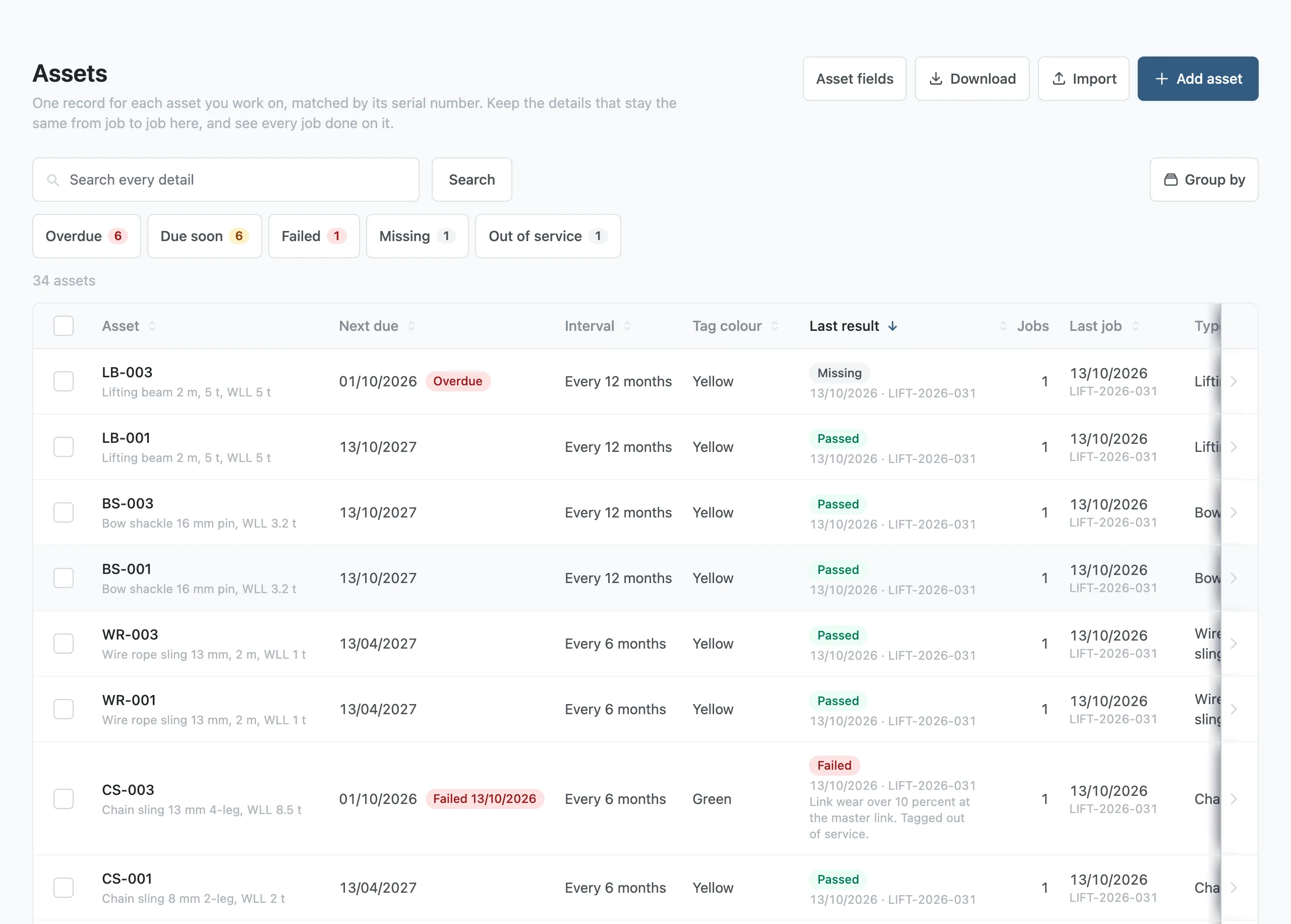
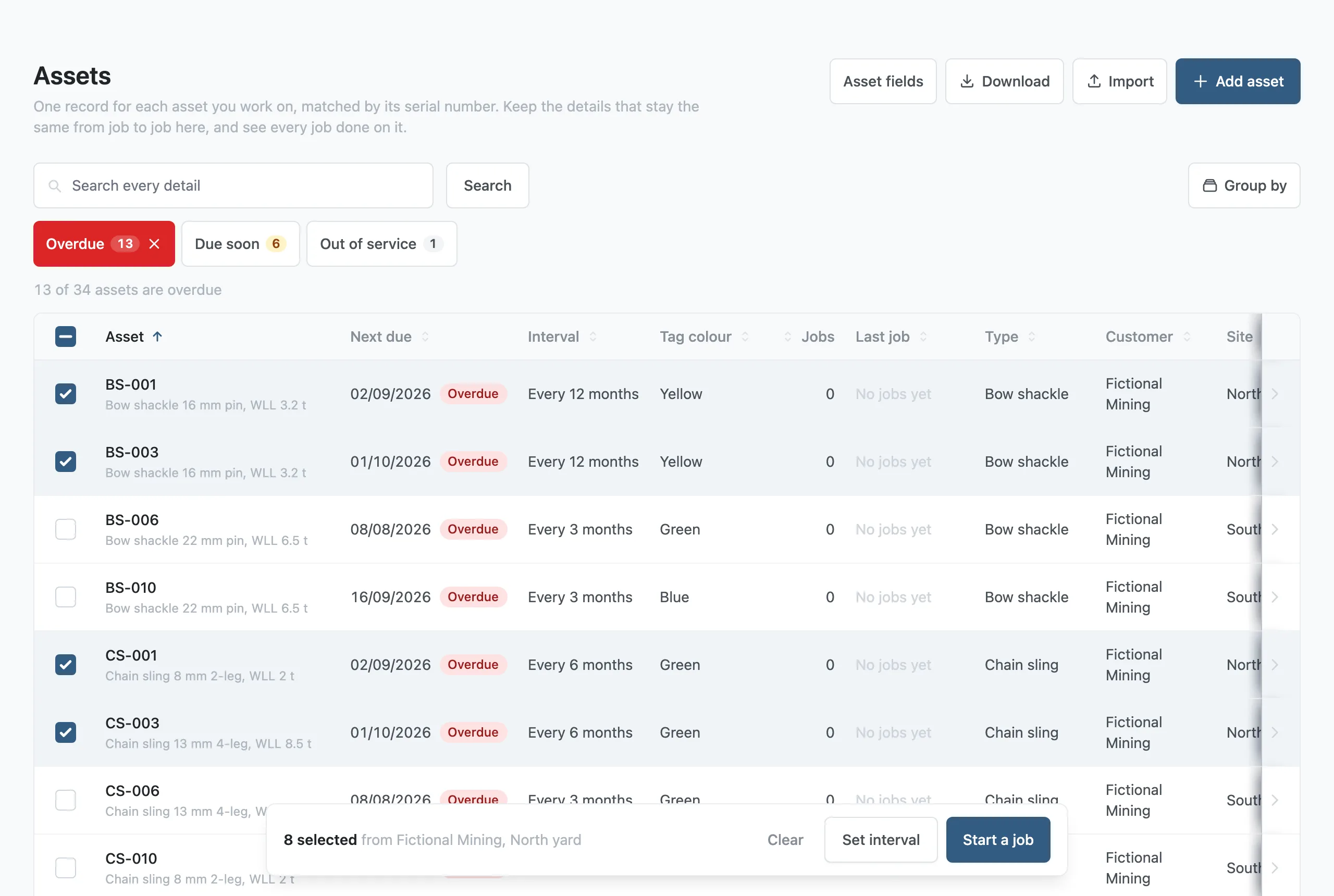
Stratum Track keeps each customer's items on the Assets tab, with an Interval, a Next due date and a Tag colour against each one. Pills above the list count the items that are Overdue, Due soon and Out of service, and pressing a pill filters the list. Due soon means due within 30 days.
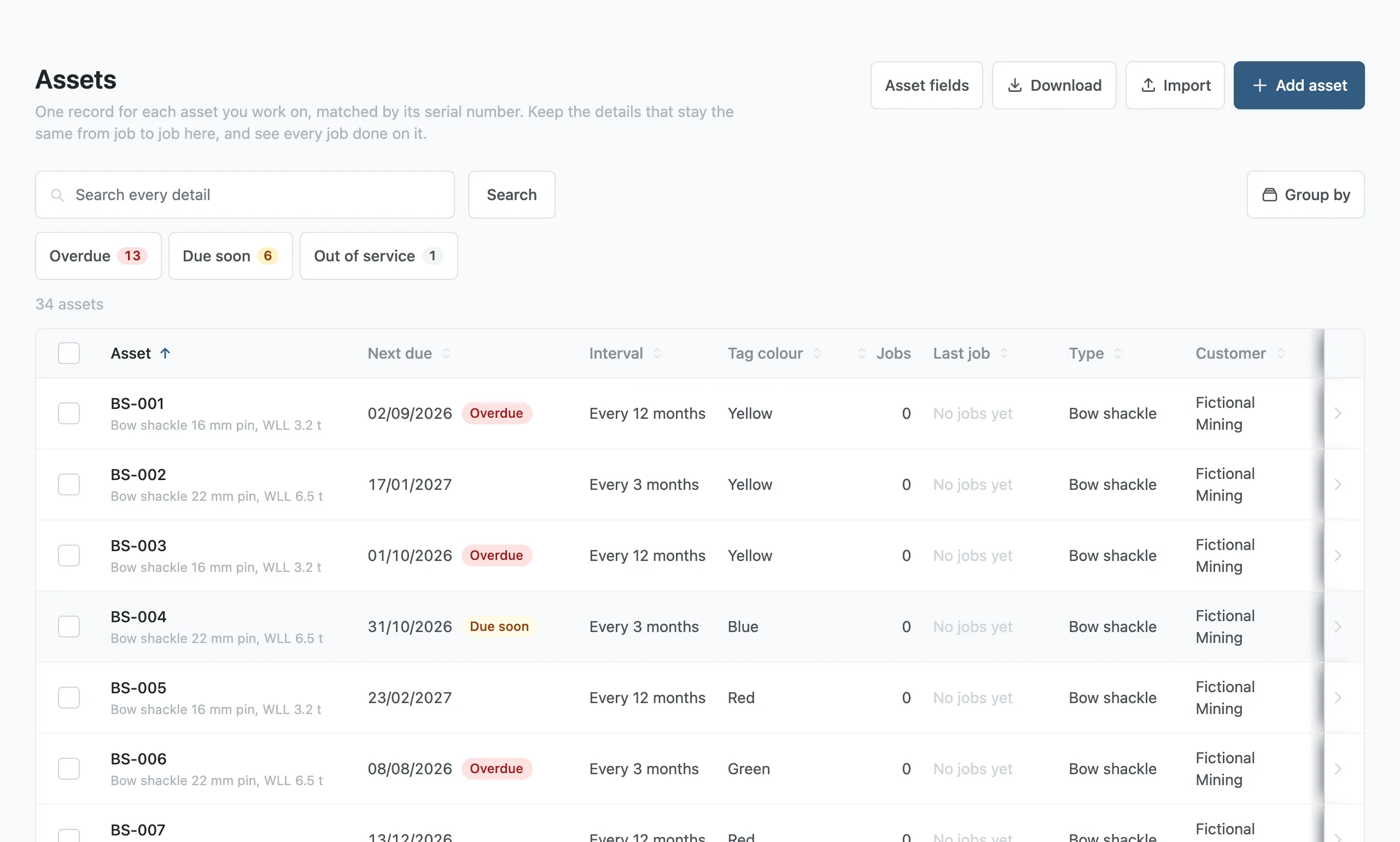
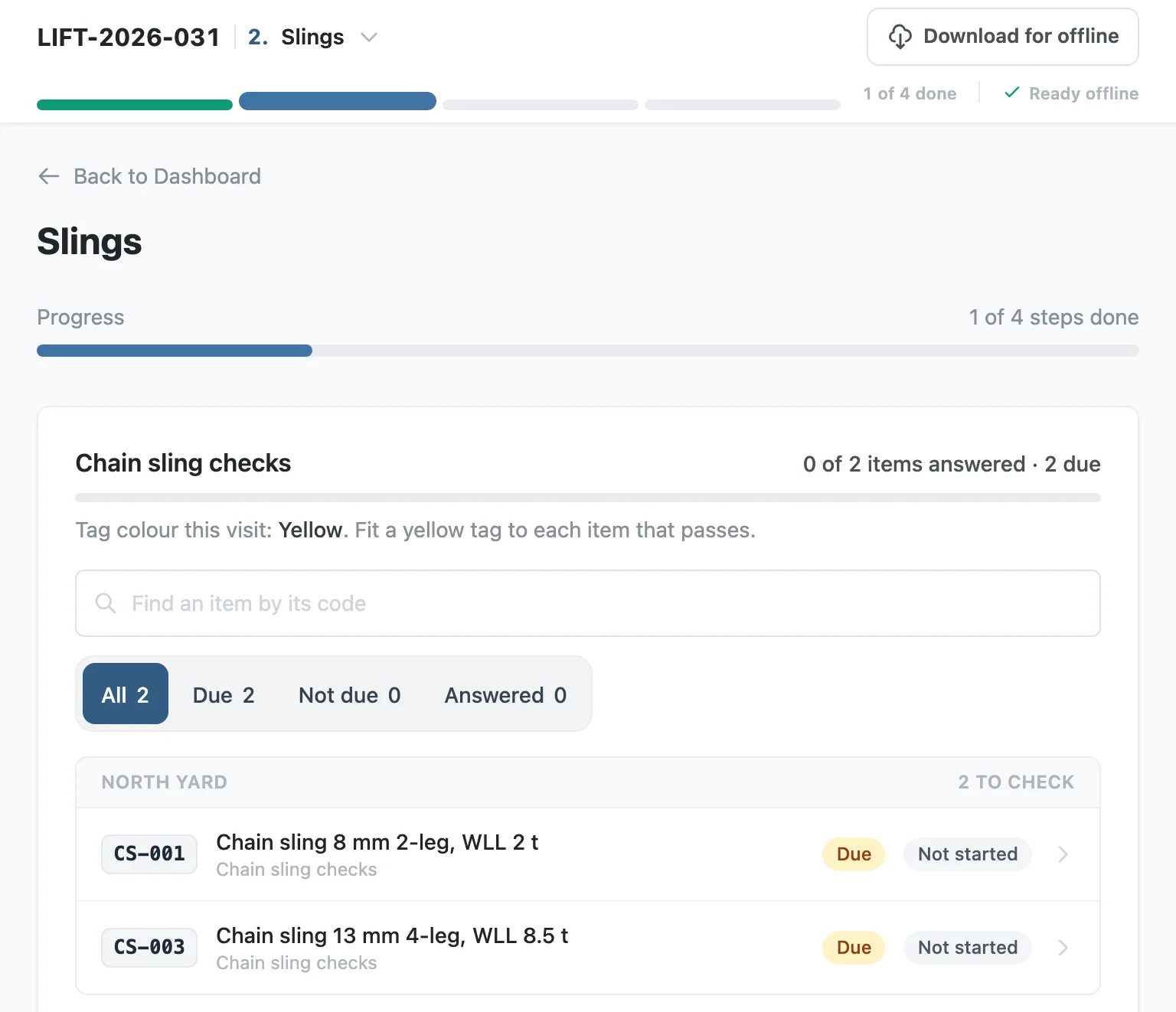
You tick the due items and start a job for them. On the tablet your technician sees those items as a list, each marked Due, with the tag colour to fit on this visit. Typing an item's code finds it in the list.
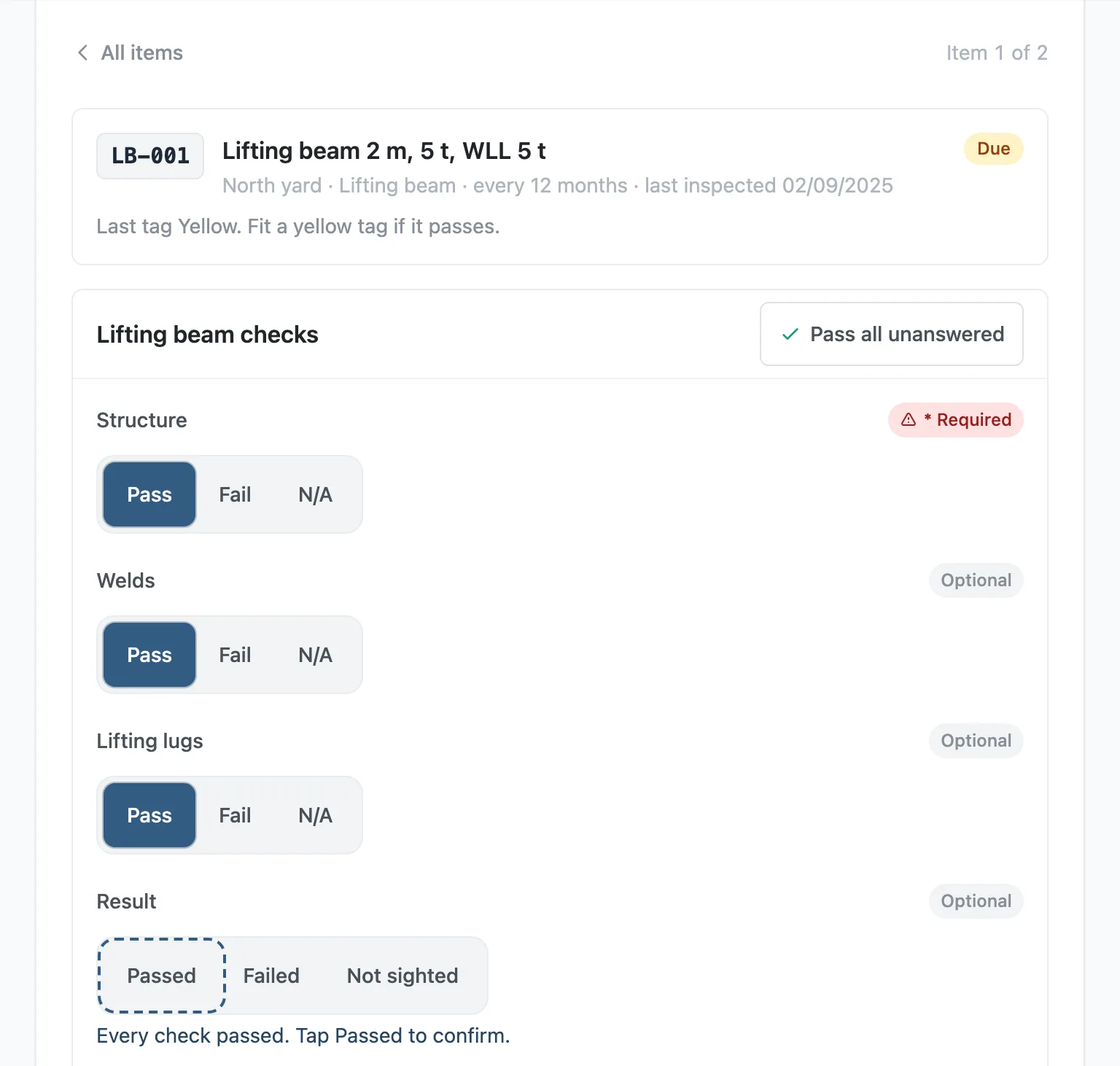
Tapping an item opens its checklist. You decide which checks fail the item. Pass all unanswered answers Pass on each of those that has no answer. When they all pass, Stratum Track suggests the passing result, which is Passed on the form pictured, and the technician confirms it with one tap. When one of them fails, the passing result is not offered. Next item moves to the following item without returning to the list.
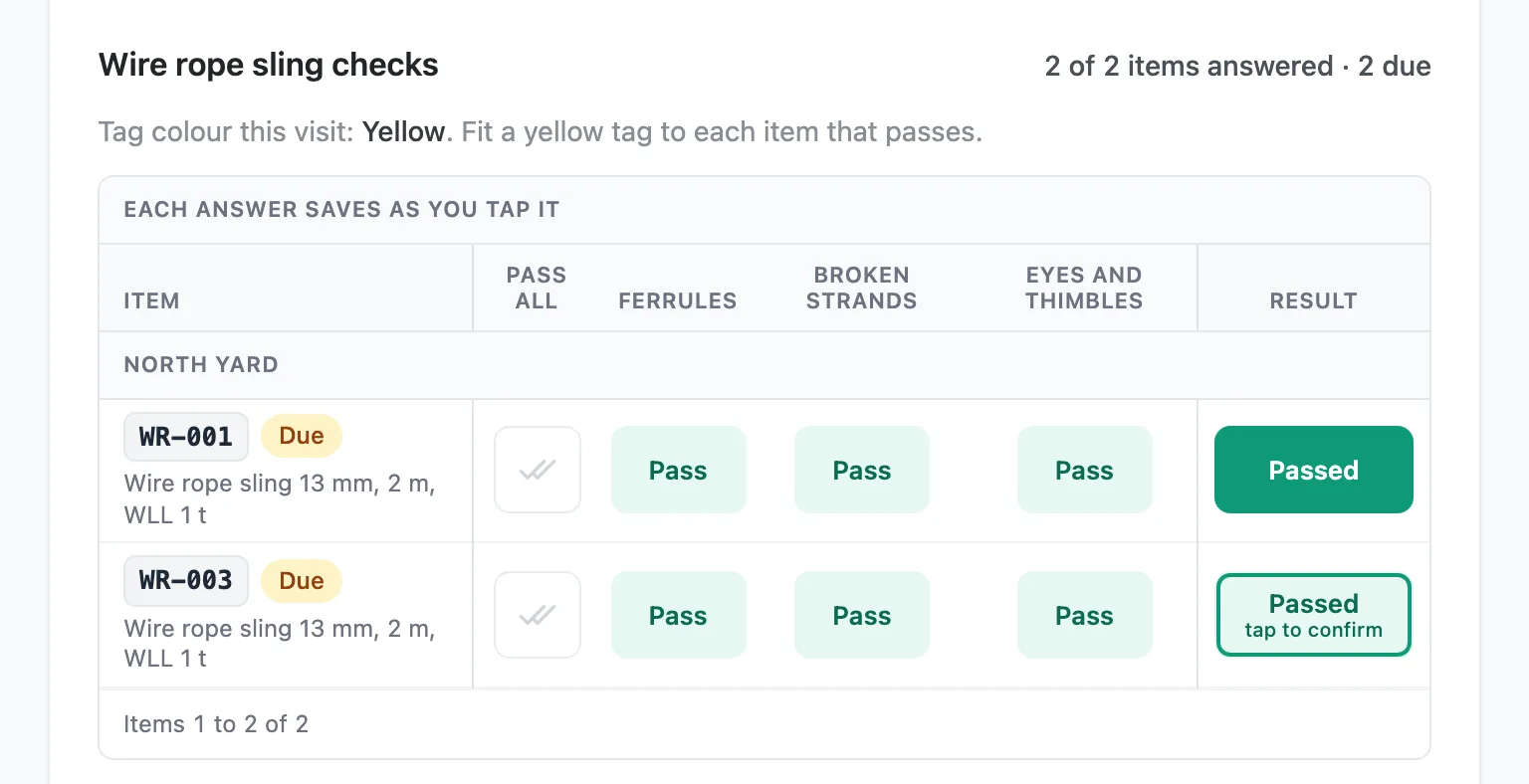
You can show a checklist as a grid instead, with one row per item and one column per check. The Pass all column does for a row what Pass all unanswered does for one item, and each answer saves as it is tapped. On the grid, an item with nothing wrong gets its result in two taps.
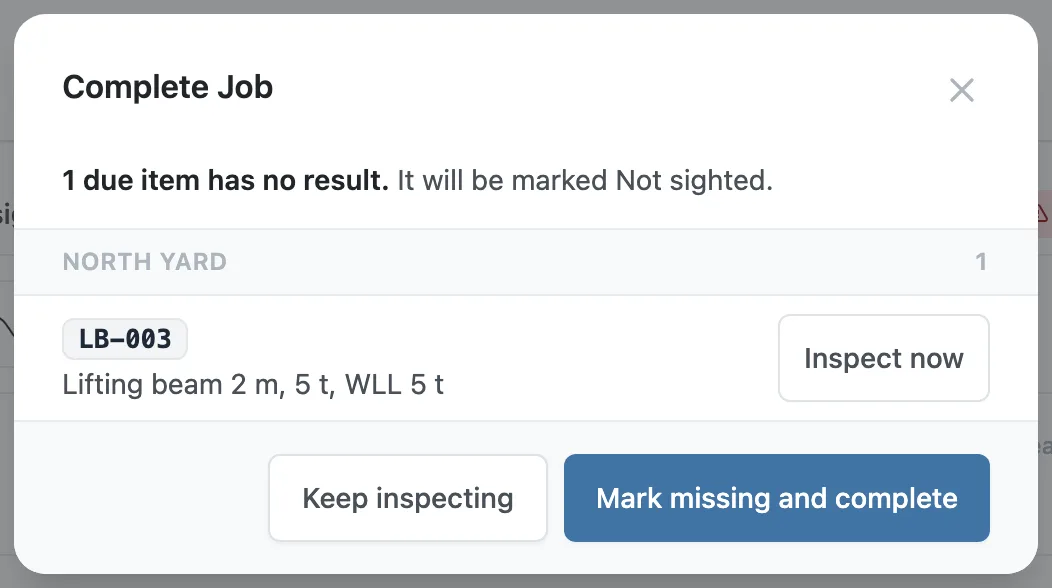
When the technician presses Complete Job, Stratum Track names each due item that has no result. They can inspect it now, keep inspecting, or mark it missing and complete the job. The dialog uses your form's own word for a missing item. On the form pictured it is Not sighted.
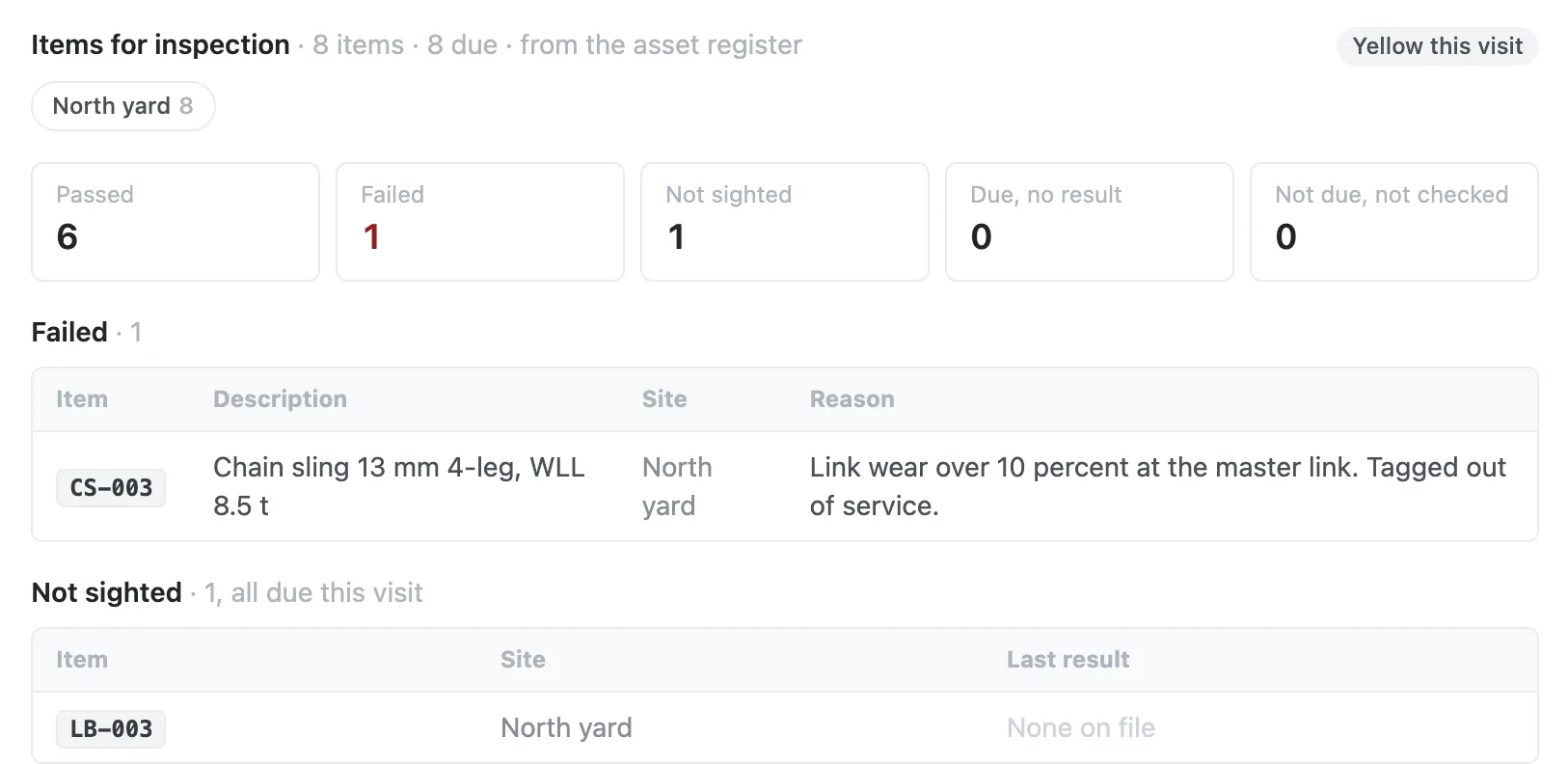
Job Details then shows what happened to each item: the counts, each failed item with the technician's reason, and each item that was not found.
Completing the job updates the register. A passed item gets the inspection date, a new Next due date and this visit's tag colour. A failed item gets the inspection date and keeps its due date and tag colour. A missing item keeps its dates and its colour. An item leaves service only when you set its Out of service date.
Setting it up
The inspection details are off until you switch them on.
Step 1: Switch on the inspection details
Open Assets, then Asset fields. Under Built-in details, switch on Inspection interval, Last inspected, Next due, Tag colour and Out of service.
Step 2: Set an interval for each item type
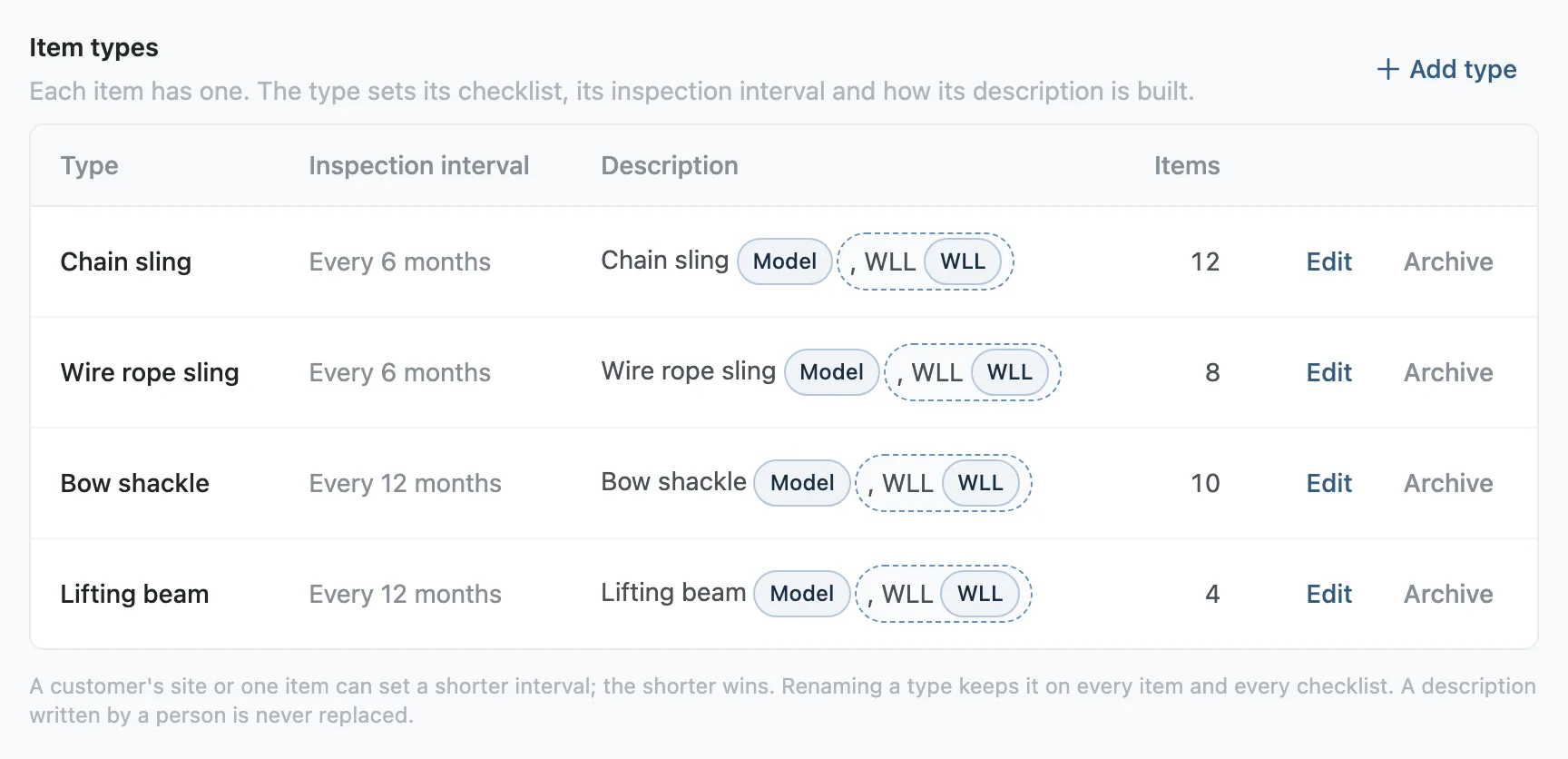
On the same page, Item types lists the kinds of item you inspect. A type sets the checklist an item gets, its inspection interval and how its description is built. A customer's site or a single item can set a shorter interval, and the shorter one applies.
Tag colours, on the same page, sets the colour a technician fits when an item passes. It follows the date of the inspection, and a customer can have colours of their own.
Step 3: Load each customer's items
Press Import on the Assets tab and choose your spreadsheet. A Customer column and a Type column put each item under the right customer and type, and Stratum Track shows you any customer or type name it has not seen before anything is imported. An import never deletes anything.
Step 4: Put a checklist on the form
The form first needs a list from the asset register, which is a job table set up under Settings, Job Tables and ticked for the template.
A checklist is a repeating group with Copies set to One for each item on the job. Item type is one of limits it to the types it applies to, and On the step form chooses between Item list and Grid. A phone always shows the item list.
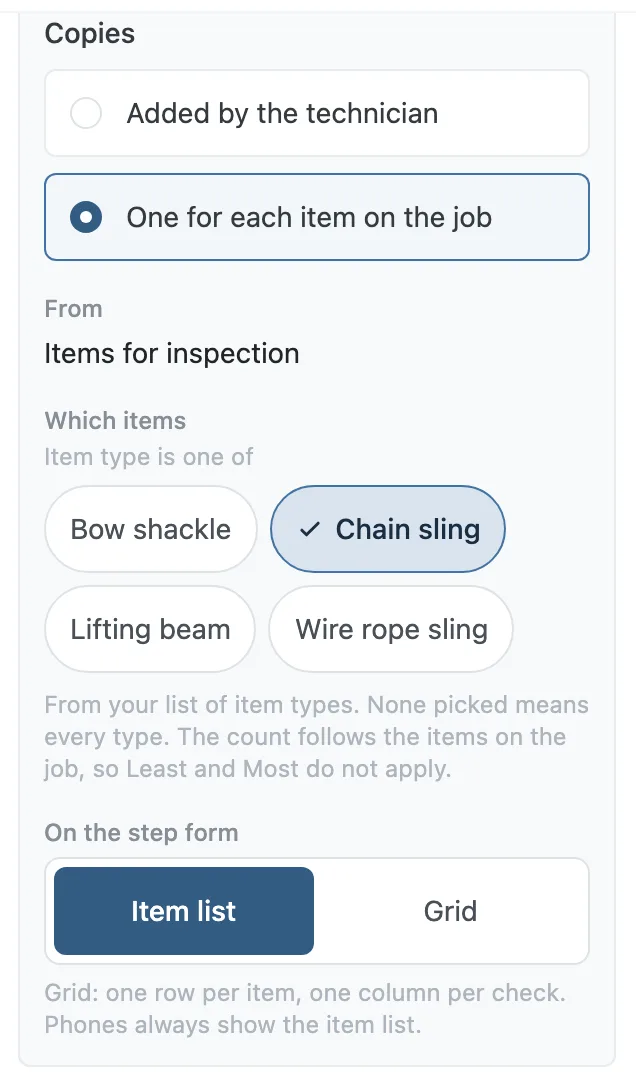
One field in the checklist is the Item result. You map each of its answers to Passed, Failed or Missing, and choose the field that holds the Failure reason.
Step 5: Start a job from the register
On Assets, press Overdue or Due soon, tick the items for one customer and press Start a job.
The New Job form lists the ticked items and highlights the ones due by a date you choose, 30 days ahead unless you change it.
Questions people ask
What happens to an item nobody could find?
Stratum Track lists every due item with no result when the technician presses Complete Job. They can open the item and inspect it, go back to the job, or press Mark missing and complete. A missing item keeps its due date, its last inspection date and its tag colour on the register. The Assets tab counts it under Missing, unless it is already counted as Failed. Job Details lists it as well, beside its last result on an earlier job.
Does a failed item get a new due date?
No. A failed item gets the date of the inspection and keeps the due date and the tag colour it had. The register shows Failed against it with the date and the technician's reason, and the Failed pill at the top of the Assets tab counts it. Stratum Track does not take the item out of service. Repairing or scrapping it is your decision, and you record an Out of service date on the item when it leaves service.
What does the report show for each item?
Your report template can print ready-made lists of the job's items: all of them, the items that passed, the items that failed, the items marked missing, and the items that were not due and were not checked. Each item also has a record page of its own, with the item, its result, every answer and a Print button. The layout is your own Word template.
Can two customers have an item with the same code?
Yes. A code has to be unique within one customer, so two customers can each own a CS-001. Each item belongs to a customer from your list under Settings, Customer Management. A job started from the register carries one customer's items, so tick the items of one customer before you press Start a job.
Is this switched on for every company?
The Assets tab is on every manager's menu. The inspection details are off until a manager switches them on under Asset fields. The tick boxes and Start a job appear on the Assets tab once an active job template carries a list from the asset register. We build that template with you from the inspection sheet you use today.