Articles · 2026-09-01
How to calculate a number and flag it as pass or fail
Your technician takes two readings, averages them in their head, then reads a chart to decide whether the answer is in tolerance. Stratum Track lets you put both of those on the form instead. A Calculated field calculates the answer from the fields beside it, and a Badge field shows a coloured label when a rule you set matches.
This takes about five minutes per field, and you do it once for the template.
What you need
- A manager login. Field types are set on the template, and only a manager can open Templates.
- A step that already carries the numbers you want to calculate from. A calculation reads from its own step, so add the readings first.
The example below is a bearing clearance. The technician takes two readings, the Calculated field averages them, and a red Badge fires when the average falls below the minimum the job allows.
Step 1: Add the field and set its type
Open Templates, press Actions on your template, then Review. The template opens on the Preview tab. Press Add to this step and pick Calculated, or select a field already on the step and set Field type to Calculated in the panel beside the form.
An amber block appears in the panel, headed Formula, with a Configure button. Stratum Track will not let you save the field without a formula.
Step 2: Build the formula
Press Configure. You build the formula by tapping the fields and the signs you want.
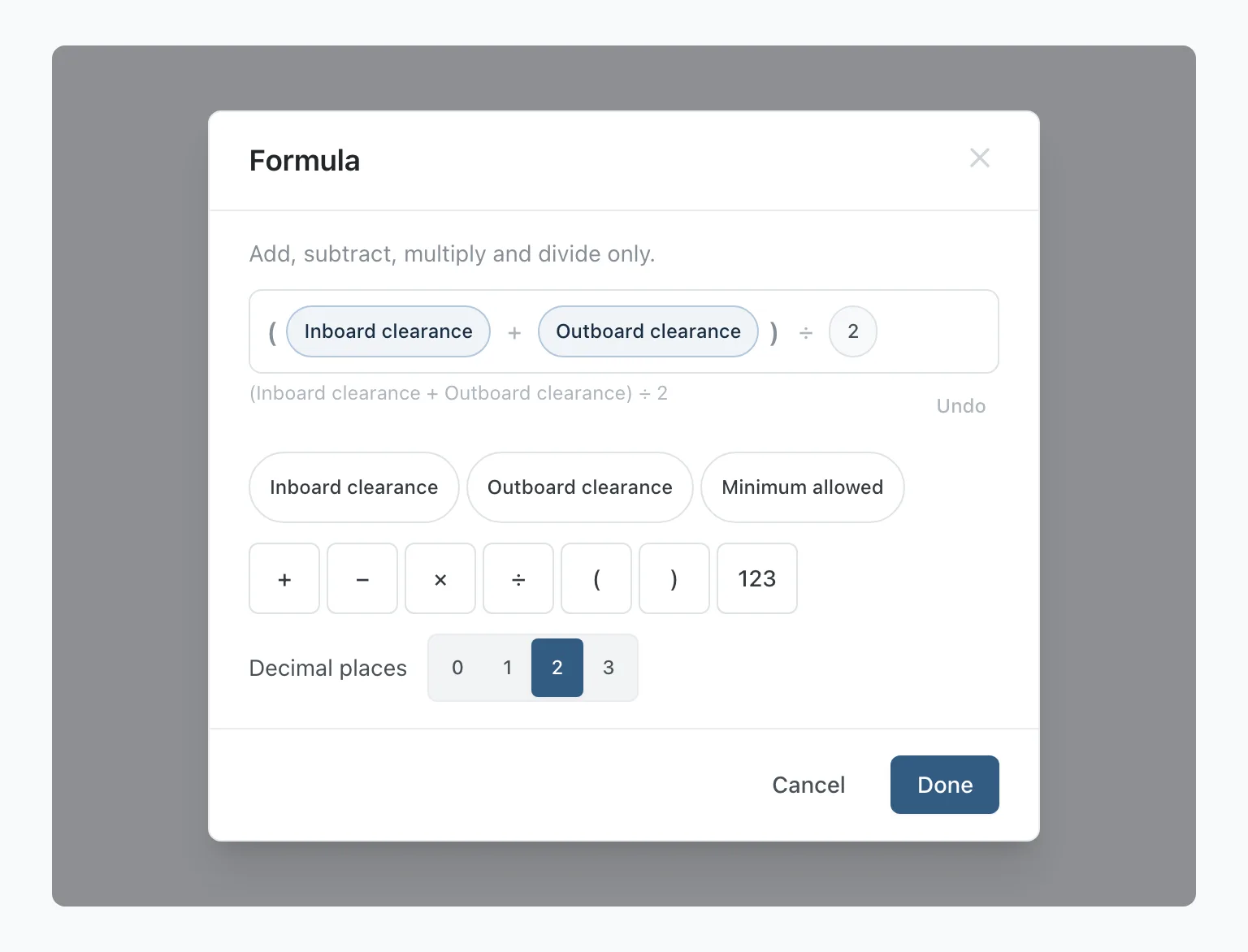
The keypad is + − × ÷, brackets, and a 123 key for typing a plain number. Under it, Fields on this step lists the number fields on the step, with a search box when there are more than eight.
Stratum Track switches off any key that would produce a formula it cannot calculate. Under the formula strip it shows the same formula in words. Remove last removes the last thing you tapped. To change one part, tap it in the formula, then tap the field or sign to put in its place, or press Remove.
Step 3: Set the decimal places
Decimal places is 0, 1, 2 or 3, and it starts at 2. This is the number your client reads on a signed record, so set it to the precision your procedure requires. Press Done, then Save changes in the panel.
Done does not save. It returns the formula to the panel, and Save changes stores it with the rest of the field.
Step 4: Add a Badge field and write the rules
Add a second field the same way and set its type to Badge. Press Configure on the amber block, which this time is headed Badges.
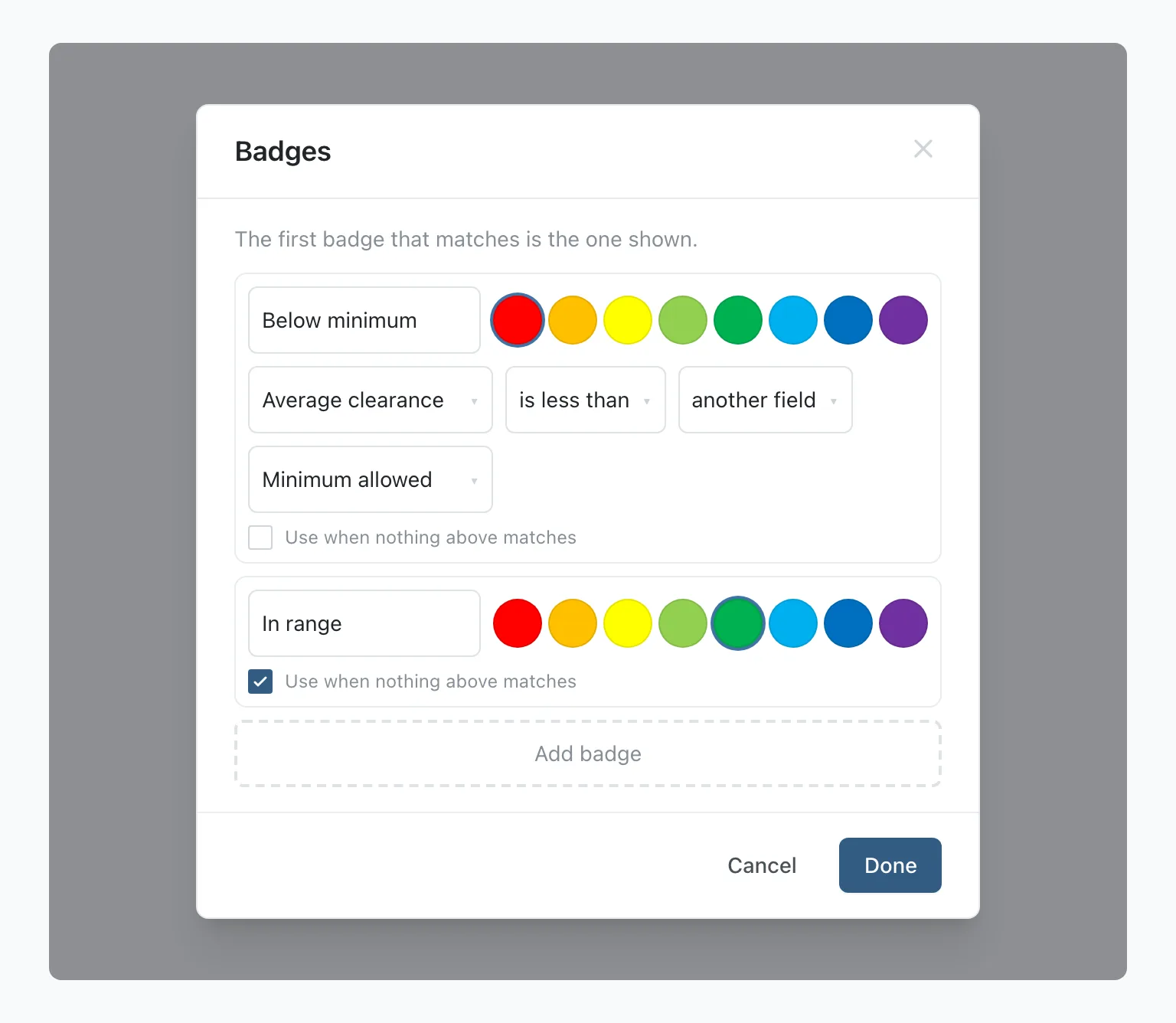
Each card is one badge. Type its Words, pick one of the eight colours under Colour, and under Show it when choose the field, the comparison and the value to test against. For a number, a date or a time, Compare with lets you test against a value or another field. A dropdown offers its own options, and a Yes/No field offers Yes or No.
The last card, Use when nothing above matches, is always there. Give it the words to show when no rule matches, such as In range. Stratum Track shows the first badge that matches, so put your worst case at the top. The arrows on each card move it up or down.
Step 5: Check it on a job
Open a job that runs the template and go to the step.
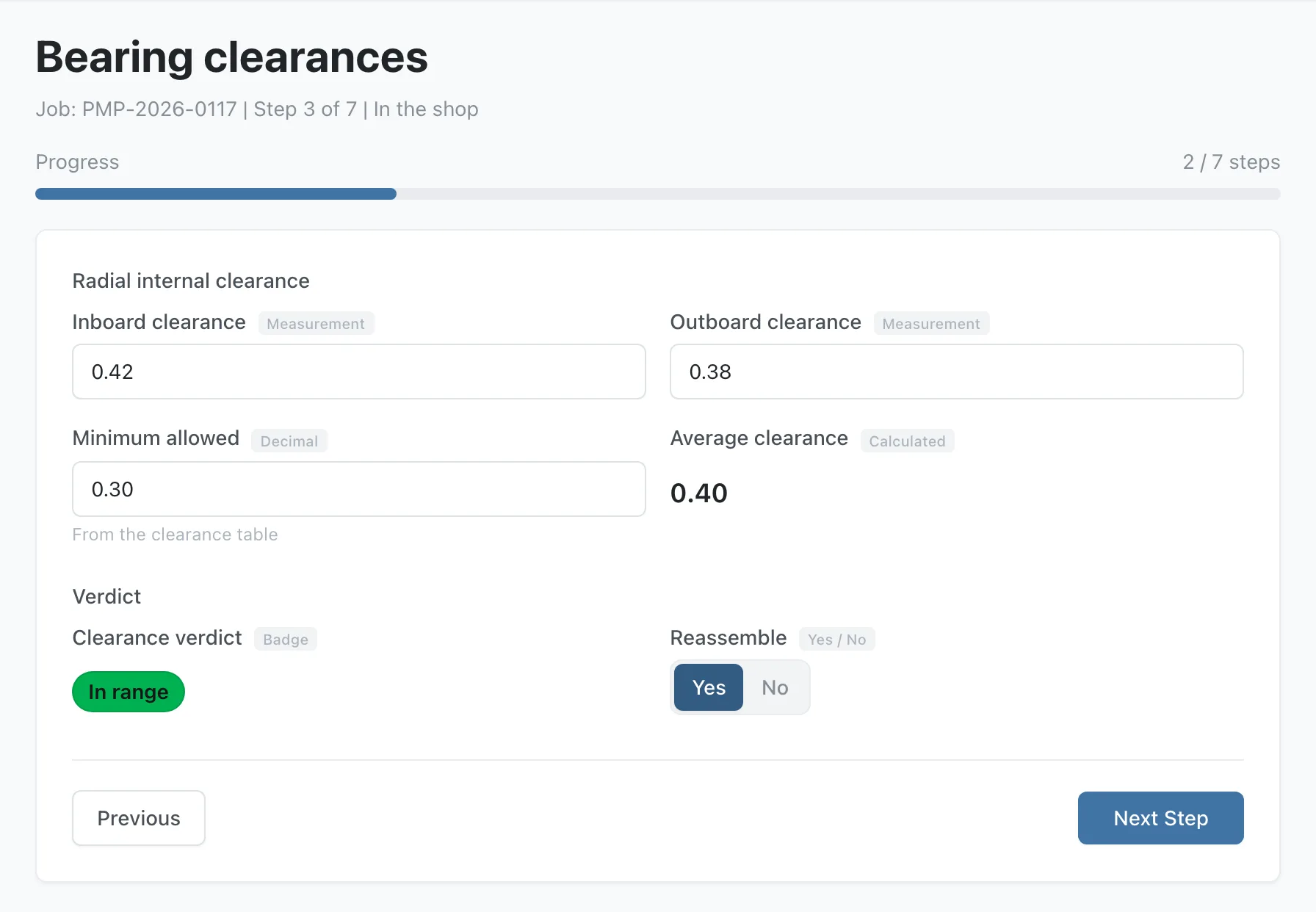
The average appears as soon as both readings are in, and the badge follows it. Until then the field reads Waiting..., so nobody mistakes an empty answer for a zero. Change a reading and both update.
Neither field accepts typing, so the number on the record is always the one the formula produced. Outside a table, each one carries a Filled in automatically tag beside its label.
An overall result for a table
A badge can also read a column of a table that technicians add rows to, such as a weld findings table with a result on each row. In Show it when, the field list offers Any row of and Every row of each column of that table. Each rule reads one column.
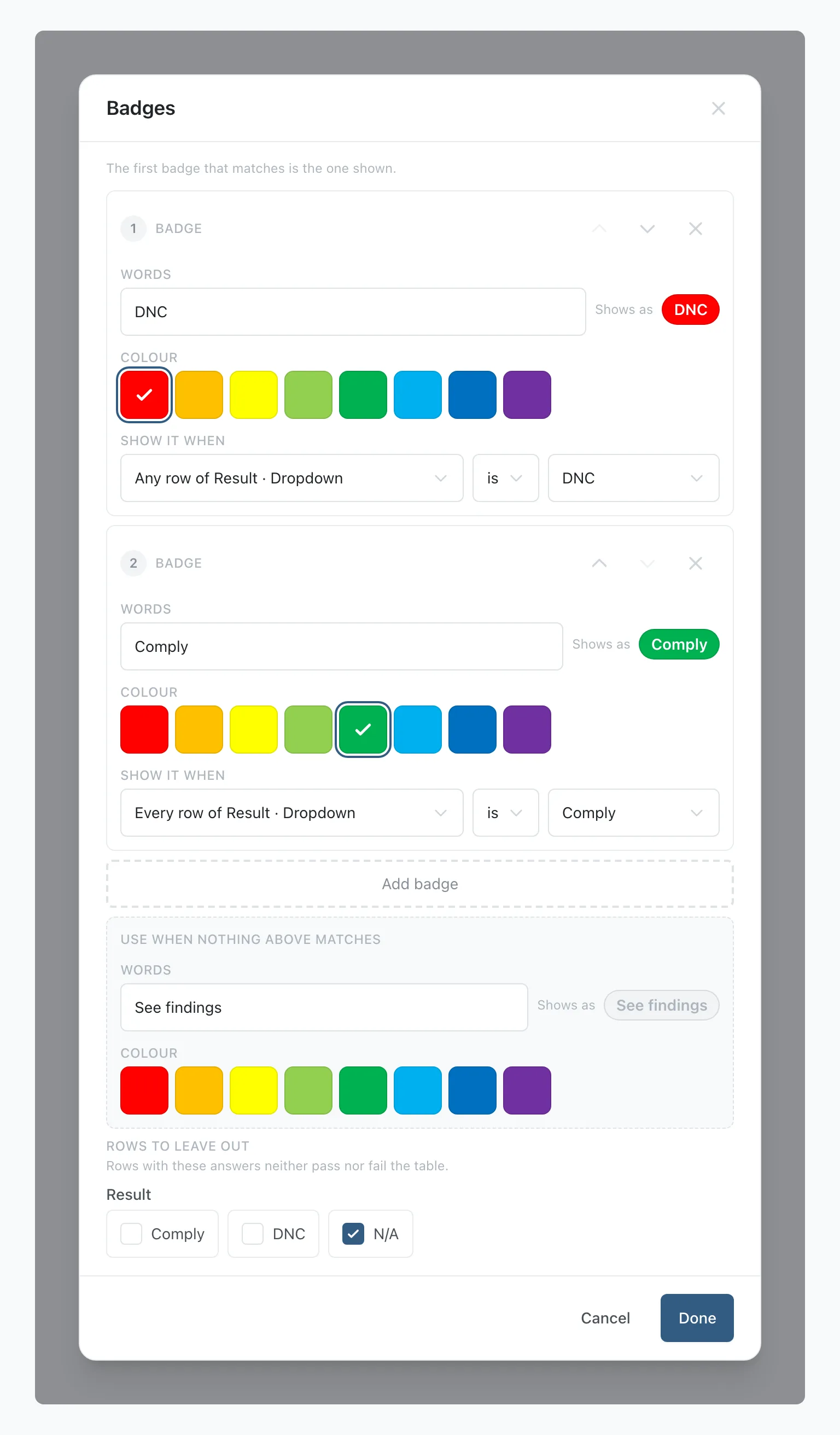
A DNC badge on Any row of Result, above a Comply badge on Every row of Result, shows DNC for one weld that does not comply and Comply when every weld does.
Under Rows to leave out, tick the answers that neither pass nor fail the table, such as N/A. The badge reads Waiting... while the table has no rows or any row has no answer yet.
Worth knowing
- Everything a formula uses must be on the same step. The formula window lists only the fields on that step, and Stratum Track never stores a calculation that will not resolve.
- Changing a formula changes jobs already done. Stratum Track calculates the answer from the readings each time it is shown, so a corrected formula or badge rule shows on every job on that template, on the step, on Job Details and in the report.
- A badge can test one field against another. So the limit itself can be a field, filled from a lookup table when the technician picks the size. The acceptance criteria stay in the lookup table, and the badge reads them from there.
- Neither type can be placed in a repeating section or a repeating table row. Those hold as many copies as the work needs.
- Neither can be marked required, because nobody fills them in.
- Both print in the report. The number prints at the decimal places you set, so 0.30 stays 0.30. A badge prints its label, and the report can shade the cell in the badge's colour, the same way a coloured dropdown answer does.
Common questions
What can a formula actually do?
Add, subtract, multiply and divide, with brackets, over the number fields on that step. That covers an average, a total, a difference, a percentage, a rate and a conversion. It can also use the average of a number column in a table that technicians add rows to, listed as Average of and the column name, and that average shows once every row has a reading in it. It is not a general engineering calculator and it does not reach across steps or jobs. If your limit comes from a specification, put that specification in a lookup table and point the badge at it.
Can my technician change a calculated value?
No, and that is deliberate. The field shows the answer and accepts no typing, so the number on a signed record always matches the readings printed beside it. If a technician disagrees with the answer, they correct the reading and the calculation follows.
What does the field show before the readings are in?
Waiting... in grey italics, in the same place the answer will appear. It never shows a zero or an empty box, because both of those read as a recorded result. As soon as every field the formula names has a value, the answer replaces it.
How many badges can one field have?
As many as you need. Press Add badge for each one. Stratum Track tests them in order and shows the first that matches, so a three-band scheme is one badge for the reject case, one for the repair case, and the accept words on the last card, Use when nothing above matches.
Do I need to ask you to switch this on?
No. Calculated and Badge are in the field type list for every company, so you can add one to a template today. If you would rather we built the step with you, send us the form you use and we will set it up and hand it back for you to approve.